
ekcledpomlimppndbkaniiimmajapfna
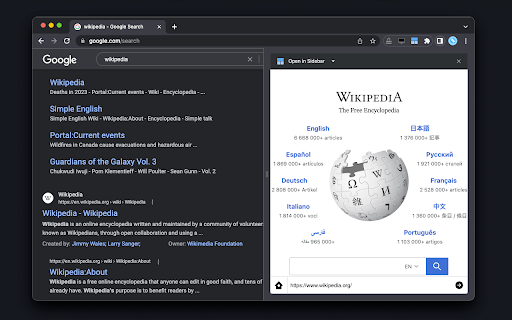

Drop any link to the sidebar for dual-pane access The "Open in Sidebar" extension revolutionizes browsing by allowing you to load any webpage in a convenient sidebar view. Access web content while reading without switching tabs with a click or keyboard shortcut. Drag and drop links or use the built-in address bar for seamless navigation. Enhance productivity by opening online tools like text editors or dictionaries in the sidebar. Reset the view with a single click or load new pages by pasting URLs. Note that some pages with CSP headers may have limitations, but future updates aim to address these. Features: Loads any webpage in a convenient sidebar view Activate the sidebar with a click or assigned keyboard shortcut Drag and drop links or use the built-in address bar for seamless navigation Access web content while reading without switching tabs Enhance productivity by opening online tools like text editors or dictionaries in the sidebar Intuitive interface with an address bar for easy URL tracking Reset the view with a single click Load new pages by pasting URLs into the address bar Search for dropped text with your preferred search engine (e.g. Google, Bing, or DuckDuckGo) Supports split view (two panes)

Sidebar Tabs — Open Any Website (ChatGPT, Todoist, Notion) in Side Panel
Open and pin any website in sidebar — such as ChatGPT, Gemini, Claude, Todoist, Notion and more. Open any website in Chrome's side panel — browse while you work! • Multi-Tab Support — Open up to 5 websites simultaneously in the sidebar • Quick Access Shortcuts — Your frequently visited sites, one click away • Distraction-Free Mode — Hide the address bar for a clean, full-height view • Draggable Toggle — Position the show/hide button anywhere you like • Auto-Save — Your tabs and shortcuts persist across sessions 💡 PERFECT FOR • ChatGPT, Claude, Gemini — AI assistants always at your fingertips • Todoist, Notion, Trello — Manage tasks without leaving your current tab • Slack, Discord, WhatsApp — Stay connected while working • Translate, Dictionary — Quick reference tools • YouTube Music, Spotify — Background music player 1. Click the extension icon to open the side panel 2. Enter any URL or use quick shortcuts 3. Switch between tabs, add new ones with "+" 4. Click "→" to hide the address bar for more space Works with ANY website. Simple, fast, and lightweight.

Sidebar Tab
Give your browser a new window! Give your browser an extra tab! Open and navigate websites directly within a sidebar, enabling seamless dual-panel browsing and productivity boosts. Take your browsing to the next level with Sidebar Tab! Designed for multitaskers, developers, and efficient web users, this extension provides a robust sidebar for browsing websites, navigating content, and managing shortcuts—all while keeping your main browsing experience uninterrupted. Key Features: Open Any Website in the Sidebar: Easily load any HTTP/HTTPS website and navigate directly within the sidebar. Custom Navigation Bar: Includes buttons to go back, forward, or to the home page, plus a toggle to switch between desktop and mobile views. Keyboard Shortcuts for Efficiency: - Refresh Navigation Bar: Shift + Alt + M - Open Sidebar Tabs Outside (Background): Ctrl + Click* - Open Sidebar Tabs Outside (Foreground): Alt + Click* - Copy the current URL to clipboard: Click* - Toggle Address Bar display: Double Click* vertical ellipsis icon * - Click on the URL bar in navigation menu. Quick Search Integration: Select text and search with six pre-configured search engines directly within the sidebar. Search easily from the input field or the context menu. Dynamic Shortcuts: Add custom links to the sidebar for instant access to your favorite or frequently used websites. Flexible Bookmark Access: Open any bookmark directly in the sidebar via the context menu. Address Bar Integration: Open the current tab in the sidebar instantly with a single click. Contextual Tab Opening: Click anywhere on a page and open that link directly in the sidebar via the context menu. Why Choose Sidebar Tab? Whether you’re researching, testing web layouts, or managing multiple tabs, this extension enhances your multitasking potential by enabling a split-view experience. Toggle desktop or mobile views, copy URLs, or customize navigation—all designed to streamline your workflow and productivity. Perfect For: Web developers testing responsive designs. Content creators managing multiple sources simultaneously. Professionals who need quick access to frequently used sites or tools. Anyone who loves an organized, multitasking browsing experience! Access Bookmarks: To enable sidebar bookmark navigation. Access Active Tab: For opening active tabs in the sidebar. Access Browser Context Menu: For enabling the "Search in Sidebar" and "Open in Sidebar" options. Network Requests: For enabling the mobile view of websites. Access to websites: For showing the navigation bar. Get Started Now: Download Sidebar Tab today and unlock the power of multitasking with your browser. DISCLAIMER: The Google logo displayed in the extension's interface is not affiliated with or endorsed by this extension. It is used solely for demonstration purposes to showcase the dual-pane functionality (Sidebar Tab) by featuring the Google Search Engine's homepage. Any brand logo and/or icon with respective name is displayed in screenshot above for demonstration purpose only and has no affiliation to the developer or Sidebar Tab. All copyrights and trademark rights are reserved to their respective owners. Update v1.0.2 Added settings for changing default behaviour of navigation bar inside pages open with sidebar tab. Option to: - Disable Navigation Bar - Change position to show at the bottom of page. - Show minimized version of Navigation bar, which expands on hover. - UI Redesign... - Added option to hide link action (edit/delete) button until hovered over the link... - Added option to show URL along with the link title... - Drag and Drop to reorder shortcut links... - Select multiple links to delete at once... - Drag and drop link on empty area to visit link... - Drag and drop link to ADD + button to add link to shortcut. Dragging link over top half of button will add link to start of shortcut link and end half will add link to end of list... - Drag and drop link on Location hint in navigation bar to visit the dropped link page... NOTE: ⚠️ Chrome is actively evolving its extension APIs. While the extension is working now, occasional compatibility shifts may occur.

Side Browser
A Browser extension for Chrome and Firefox that allows you to open a side panel to browse the web while you work. Side Browser – The Best Sidebar Web Experience Side Browser is a lightweight Chrome extension that lets you open any website directly in a sidebar — perfect for multitasking and staying productive. You can read Reddit, check Gmail, browse Twitter, or watch YouTube — all without switching tabs. ⚡ Fast and responsive design 💾 Auto-saves your last opened page 🧩 Works perfectly with most web apps Stay focused, stay efficient — with Side Browser.

Side Search Panel
Activate this extension to open the side panel. Search for anything, and get result in new tab. With no Hassle, quickly search for the web while you surf. Install our Search Side Panel chrome extension which makes your browsing more comfortable by adding a feature-rich side panel. The panel extension on the side enables you to search anything directly on the web without navigating to another page. Simply input your search, explore results as well as clicking to open them in a different tab. With no hassle, get into research and shopping as never before! Key features of side search panel chrome extension Side Panel Access: At any time, open the side panel for quick searches without disturbing your browsing. Seamless Integration: Provides a browser extension which is easy to find and use. Fast Search: Quickly, search the internet for anything you need without leaving the web page that you are on. One-Click Results: Look at the search results in the side panel and open the desired links in new tabs with just one click. How to use this chrome extension 1: Enable the Add-on Let us go to the Google Web Store. Look for the "Search Side Panel" chrome extension. Click on "Add to Chrome" and confirm it by clicking "Add extension". 2: Open the Side Bar. After the installation is completed, click on the extension icon in the Chrome toolbar. The side panel will be launched on the side of your browser window. In the side panel, you will find the search bar. Press "Enter" or click on the search button to begin the search process. Look through the search results that will be shown on the right panel. Move your cursor over a result to get a short description or a preview. The "Search Side Panel" Chrome extension is a very helpful tool to a diverse group of users such as researchers, students, multitaskers, online shoppers, content creators, professionals, and casual browsers. Through this, a handy side bar for instant web searches that do not interrupt the browsing process is created, which in turn increases productivity and efficiency. Whatever purpose the user has for searching, be it to perform research, compare prices while shopping, get inspiration for content creation, or just explore the topics of interest, this extension automates the process by keeping the search results in the browser window. It's perfect match with the user’s needs and the time-saving features, this "Search Side Panel" extension is designed for individuals who are looking for convenience and efficiency in their online activities. It is useful because opening the 'Search Side Panel' extension for Chrome is incredibly convenient, and then a small search box appears right on the side. As for the web searches, you can just type in the words or phrases you like, and the results will appear right there on the same page without the need to switch tabs or leave the site you are browsing. It is like you have a friendly little search assistant right there with you, which makes it simple to find whatever you need without any inconvenience. Regardless of if you are doing research for school, bargain hunting when shopping online or just wants to learn something new, this extension is beyond easy to use as it completely takes you out of the struggle to look for stuff on the web. 1. How can I see the panel if I have the extension already? The extension icon in the Chrome toolbar gives you instant access to the side panel. 2. May I be able to make some changes in the side panel's appearance or location? Consequently, your choice currently doesn't include customization and changing the look of side panel or its position. 3. Does it work with all the websites and search engines? Indeed, it is not only a service offered by most websites, but it also goes hand in hand with the major search engines. 4. Is it possible to disable or uninstall the extension if it is not of use anymore? Yes, the extension icon will appear when you right-click on it and you will be able to disable or uninstall it from Chrome.
