
efaidnbmnnnibpcajpcglclefindmkaj
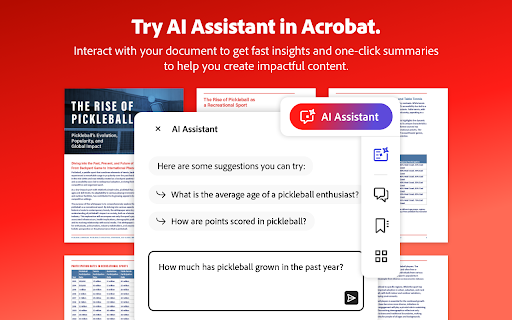


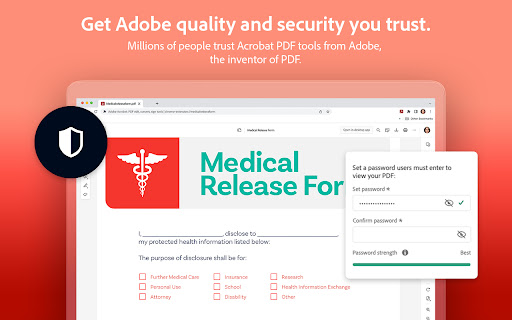
Do more in Google Chrome with Adobe Acrobat PDF tools. View, fill, comment, sign, and try convert and compress tools. Adobe Acrobat is the industry-leading PDF solution, used by millions of people. Use Acrobat PDF tools right in Google Chrome to get the best PDF viewing experience and get more done while browsing. You can add comments to PDFs, including sticky notes, text, and highlights—all for free. If you need more advanced Acrobat features, you can try tools to export to and from PDF, create a PDF, merge PDF documents, organize a PDF, reduce PDF size, and more. Working with PDFs online has never been so easy. HOW TO USE THE ACROBAT CHROME EXTENSION 1. Install the Acrobat extension for Chrome. 2. Pin the extension for quick access. 3. Open any PDF in your browser. 4. Select an Acrobat tool. VIEW, DOWNLOAD, PRINT, and STORE PDFs • Get the best PDF viewing experience with the Acrobat PDF reader. • Download or print with a quick click. • Sign in to store your files online for fast access to PDF files from anywhere. EDIT PDFs WITH COMMENTS FOR FREE • Add PDF notes, text, and comments, including sticky notes and highlights. • Write on PDF documents by adding text or drawings using PDF editor features. FILL AND SIGN FORMS FOR FREE • Open a PDF in Adobe Acrobat Reader to fill and sign forms on your desktop. • Easily complete PDF forms with the Acrobat form filler feature. • E-sign documents with your signature or initials. TRY TOOLS TO BE MORE PRODUCTIVE IN CHROME Try premium tools for even more PDF power. • Use our PDF converter tool to convert PDFs to and from Microsoft Word, Excel, and PowerPoint, as well as JPG and other file formats. • Create a PDF from a document or image, including converting JPG to PDF. • Combine files into a single PDF file or split a PDF. • Organize your PDF. Delete, rotate, or reorder PDF pages. • Compress a PDF to reduce its file size. • Send documents to others to e-sign online fast. • Protect a PDF document by adding a password. You can also sign up for a free trial at https://www.adobe.com/tryacrobat. WHAT’s NEW: • Edit your PDFs in Acrobat Chrome Viewer • Fill and Sign forms for free • Support for opening local PDF files in extension Terms & Conditions: Your use of this application is governed by the Adobe General Terms of Use (http://www.adobe.com/go/terms_en) and the Adobe Privacy Policy (http://www.adobe.com/go/privacy_policy_en) and any successor versions thereto.

Foxit PDF Creator
To convert the web page to Foxit PDF This plugin is used to convert the webpages to PDF. Users can set the layout, add watermarks, headers/footers, and apply security settings for the PDF during conversion. Foxit PDF Editor is required to use this plugin. For more information, go to www.foxit.com.

Open in PDF Viewer
Open in PDF Viewer is a simple and lite addon that allows you to easily open desired PDF links in a chosen PDF viewer. Note 1: after installing the addon, you need to connect it with native applications (i.e. adobe acrobat reader) on your machine. To make this connection, a separate patch is provided in GitHub. Please download and install this patch from: https://github.com/alexmarcoo/open-in-native-client/releases Follow the instructions in the above GitHub page to download and install the related patch to your system. After installing, the "Open in PDF Viewer" addon in your browser can communicate with PDF viewer on your machine (Window, Linux, or Mac). The default option for the PDF viewer is adobe acrobat reader. In windows 10, the default location for Adobe Acrobat is "C:\Program Files (x86)\Adobe\Acrobat Reader DC\Reader\AcroRd32.exe". If you have a different OS, or if you installed Adobe Acrobat in a different folder, please adjust the field accordingly. You can change this from the options page. There is also an input field in which you can add arguments for the viewer. For example, to open PDF as full-screen or without toolbar. Please note that, if you change the PDF viewer make sure to change the input arguments as well. Each PDF viewer has its arguments to operate. If you keep Adobe as the default PDF viewer, please visit this page (http://www.adobe.com/content/dam/Adobe/en/devnet/acrobat/pdfs/pdf_open_parameters.pdf) to get more info about input arguments. To operate with this addon, please right-click on any link (a link to a PDF document) and then click on - Open and Download with PDF Viewer - item from the context menu. The PDF file will first be "downloaded" and then "opened" in a default PDF viewer (the one which is set on the options page). Please note that the PDF file will be downloaded in the "default" download folder on your machine. Note 2: before using the addon, please open the option's page and make sure the path to the PDF viewer is correct based on your Operating System. To report any bug, please fill the bug report form on the addon's homepage (https://mybrowseraddon.com/open-in-pdf.html).

Open in Foxit™ Reader
Send PDF (Portable Document Format) links to the Foxit™ Reader from right-click context menu or browser's action button This extension simplifies the use of Foxit Reader to open PDF links. How to Use: 1. Use the right-click context menu item to direct PDF links to Foxit PDF Reader. 2. Click the action button on PDF pages to transfer the PDF file to Foxit PDF Reader. 3. On the options page, customize the extension settings to open PDF links with Foxit Reader. Notes: 1. Because Foxit Reader cannot directly open remote PDF links, this extension initially downloads the PDF file to your browser's default download directory and then activates the external PDF reader. 2. To establish communication with Foxit Reader, install a small native client specific to this extension. This client is compatible with Windows, Linux, and Mac operating systems. ChromeOS is not supported. 3. Ensure you have Foxit PDF Reader installed on your device. This extension only simplifies Foxit Reader integration with your browser and does not perform the installation. --- Legal Foxit Reader is a registered trademark of Foxit Software Incorporated, registered in the U.S. and other countries. This extension is an independent project and is not affiliated with Foxit Software. It serves as a tool designed to enhance the PDF reading experience.

Save to Google Drive
Save web content or screen capture directly to Google Drive. The Save to Google Drive Chrome extension helps you save web content or browser screenshots to your Google Drive. * Adds a browser action to save the current page. * Adds a right-click context menu to save hyperlinks and media. * Configurable through an options page. * Save a PDF of the current page via the Chrome Print menu This extension allows you to save web content directly to Google Drive through a browser action or context menu. You can save documents, images, and HTML5 audio and video all by right clicking and selecting 'Save to Google Drive'. You can save the currently viewed page using the 'Save to Google Drive' browser action or as a PDF from the Chrome Print menu.. The directory location and format of saved HTML pages can be controlled with the extension's options page (Choice of Entire image (default), Visible image, Raw HTML, MHTML, or Google Doc). You can automatically convert Microsoft Office files or comma separated files to Google Docs format. After your content is saved, the progress dialog allows you to open the file, rename, or view the file in the Google Drive document list. From the document list, you can organize and share your new document. To save a file:// URLs, or to enable in incognito mode, go to chrome://extensions/ and enable the associated checkbox. Due to security restrictions, this extension cannot capture chrome:// pages or Chrome Web Store pages. New in Version 2.3.2: * Fixes a bug where certain PDF files would save without an extension name. New in Version 2.3.1: * Bug fixes. * Allows for the printing of the current page from Google Chrome to Google Drive, as a PDF. Note: Currently Google Chrome provides this feature natively, but this native feature will soon be replaced fully by this Chrome Extension's similar feature. New in Version 2.1: Authorization now requires you to be signed into Chrome. In order to save to a different Google Drive account, you must change Chrome profiles. New in Version 2.0.1: Bug fix for Authentication page redirecting to about:blank after clicking Accept. New in Version 2: * Uses OAuth2 authentication flow, so you will need to re-authenticate on first use * Ability to choose destination folder (configured in Options page) * Support for high devicePixelRatio (Chrome Pixel & Retina displays) * Clicking saved folder name displays the newly uploaded file in the destination directory * Options are stored in shared storage, so are synchronized across browsers if Chrome Sync is enabled. By installing this item, you agree to the Google Terms of Service and Privacy Policy at https://www.google.com/intl/en/policies/.
