
djakijfdccnmmnknpmphdkkjbjfenkne
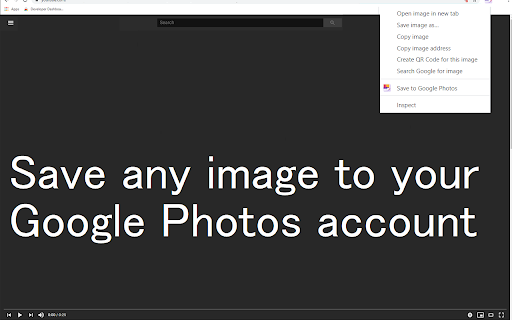
Save Images to Google Photos with right click Upload images to Google Photos Save any picture you find on the internet right into your Google Photos! Create new albums and upload with one click! Pick which albums shows up on your right-click menu. This very popular feature is back and better then ever! With unlimited and free storage, you'll never have to worry about storage again! Save to any album on your account and have your precious photos everywhere you go! Duplicate pictures are automatically handled for you! This extension is not affiliated with Google Photos or Google Photos Team. Please visit https://photos.google.com for Google Photos. Google Photos and the related logo are trademarks of Google LLC. Use of these trademarks are subject to Google Permissions.

Photos Direct Link
Allow you to copy a direct link, with extension, from Google Photos. *Extension changed the name/icon to accomplish Google trademark rules. Allows you to copy a direct link, with extension (.jpg) from Google Photos (https://photos.google.com). Google Photos doesn't allow you to get an image direct link (with image extension [like png or jpg]). This Chrome extension is very helpful to post images in forums or blogs, where the file extension is mandatory. Is possible to configure the desired image size too. Usage instructions: Open an image and just click (left click) over the image. A message is shown at the page bottom. This extension is open source and can be found in https://github.com/ddo02/GooglePhotosDirectLink

Photo Editor in Google Chrome™
Edit Photos and Images files in Chrome. Begin editing your photos and make them look better when you download and install this software. 1) Add rounded corners to your photos 2) Change the brightness of your photos 3) Change the contrast 4) Add Filters to the photo 5) Blur the photo if you want a more historical feel/look 6) Add a black vignette if you want to draw attention to the center of the photo Disclaimer: Please note this extension is NOT made by Google and is made by an independent development team. All copyrights belong to their respective owners. Google doesn’t endorse or sponsor this Chrome extension. Photo Editor in Google Chrome™ is not owned by, is not licensed by and is not a subsidiary of Google Inc.

Cloud Duplicate Finder
Easily find duplicate photos, songs and all files from the cloud storage Cloud Duplicate Finder (CDF) scans cloud drives completely online. Users of cloud storage companies such as Google Drive, Dropbox, OneDrive and Box can integrate their cloud-drives to the CDF. CDF removes duplicate files including photos, songs, videos and documents. Users don't need to download files to the computer or smartphone, entire scan and duplicate file deletion is done online. NOTE: You need to have a CDF account to scan your cloud drive. Sign up today to try CDF for free (Only scanning is free: you will be able to add a cloud drive, scan for duplicates, and review / preview results, but you will not be able to delete duplicate files until you become a premium subscriber). Cloud Duplicate Finder (CDF) Chrome Extension will do these three things for the users who have signed up on the CloudDuplicateFinder.com website: It will display the used-space of the cloud drives added to the CDF application It will display details of the last scans done by the CDF application Will take you to CDF main application area and Drive addition pages. Here is how the CDF application finds duplicate photos, songs and all files from the cloud storage: The process of creating an account and removing duplicates is fast and secure (256-bit AES encryption applied, official APIs of Google Drive, Dropbox, OneDrive and Box used). Be assured, CDF will not store your files -- it even doesn't know the content of the files -- and passwords. Your privacy is never compromised. You can create a Cloud Duplicate Finder's account without a credit card. While you add the CDF extension to your Chrome, you are requested to read the Terms and Services web-page’s content (The link of this page is given at the end, please check) Add your cloud drive by logging through the official-login screens from Google Drive, Dropbox, OneDrive and Box Choose the target folder and start a scan for duplicate files. Enjoy a hot cup of coffee or check your social media while we do the labor. Select the criteria for retaining files (CDF will automatically select duplicates for action) Uninstalling the extension: Locate the Horizontal Lines on the top-right of the Google Chrome and click to view settings and other options. Then click on More tools > click on Extensions > find the extension and click Remove. Terminating account from the website: When you are logged-in to the web-application, click on the My Account link on the top area. Find details of your account > Click on Terminate Account if you wish to delete your account. Dropbox, OneDrive, Google Drive and Box logos are trademarks of the Dropbox, Microsoft, Google and Box Incorporations respectively.

Shortcuts for Chrome
Navigation menu of Chrome URLs: internal pages of the Google Chrome browser. Chrome browser navigation is optimized for non-technical users. For users who want to inspect what is happening with indexedDB, service workers, or Bluetooth devices etc., this menu brings shortcuts to those hard-to-find, internal browser pages. This menu lists all Chrome URLs in a single, flat list, configurable menu. This application is free and open-source software, built by Chrome users for Chrome users. ✔️ Pin your favorites on top for fast access ✔️ Drag and drop pinned links to change their order ✔️ Discover hidden browser features you never knew existed ✔️ Automatically matches dark/light mode based on browser setting
