
nancamaalaciknodndipfgknfmlhlnkp


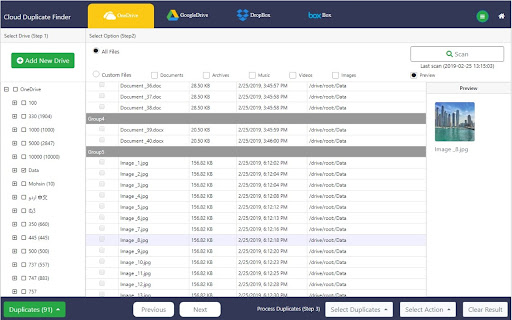
Easily find duplicate photos, songs and all files from the cloud storage Cloud Duplicate Finder (CDF) scans cloud drives completely online. Users of cloud storage companies such as Google Drive, Dropbox, OneDrive and Box can integrate their cloud-drives to the CDF. CDF removes duplicate files including photos, songs, videos and documents. Users don't need to download files to the computer or smartphone, entire scan and duplicate file deletion is done online. NOTE: You need to have a CDF account to scan your cloud drive. Sign up today to try CDF for free (Only scanning is free: you will be able to add a cloud drive, scan for duplicates, and review / preview results, but you will not be able to delete duplicate files until you become a premium subscriber). Cloud Duplicate Finder (CDF) Chrome Extension will do these three things for the users who have signed up on the CloudDuplicateFinder.com website: It will display the used-space of the cloud drives added to the CDF application It will display details of the last scans done by the CDF application Will take you to CDF main application area and Drive addition pages. Here is how the CDF application finds duplicate photos, songs and all files from the cloud storage: The process of creating an account and removing duplicates is fast and secure (256-bit AES encryption applied, official APIs of Google Drive, Dropbox, OneDrive and Box used). Be assured, CDF will not store your files -- it even doesn't know the content of the files -- and passwords. Your privacy is never compromised. You can create a Cloud Duplicate Finder's account without a credit card. While you add the CDF extension to your Chrome, you are requested to read the Terms and Services web-page’s content (The link of this page is given at the end, please check) Add your cloud drive by logging through the official-login screens from Google Drive, Dropbox, OneDrive and Box Choose the target folder and start a scan for duplicate files. Enjoy a hot cup of coffee or check your social media while we do the labor. Select the criteria for retaining files (CDF will automatically select duplicates for action) Uninstalling the extension: Locate the Horizontal Lines on the top-right of the Google Chrome and click to view settings and other options. Then click on More tools > click on Extensions > find the extension and click Remove. Terminating account from the website: When you are logged-in to the web-application, click on the My Account link on the top area. Find details of your account > Click on Terminate Account if you wish to delete your account. Dropbox, OneDrive, Google Drive and Box logos are trademarks of the Dropbox, Microsoft, Google and Box Incorporations respectively.

Checker Plus for Google Drive™
Quickly browse your Google Drive files without opening a webpage and get notifications of modifications to your shared documents • Browse, open, search or delete your files and documents right from a browser button (without waiting for Google Drive's page to open) • Get desktop notifications when any of your files/documents are modified or updated by a shared user Click "Website" or visit jasonsavard.com for more info.

Bookmark Dupes
This project is under the GNU Public License 2.0. After installing bookmarkdupes, the usage is rather simple: To open bookmarkdupes, click the extension symbol (duplicate stars) or use the link in the options page of the extension. **Do not enable “Expert Mode”** (unless you fully understand the consequences, see separate section). Then select what you want to display: After this, you will be offered the list of bookmarks with checkboxes; in case 1 the numbers indicate the order in which matching bookmarks were added according to the internally stored date. There are also buttons to select/unselect convenient sets of checkboxes. Finally, there are buttons to remove the selected bookmarks. **Be aware that removing bookmarks is irreversible!** *It is recommended to make backups of your bookmarks first!* Currently, there is no working version of the extension available for android (see section **Known Bugs**). When you reorganized/added/removed bookmarks, make sure to update the displayed list (by pressing the corresponding button) before removing bookmarks! The extension requires the following permissions for these reasons: 1. “bookmarks” to read/modify bookmarks 2. “storage” to store/restore the customized rules in expert mode. Unfortunately, “storage” is not one of the optional permissions which might be required only if that feature is actually requested by the user. When selecting the checkbox for expert mode, details can be configured to ignore certain bookmarks when calculating the list or under which cases bookmarks are considered to be dupes of each other. In non-expert mode, two bookmarks are considered to be duplicates of each other if their URL coincides. In expert mode there are custom rules by which the URL which is actually used for comparison is to be modified. The details are as follows. For every bookmark the rules are applied in the given order. There are 2 types of rules: Filter rules and URL modification rules (there are also disabled rules which are only listed but have no effect). For both types of rules 4 regular expressions can be specified which are used to determine if the rule applies: If the corresponding regular expression is nonempty, the corresponding condition must be satisfied or the rule will not apply. (In the case of filter rules, at least one of these 4 regular expressions must be nonempty or that filter rules will not apply either.) The 4 regular expressions refer to the bookmark's name or url, respectively, and the regular expressions must either match or not match, respectively. - The term “regular expression” refers to a javascript type regular expression. - The bookmark's name refers to the full bookmark path as it appears in the browser with folder names separated by the null character. For instance, if you have in “Bookmark Menu” a folder “Collection” which contains your bookmark "Example", the bookmark's name becomes `Bookmark Menu\0Collection\0Example` (where `\0` denotes the null character which can be matched by the regular expression with `\0` or `\x00`). - The bookmark's URL refers to the bookmark URL after possible modifications by previous modifier rules. If a filter rule applies, the corresponding bookmark is ignored, i.e., it will not be considered as a duplicate and will neither appear in the list of empty folders nor of all bookmarks. If a URL modification rule applies, a text replacement will occur: All parts matching a specified regular expression are substituted by a replacement text (which might be empty). The rules for this correspond to the javascript String.prototype.replace function with the global modifier. In particular, the replacement text can contain symbols like `$&` or `$1` to refer to the whole matched text or to the match of the first brace in the regular expression, respectively. The following 5 replacement texts have a special meaning which goes beyond the standard javascript replacement rules. Note that this special meaning is only active if this is the full replacement text. In other words, to get the special meaning, the replacement text must not contain anything else than these 4-6 characters. (This does not really restrict the functionality, because one can combine several rules to work around that limitation if necessary.) 1. `\L$&` is the match in lower case. 2. `\U$&` is the match in upper case. 3. `$URL` is the url before any other rules have been applied. 4. `$NAME` is the bookmark's full name/path with folders separated by the null character, e.g. “Bookmark Menu\0Collection\0Example” 5. `$TITLE` is the bookmark's title without the path; for instance, for the bookmark name “Bookmark Menu | Collection | Example” it is “Example”. ## Examples for special tasks which can be done in Expert Mode 1. Consider two bookmarks as duplicate if their URL differs only in `https:` vs. `http:` at the beginnning. 2. Consider two bookmarks as duplicate if their URL matches up to the first `?` symbol, i.e. only their additional information differs. 4. Add all bookmarks to the list of duplicates, whether duplicate or not. 5. Add all bookmarks from the folder `Bookmark Menu | Remove` to the list of duplicates (no matter whether they actually are duplicates). 6. Consider two bookmarks as duplicate if they have the same name (instead of the same URL). 7. Consider two bookmarks as duplicate if they reside in the same folder. ### How to do the above tasks in Expert Mode 1. Use the replacement rule: “Replace URL matches” `^http:` “by” `^https:` Explanation: By replacing everywhere the URL beginnning with `http:` by `https:`, it does not matter whether the actual URL started with `http:` or `https:`. Of course, we could have exchanged the roles of `http` and `https` in our rule. 2. Use the replacement rule: “Replace URL matches” `\?.*` “by” ` ` (empty string) Explanation: Simply omit the ? symbol and all other symbols following it in all URLs. 3. Use the filter rule: “Name matches” `\0Mr\. Dupe\0` or `\0Mr[.] Dupe\0` Explanation: If a bookmark is in a folder named “Mr. Dupe”, its full name (path) will contain the text “\0Mr. Dupe\0”; so match that text. Since the “.” symbol has a special meaning for regular expressions, we have to quote it. This can be done by either `\.` or by looking for a character class `[…]` which contains only the single symbol `.`. 4. Use the replacement rule: “Replace URL matches” `.+` “by” `constant` Explanation: Pretend that every bookmark has the URL `constant` by replacing all characters (`.+`) of the original URL by that text. 5. Use the replacement rule: “Name Matches” `^Bookmark Menu\0Remove\0` “Replace URL matches” `.+` “by” `constant` As in 4, but only for bookmarks whose full name starts with the matching path. This works only if the folder contains at least 2 bookmarks (because otherwise `constant` is not a duplicate URL). Of course, one might use an actually duplicate URL instead of `constant` to work around this limitation. 6. Use the replacement rule: “Replace URL matches” `.+` “by” `$TITLE` Explanation: Replace all bookmark URLs by the corresponding bookmark title when looking for dupes. 7. Use the replacement rule “Replace URL matches” `.+` “by” `$NAME` followed by a further replacement rule “Replace URL matches” `[^\0]*$` “by” ` ` (empty string) Explanation: First replace the URL by its full name path, and then omit the last component of this path by cutting of the longest sequence of non-`\0`-symbols at the end. - Essam Ambr aka (JaMaYcKa) (Arabic translation) - Henaro aka Ironwool (Russian and Ukrainian translation; redesign icon in svg; provide favicon) - Sopor (Swedish translation) - Juan Salvador Aleixandre Talens (Spanish translation) - YFdyh000 (Simplified Chinese translation)

Ultra Button
A button for everything. You can now access most of chrome features in one Ultra Button. Functions Including: Bookmarks, Extensions, Downloads, History and Tabs. Mouse Middle Button Behaviors Bookmarks: Open bookmark in background Extensions: Remove extension Downloads: Remove download record History: Open history in background Tabs: Close tab or window ~~~~~~~~~~~~~~~~~~~~~~~~~~~~~~~~~ The icons in this extension were downloaded from Noun Project. https://thenounproject.com/ v 0.9.0 add download notification You can enable it in the options v 0.4.1 add session control You can now restore closed tab or windows

Google Photos Delete Tool
The fastest way to bulk delete your Google Photos — up to 25x faster than manual deletion. Google Photos Delete Tool is a powerful Chrome extension designed to help you efficiently manage and clean up your Google Photos library. It automates the process of selecting and deleting multiple photos, saving you time and effort when you need to remove a large number of images from your account. 1. **Bulk Selection**: Automatically selects multiple photos at once, streamlining the deletion process. 2. **Customizable Deletion Limit**: Set a maximum number of photos to delete in one session (default is 10,000). 3. **Automatic Scrolling**: Navigates through your photo library automatically, ensuring all photos are considered for deletion. 4. **Progress Tracking**: Provides real-time updates on the number of photos selected and deleted. 5. **Error Handling**: Robust error management to ensure smooth operation even if issues occur. 6. **User-Initiated**: The deletion process only starts when you click the extension icon, giving you full control. 1. **Smart Selection**: The tool uses advanced selectors to identify and select photos in your Google Photos interface. 2. **Batch Processing**: Photos are selected and deleted in batches for improved efficiency. 3. **Confirmation Handling**: Automatically confirms deletion actions, saving you from repetitive clicking. 4. **Scrolling Logic**: Implements intelligent scrolling to load more photos as needed. - Clearing out old or unwanted photos in bulk - Managing storage space in your Google Photos account - Streamlining your photo collection after a large import - Quickly removing duplicate or similar images 1. Install the Google Photos Delete Tool extension from the Chrome Web Store. 2. Navigate to [Google Photos](https://photos.google.com). 3. Click on the extension icon in your Chrome toolbar. 4. The tool will automatically start selecting and deleting photos based on the default settings. 5. Monitor the progress through console logs (accessible via Chrome DevTools). 6. The process will continue until it reaches the set limit or runs out of photos to delete. You can customize the tool's behavior by modifying the `CONFIG` object in the extension's code: - `maxCount`: Set the maximum number of photos to delete in one session. - `timeout`: Adjust the maximum wait time for operations. - `scrollDelay`: Fine-tune the delay between scrolling actions. ## Important Notes and Warnings 1. **Use with Caution**: This tool performs bulk deletions. Make sure you want to delete the selected photos before starting the process. 2. **Permanent Deletion**: Deleted photos will be moved to the Google Photos Trash. They will be permanently deleted after 60 days unless manually restored. 3. **Account-Wide Action**: The tool operates on your entire Google Photos library. It doesn't target specific albums or date ranges. 4. **Performance Impact**: Running this tool may temporarily slow down your browser due to the intensive nature of bulk operations. 5. **Network Dependency**: A stable internet connection is required for optimal performance. 6. **UI Changes**: If Google updates the Photos interface, the tool may require updates to maintain compatibility. ## Privacy and Data Security - This extension operates entirely within your browser and Google Photos interface. - It does not collect, store, or transmit any of your personal data or photos. - No external servers are accessed during the deletion process. - Works with the latest version of Google Chrome. - Designed for the English version of Google Photos. - May work with other Chromium-based browsers, but this is not officially supported. - Cannot target specific date ranges or albums for deletion. - Does not provide options for selective deletion based on criteria like file size or image content. - The tool's efficiency may vary based on your internet speed and computer performance. If you encounter issues: 1. Refresh the Google Photos page and try again. 2. Ensure you're using the latest version of Chrome and the extension. 3. Check that you're on the English version of Google Photos. 4. Clear your browser cache and cookies related to Google Photos. 5. If problems persist, uninstall and reinstall the extension. ## Support and Feedback We value your input and are committed to improving the Google Photos Delete Tool. If you encounter any issues, have suggestions for improvements, or want to share your experience: - Visit our GitHub repository: [https://github.com/shtse8/google-photos-delete-tool](https://github.com/shtse8/google-photos-delete-tool) - Submit issues or feature requests through GitHub's issue tracker - Contact the developer through GitHub We are constantly working to improve the Google Photos Delete Tool. Some features we're considering for future updates: 1. User interface for easy configuration of deletion parameters 2. Option to target specific date ranges or albums 3. Preview of photos selected for deletion 4. Undo functionality for accidental deletions 5. Integration with Google Photos' archive feature Your feedback will help shape the future of this tool! ## About the Developer This tool was developed by Kyle Tse, with a passion for creating utilities that simplify digital life and enhance productivity. Kyle believes in the power of open-source software and community-driven development. You can find more of Kyle's projects on his GitHub profile: [https://github.com/shtse8](https://github.com/shtse8) Google Photos Delete Tool is not affiliated with, endorsed by, or in any way officially connected with Google or any of its subsidiaries or affiliates. The official Google Photos website can be found at https://photos.google.com. This project is licensed under the MIT License. See the LICENSE file in our GitHub repository for more details. By using the Google Photos Delete Tool, you acknowledge that you have read and understood this description, including the warnings and limitations. Always ensure you have backups of important photos before performing bulk deletions. Happy organizing!
