
dcllegmdokiceklcgfgeabebieaedhmh
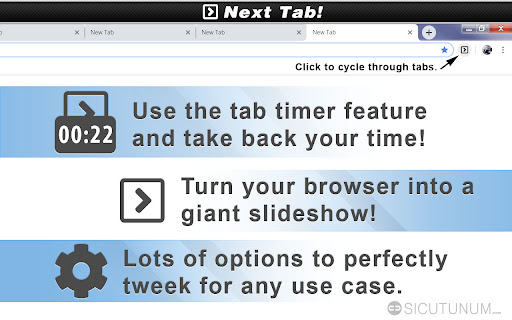

Press a button to go to the next tab. Add a simple button to cycle through open browser tabs without the use of hotkeys. Next Tab also has an awesome productivity feature called "tab timer" that can help you manage time spent browsing websites. You can use it to forcefully move on to the next open tab and even close tabs after the timer runs out. These and more features can be activated in the options menu by right clicking the extension button and selecting the "Options" menu after installing. • Use the tab timer to control how much time you spend on websites. • Display a countdown timer right in your browser at the press of a button. • Lots of customization, disable icon animation, hide timer and more. • Convert your web browser into a customizable slide show.

Previous Tab
Switch back to the previously active tab using the keyboard. Switch to the previously active tab (last tab) by pressing Ctrl+Q, or clicking the Previous Tab icon. You can change the keyboard shortcut by visiting chrome://extensions/shortcuts . The supported keys are Alt, Ctrl, Cmd along with: A-Z, 0-9, Comma, Period, Home, End, PageUp, PageDown, Space, Insert, Delete, Arrow keys (Up, Down, Left, Right) and the Media Keys (MediaNextTrack, MediaPlayPause, MediaPrevTrack, MediaStop).

Switch tabs shortcuts
Adds custom shortcuts for switching tabs. This extension adds custom shortcuts for switching tabs. After installing, you will be able to customize your shortcuts through chrome://extensions/shortcuts The default key bindings are as follows: Jump to the previous open tab mac: "Command+Shift+Left" other platforms: "Ctrl+Shift+Left" Jump to the next open tab mac: "Command+Shift+Right" other platforms: "Ctrl+Shift+Right" Jump to the last open tab mac: "Command+Shift+Up" other platforms: "Ctrl+Shift+Up" Jump to the first open tab mac: "Command+Shift+Down" other platforms: "Ctrl+Shift+Down"

Folderwise Bookmarks: Search & Sessions
Search for Bookmarks by Folder Name, and save Sessions in Bookmark Folders With its searchable folder-centric approach, Folderwise Bookmarks rewards you for your well-maintained hierarchy of Bookmarks! Search for Folders by Name, by Path, or by the Bookmarks they contain; expand a folder panel to see its Bookmarks. Click a Bookmark to open it, or use the buttons in the folder panel to open all Bookmarks. Hold Shift to open in a new window. If you have too many tabs open and want to de-clutter, or if you want to save your work and pick up on a different computer, click the Save button at the foot of the popup. Folderwise Bookmarks saves sessions as Bookmarks, so they will be available on all your devices and can be reopened from the popup. ⚠ To use the Sessions feature, you will be required to grant a new permission to the extension: "Read your browsing history". This permission will be used only to access the addresses and titles of your open tabs, specifically to create Bookmarks for the saved Session. Leaving in a hurry? Right-click the toolbar icon to save and close the current window. "Places folder favorites Icon" by Oxygen Team is available from http://www.iconarchive.com/show/oxygen-icons-by-oxygen-icons.org/Places-folder-favorites-icon.html and used under the GNU Lesser General Public License Icons used in promotional images are in the public domain and available from http://paomedia.github.io/small-n-flat/

close_tab(s)
Easily close tabs with in-page elements. More easy and fast way to close tabs. Allows you to easily close tabs with in-page elements. Features: ---------------- • You can close the active tab by clicking to the selected in-page edge element. • In-page element only appears when you move the mouse cursor to the selected edge. • You can change the features of the in-page element, like hover color, thickness, click event type and position. • Use toolbar icon or context menu to close tabs. Limitations: -------------------- Since Chrome is not allowing, we can't add in-page element into the following pages: chrome:// - chrome-extension:// - chrome-devtools:// - view-source: - data: - chrome.google.com/webstore/ - New tab page. But, toolbar icon and context menu options will continue to work on all pages without any limitation. Note on permissions: ----------------------------------- • with v4.0, new "scripting" permission request added. In previous versions, i was using "chrome.tabs.executeScript()" to reflect settings changes into pages, but with Manifest V3, it is moved to "chrome.scripting.executeScript()", which requires "scripting" permission. • "Read and change all your data on the websites you visit" - That is necessary to insert In-Page element into pages. I do not read your data from any website, nor do i modify it. New features: • Pinned tabs will not be closed (by default). • Store data in memory for faster access. Updates: • Upgraded to Chrome Manifest V3. • Closing multiple tabs is now faster. • The name of the extension has been changed to 'close_tab(s)'. • Some UI changes. Fixes: • Fixed an issue with slow-loading sites. v3.0.x New features: • New add-on features for bottom and right positions. • Tooltips now customizable. • In-page element opacity feature. • Right-click on the selected edge, shows selected options. • Context menu options added. • Auto maxizing new windows feature added. • Toolbar icon popup page added. • Spanish and Portuguese language support added. Updates: • Settings page redesigned. • In-page element positions restructured. • New toolbar icon images available. v2.0.x New features: • New in-page closer positions added. • You can change thickness of the in-page element. • Toolbar icon is added. Clicking to the toolbar icon will close the active tab. • You can change the toolbar icon image. • Multi language support is added, so please help to translate. • Preferences synced with Chrome (if signed in). Updates: • Renamed to 'Close This Tab'. • New Options/Settings page. • Injecting the element into dynamically loaded pages.
