
lcabfbidcbbfdfmonhonidjgcgdnfhle
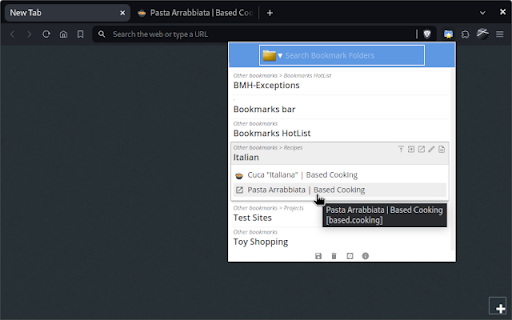


Search for Bookmarks by Folder Name, and save Sessions in Bookmark Folders With its searchable folder-centric approach, Folderwise Bookmarks rewards you for your well-maintained hierarchy of Bookmarks! Search for Folders by Name, by Path, or by the Bookmarks they contain; expand a folder panel to see its Bookmarks. Click a Bookmark to open it, or use the buttons in the folder panel to open all Bookmarks. Hold Shift to open in a new window. If you have too many tabs open and want to de-clutter, or if you want to save your work and pick up on a different computer, click the Save button at the foot of the popup. Folderwise Bookmarks saves sessions as Bookmarks, so they will be available on all your devices and can be reopened from the popup. ⚠ To use the Sessions feature, you will be required to grant a new permission to the extension: "Read your browsing history". This permission will be used only to access the addresses and titles of your open tabs, specifically to create Bookmarks for the saved Session. Leaving in a hurry? Right-click the toolbar icon to save and close the current window. "Places folder favorites Icon" by Oxygen Team is available from http://www.iconarchive.com/show/oxygen-icons-by-oxygen-icons.org/Places-folder-favorites-icon.html and used under the GNU Lesser General Public License Icons used in promotional images are in the public domain and available from http://paomedia.github.io/small-n-flat/

Bookmarks HotList
A Speed Dial in your toolbar, with easy set-up and keyboard shortcuts Set up your HotList in the Bookmark Manager, access it from the toolbar in a choice of layouts and colours. For keyboard access, the default shortcut to open the extension is Alt+B (or Command+B). To change the shortcut, paste this into the address bar: chrome://extensions/shortcuts When the extension is open, shortcut keys (1-9 and A-Z) are available for each bookmark. Hold down the Space Bar to reveal hints. Open multiple tabs: 1 click will open a bookmark in a background tab, but the Popup stays open. A 2nd click on that bookmark will close the Popup and activate the tab, or you can open other bookmarks instead. The only automated modification to your bookmarks will be the creation of a new folder to contain those displayed by this extension, and a bookmark to get you started. The Star icon is “Actions bookmark new list Icon” by Oxygen Team, available from Icon Archive under the GNU Lesser General Public License: http://www.iconarchive.com/show/oxygen-icons-by-oxygen-icons.org/Actions-bookmark-new-list-icon.html Icons used in promotional images are in the public domain and available from http://paomedia.github.io/small-n-flat/

Bookmarks Commander
A dual-pane Norton Commander liked bookmarks manager that supports sorting, dark theme, search, and duplicate detection This is a two-panel bookmarks manager for your browser. It works similar to the famous Total Commander. You can move items between the panels or view two different directories simultaneously. Instruction: Click on the toolbar button once to open the commander in a new browser tab. By default the left panel has focus. Use arrow up and arrow down keys to navigate. Use Enter to move to a directory. To move the other panel simply press The left or right arrow key. Shortcuts: [open links]: Press Enter key to open on the same tab. Press Ctrl + Enter or Command + Enter to open in a background tab or use double-click to open on the same tab. Press Ctrl/Command while double-clicking to open in a background tab. [select multiple bookmarks]: Ctrl/Command with left-click to select more items. [copy links to the clipboard]: Ctrl + C or Command + C to copy selected links to the clipboard. [copy titles to the clipboard]: Ctrl + X or Command + X to copy selected titles to the clipboard. [directly navigate to a bookmark]: Press the first character of the title multiple times to navigate between items starting with this particular character [move one step up]: Use backspace to navigate to the parent directory [move between left and right panels]: use Tab key to toggle between panels. Use Ctrl + 1 or Command + 1 to move to the left tab. Use Ctrl + 2 or Command + 2 to move to the right tab. You can alternatively use arrow-left and right to move between panels. [move selected bookmarks and folders to the other panel]: Use Ctrl/Command + right arrow key to move selected items to the right panel when the left panel is focused. Use Ctrl/Command + left arrow key to move selected items to the left panel when the right panel is focused. [sort items]: Ctrl/Command + J for A-Z and Ctrl/Command + Shift + J for Z-A [find duplicated bookmarks]: Ctrl/Command + Shift + F; use the "duplicates" keyword on the search bar to find all duplicated bookmarks in the current directory and subdirectories. [move bookmarks between different browsers]: Ctrl/Command + Y to export selected bookmarks to the clipboard, then use Ctrl/Command + P to import them to the new machine. This way you can transfer bookmarks between two browsers. [configurations]: Use Ctrl/Command + S to access configuration panel. You can change the font size and font family of the interface or change the color scheme (theme) of the interface (dark, light, or based on your OS color scheme) or toolbar icon's color. It is also possible to use the new "VIM" mode to support VIM-compatible navigation (still in progress). Notes: 1. When an operation is not allowed, the button is disabled. 2. You can see all the shortcuts by placing your mouse over the buttons. 3. You can drag and drop bookmarks between panes 4. You can use right-click context menu to open links in new windows

Super Bookmark Desktop
Super Bookmark Desktop - the new tab page + bookmark manager that acts like your computer desktop!… Super Bookmark Desktop - the new tab page + bookmark manager that acts like your computer desktop! If you've ever wanted to treat your bookmarks like files on your desktop then give this a try! Some features: * Cool desktop backgrounds and ability to add your own. Add a subreddit source and get new backgrounds every day! * Click and Drag icons to move them around the desktop or into folders. * Create a selection of multiple items by clicking and dragging with the mouse (then try moving all of them). * Hold down Ctrl, Shift, or Command and then click an icon to multi-select icons. * Right Click the desktop create bookmarks or to change backgrounds and set background settings. * Right Click icons to edit or delete them (editing and deleting affects the actual bookmark). * Create text files that sync like a normal bookmark. Good for making quick reminders!

Search Bookmarks, History and Tabs
Browser extension to (fuzzy) search and navigate bookmarks, history and open tabs. This extension does not collect any data, nor does it make any external requests. You can also **tag your bookmarks** including auto completions. Tags are considered when searching and can be used for navigation. It also supports searching for and navigating to your open tabs and history. Lastly, the extension allows you to configure "search engines", which will forward you to arbitrary search engines with the search term as the search query (helpful as a fallback) or directly access an entered URL. The extension is very customizable and has a dark / light theme that is selected based on your system settings. You can find more information here: https://github.com/Fannon/search-bookmarks-history-and-tabs#readme
