
dcfnidhjmhjocklccgbdepcdiojdhngb
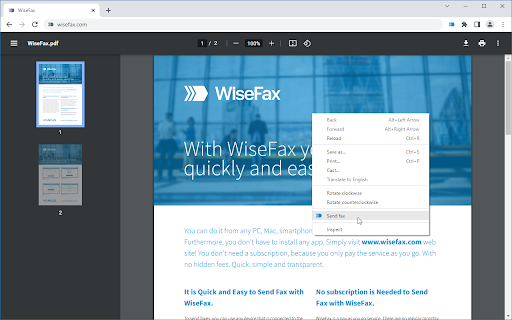

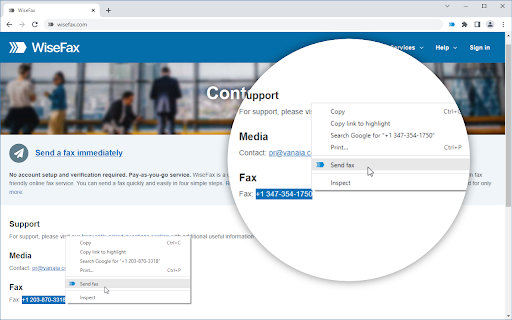


WiseFax enables you to send fax from Chrome to any fax number in the world. Wisefax – send fax quickly and easily Sending fax with WiseFax was never so quick and easy. You only need internet connection on your device. Send fax in four simple steps from Chrome. Pay as you go, with no monthly or yearly subscription and send fax anywhere in the world. With WiseFax extension, you can easily fax an opened online PDF document from Chrome, or an image that is part of a website, by right-clicking anywhere on its content and selecting "Send fax" menu option. Similarly, you can select fax number that is part of a website text and send fax to that number by selecting "Send fax" menu. WiseFax supports numerous document and file formats such as PDF documents, Microsoft Office, OpenOffice and LibreOffice documents and spreadsheets, Hancom Hangul documents, ScanWritr documents, and JPEG, GIF, PNG, BMP, HEIC images. You can also import a picture and send it directly to fax. When doing so, WiseFax efficiently detects edges of your document using advanced edge detection algorithm and makes picture clearer with picture enhancement algorithm. This makes scanning easier and fax more readable. You can easily select which pages you want to fax. Displayed preview of the pages will look the same as they will come out on fax at recipient side. Type fax number and wait for response. If it was successful or no you will get an email notification. Sending fax with WiseFax is as simple as that. Try it, you’ll like it. Four easy steps of how to send fax with WiseFax are: 1.) Upload your existing document or picture. 2.) Click and select / deselect pages you want to send to fax and check them on screen as you already see them as they will come out on fax. 3.) Select among 240 countries where you want to send your fax and type fax number. 4.) Authenticate with your existing account on Facebook, Google, Windows Live and Vanaia or create a new one. Buy fax token, if you already didn’t do so, and send fax. Wait for fax status confirmation which you ‘ll receive to provided e-mail.

Browserfax – Send Fax Online with Google Chrome™
Send fax online with Google Chrome™. Send a free fax from your computer to any fax machine. Send secure fax to IRS fax numbers. With Browserfax, you can send a fax online directly from your browser - no fax machine, phone line, or third-party website needed. Whether you need to send an important document, file IRS forms, or fax business paperwork, Browserfax makes it quick and effortless. If you’re wondering how to send a fax from your computer or looking for a reliable way to send fax online for free, Browserfax is the perfect solution. Sign in with Google and get 20 free pages—no subscription or credit card required. 📌 How to Send a Fax Online with Browserfax 🔹 Sign in with Google – Start by signing in with your Google account and receive 20 free fax pages. 🔹 Enter the fax number – Just type in the recipient’s fax number. 🔹 Upload your document – Choose a file from your computer (PDF recommended for best quality). 🔹 Click “Send Fax” – Your document is securely transmitted. 🔹 Track fax status – Get real-time updates: Queued, In Progress, Completed, or Failed. 📌 Why Choose Browserfax to Send Fax Online? 🔹 No External Website Needed – Send a fax directly from your browser. 🔹 Clean Design – just a simple interface. 🔹 End-to-End Encryption – Your documents are secure and HIPAA-compliant. 🔹 Reliable Faxing – Get real-time status tracking so you always know when your fax was sent successfully. 🔹 Supports Multiple File Formats – Upload PDFs, JPGs, PNGs, or TIFFs easily. 🔹 Send Faxes to 40+ Countries – Fax online free to the U.S., Canada, Europe, or Asia. 📌 How to Send IRS Forms – Fast & Secure Many government agencies, like the IRS, still require fax or mail submissions. With Browserfax, you can easily send IRS tax forms like Form 2553. 🔹 Ensure compliance – Send tax forms correctly and securely. 🔹 Private & secure transmission – Protect sensitive tax data with end-to-end encryption. 🔹 Track status – Verify when your IRS fax is received. 📌 Who Can Benefit from Browserfax? 🔹 Tax Filings & Government Forms – Easily send IRS forms and other official documents. 🔹 Businesses & Freelancers – Fax contracts, invoices, and business paperwork without hassle. 🔹 Medical & Legal Professionals – Send sensitive documents securely with HIPAA compliance. 🔹 Anyone Who Occasionally Needs to Fax – No subscription required—pay as you go or use free pages. 📌 Start Faxing in Seconds 🔹 Sign in with Google 🔹 Upload your document 🔹 Send & track your fax It’s that simple. No subscriptions, no credit card required—just fast, secure faxing when you need it. 📩 Support: support@browserfax.com

MightyText - SMS from PC & Text from Computer
SMS from PC or Mac using your Android #. Sync Text Messages, Calls, Notifications, Photos, Battery Status ★ Send & Receive SMS Text Messages on your PC or Mac ★ Uses your CURRENT Android Phone Number ★ 100% Free ★ Get started in less than 60 seconds ★ Sync your phone's photos and videos instantly to MightyText ★ See your Android app notifications on your Computer (from any app - not just your sms app) ★ Sync your phone's MMS Picture Messages to your computer ★ Get low battery alerts on your computer (when your phone has low battery) Step #1: Install our Android App on your phone: https://play.google.com/store/apps/details?id=com.texty.sms Step #2: Link your Google Account and Complete Setup on your phone Step #3: Go to https://mightytext.net/app in Chrome on your desktop Step #4: Sign in to MightyText on your desktop browser with the same Google Account used on your phone Step #5: Install this extension Note - This MightyText Chrome Extension will work only AFTER completing the steps above. Send & receive SMS text messages & MMS from Chrome using your current Android™ phone and number. You can still send/receive texts on your phone as you normally would. We are different from apps like Google Voice or SendHub, which requires the user to set up a different number or to port their number to Google Voice. With MightyText, you can keep using your same phone number, as usual for texting. Note: Google Voice does not use your carrier phone number By clicking "Install", you agree to these Terms of Service: Android Phone with version 4.4 or above Working and active mobile data or wi-fi connection Background Data must be enabled on your phone Phone must have battery charged and be on, since all texts are routed through the phone Portions of this page are modifications based on work created and shared by Google and used according to terms described in the Creative Commons 3.0 Attribution License. - updated colors and logos - more reliable incoming SMS notification popups 8.1 and 8.2 - For WebApp users, now marks messages as read on phone after clicking on an incoming SMS notification, or closing an incoming SMS notification. (Auto-dismiss won't mark it as read) - Works more efficiently with new web app (http://mightytext.net/install) - Improved performance and stability - Support notifications of upcoming web app beta release. - Fixed bug with popup notifications not showing up from certain recipients - Cleaned up UI of notification window - Increased stability for upcoming web app release - Minor UI changes (links on header) - No longer closes window when replying to a message from the result of a popup notification - Fixed UI glitch on reply popup page - Reduced memory footprint - Improved speed of loading tabs - Fixed intermittent problem of repeated "You have many text messages" notification - Background color change, based on many users' feedback :) - Removed check for invite. MightyText is now open to all! - Speed improvements on desktop notifications - Revert to standard fonts in some text areas - Started rollout of faster push notifications to Chrome - Performance improvements on data storage latency - New UI header - New action buttons with pictures - Fixed broken FB link - New name: MightyText - New Calling Features: Calling Now, Missed Calls notifications (can turn off on Android side) - Can see which Android version you have in the About on Android App - Fixed Bug - escaped character issue with Close/Reply buttons on Popup Notification - Fixed >160 character bug - wasn't sending properly - Reduced font size of name/numbers in tab - New Font for application: “Open Sans” - Fixed Bug - Close/Reply buttons on Popup Notification were sometimes non-responsive - Automatically Mark Messages as “Read” on phone after clicking Close or Reply on Popup Notification (NOTE - we can't remove Android notifications on the phone as they were created by another Android app) - Faster confirmation process after Sending messages from Chrome Extension - Cleaned UI on notifications when Desktop Notification option is set to “Just Sender Name” - Fixed neverending loop that prompted users to log-in when a user is not invited to the beta yet. - Removed MightyText name image file from user interface (app will soon have a new name) - Pressing Enter while typing message much smoother and faster. - Automatically bring focus to same text entry box after hitting Enter - Automatically bring focus to text entry box when clicking a tab - Checks if at least 1 number is present in "Send To" field - Reduced left margin of reply bubble from 150px to 100px - Fixed Bug - was cutting off message too early if user hit enter in middle of message - Fixed Bug: Some short message codes cause loading problems - Fixed Bug: SOmetimes empty message sent if Enter was held down for too long - Fixed Bug: Delete All Messages flaky when "-" and " " present in phone number - Fixed bug with excessive internet connection error popups - Fixed bug with "Delete All from this Sender" for some types of threads - Improved Contact matching speed 3.31 and 3.32 (May 15, 2011) - Fixed contact matching issues with numbers with spaces and dashes in Google Contacts - Overhauled contacts matching algorithm; no more "+1" auto-guessing of country code, etc. - Now showing contact phone # along with name (for matched contacts) - Fixed bug: pressing enter under "Compose New" sometimes caused confirmations to stall - All unicode characters now working - Smarter and more efficient message pulling timing - Added static links to facebook page and Chrome Web Store review page - Can now send a text by pressing Enter (Highly Requested Feature) - Can open MightyText in it's own tab (Highly Requested Feature) - Added Feature Request page and link - Added FB Like button - Improved stability and speed enhancements - Fixed Bug - Intermittent "blank" screens upon loading your texts, and/or when replying to a text from a popup notification. - Fixed Bug - The "+1" setting labels under options were swapped. - Smarter Handling when lots of new messages: Whenever there are lots of new messages since MightyText last ran, popup a single "FYI notification" instead of trying to pop up a notification for each - Fixed Blank Popup Notif Bug: Some users were seeing blank popup notifications intermittently, typically when starting up Chrome - Logging and stability improvements: To help MightyText team better identify user issues in a more automated way. - Most Requested Feature to date -- Contacts Search. When Composing a New message, a typeahead search of your sync'd contacts. NOTE: Will only work if you have previously sync'd your contacts. - Picks up new incoming text messages faster - More gracefully handles error if user is not set up for beta. (Shouldn't affect anyone receiving this email since you are already part of the beta) - Shows character countdown from 160 characters as you type a text message - Option to allow an override of using the "+1" prefix. Some verizon phones weren't doing well a "+1" at the front of a phone number. - Increased performance when loading messages

Backup and Sync Google Drive to other clouds
Export Google Docs and Sheets to other clouds with one click With this browser extension you can save your Google Docs or Google Sheets directly to other cloud account. Just click on on "Save to" button in upper right corner of your Google Docs or Google Spreadsheet documents and you will promoted to select destination cloud service. And after save, you can setup you can setup real-time sync, backup or migration of your Google Drive™ folder with some other cloud services: with no complicated downloads. You can also synchronize any folder in your Google Drive with other cloud storage solutions such as Amazon S3, Dropbox, Egnyte, SharePoint, etc. To do this, open the folder in your Google Drive and click on "Sync this folder" to initiate the synchronization wizard. You can learn more about cloudHQ solutions here: cloudHQ website: https://www.cloudhq.net/ Pricing: https://www.cloudhq.net/pricing Support page: https://support.cloudhq.net/ Blog: https://blog.cloudhq.net Gmail, Google Shared Drive, Google Drive, and Google Workspace are trademarks of Google LLC. Use of these trademarks is subject to Google Permissions.

SMS from Gmail ™ & Facebook™ (MightyText)
Text using your Android phone # directly in Gmail™ or Facebook™. See your calls & phone battery. SMS, MMS, group messaging, texting ★ Send & Receive SMS Text Messages directly from Gmail™ or Facebook™ on your computer ★ Sync'd with your Android phone ★ 100% Free ★ Uses your CURRENT, existing Android Phone Number ★ NEW! Text directly from Facebook on your computer ★ Send & Receive MMS Picture Messages in Gmail ★ NEW! Get low phone battery alerts and battery status in Gmail™ ★ Get started in less than 60 seconds Step #1: Install our Android App on your phone: https://play.google.com/store/apps/details?id=com.texty.sms Step #2: Link your Google Account and Complete Setup on your phone Step #3: Go to https://mightytext.net/app in Chrome on your desktop Step #4: Sign in to MightyText on your desktop browser with the same Google Account used on your phone Step #5: Install this extension Note - This MightyText Chrome Extension will work only AFTER completing the steps above. Send & receive SMS text messages & MMS from Chrome using your current Android™ phone and number. You can still send/receive texts on your phone as you normally would. *** YOUR text messages or other personal info is *never* shared with Facebook or Gmail. MightyText runs as an independent container and your data is never shared with Facebook or Gmail *** ★ Sync text messages between your Android™ phone and your computer ★ Get SMS Notifications on computer immediately when SMS hits phone ★ Missed call alert, call logs & SMS Popup & SMS Backup ★ SMS from computer ★ SMS Backup, MMS Backup ★ Start texting in under 60 seconds ★ 100% Free (no additional charge from what your Carrier charges you) ★ Group Messaging ★ Send Emoji and Emoticons! By clicking "Install", you agree to these Terms of Service: Android Phone with version 4.4 or above Working and active mobile data or wi-fi connection Background Data must be enabled on your phone Phone must have battery charged and be on, since all texts are routed through the phone Portions of this page are modifications based on work created and shared by Google and used according to terms described in the Creative Commons 3.0 Attribution License.
