
bpamdngaencblehpekanhchfaejgimln
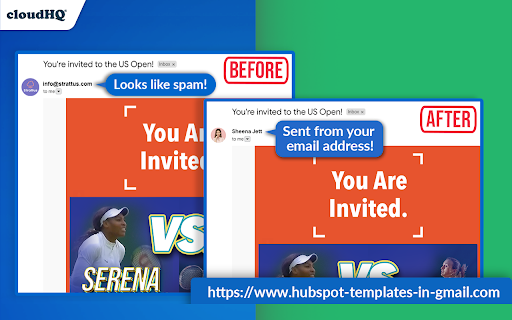

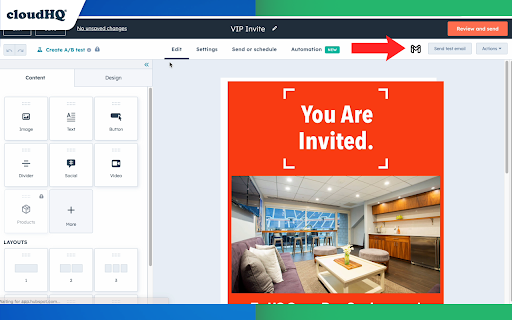

Send HubSpot templates with your Gmail™ email address, and import them to Gmail™ for easier access! This extension allows you to: ✅ Import HubSpot® email templates to Gmail™ ✅ Send your HubSpot template via Gmail™ without leaving the HubSpot® editor ✅ No more sending emails from impersonal "no-reply@url.com" email address; they are sent from your email address. ✅ After importing your HubSpot email templates into Gmail, you can access them in your new Gmail email template library without ever leaving Gmail. If you're in sales, run a small business, work in design or marketing, or simply need access to your HubSpot templates, this app gets the job done. It serves as an efficient solution for you to send superior, custom-tailored emails with the ease of Gmail. ~~~ Key Features ~~~ 🌟 Import your HubSpot templates directly into Gmail. 🌟 Send your HubSpot templates using your Gmail address, without ever leaving HubSpot. 🌟 Unlimited template storage for Premium Plan users. 🌟 Quick and easy installation, works in Chrome browser without consuming space on your computer. 🌟 5-Star ratings by our highly satisfied users. 1) Install the extension 2) Navigate to your HubSpot email templates manager 3) Select the template you wish to send in Gmail 4) An icon labelled "Gmail" will be visible next to your template. Click on it, and the selected template will populate your Gmail email composition window. 5) Finally, dispatch your email from your personal Gmail address, all while remaining within HubSpot. 6) Once you imported your Hubspot template to Gmail, you can access them from there. 7) Compose a new email 8) On the bottom of your email, click on the "Email Template" icon 9) You will see a pop up of your email template library. Select one to download into your compose window of Gmail. 10) Send! cloudHQ's HubSpot Templates in Gmail is ideally suited for: 🎯 **Sales Professionals** requiring their email templates within Gmail for easier client communication. 🎯 **Business Owners** valuing the simplicity of sending personalized emails straight from their Gmail account. 🎯 **Designers and Marketers** who prefer crafting visually engaging emails from their Gmail interface without the need to leave HubSpot. Additionally, it's great to keep people out of your email designs in Hubspot who can sometimes accidentally ruin them. That saves you time from having to redo them. They can access your designer templates from their Gmail accounts instead. No more switching between platforms or impersonal emails. Start improving your productivity with HubSpot Templates for Gmail™ by cloudHQ today! cloudHQ. Helping your productivity, 1 click at a time. cloudHQ website: https://www.cloudhq.net/ App website: https://www.hubspot-templates-in-email.com Pricing: https://www.hubspot-templates-in-email.com/pricing Support page: https://support.cloudhq.net/?s=hubspot Blog: https://blog.cloudhq.net

Templates for Google Forms™ by cloudHQ
Beautiful Templates for Google Forms™ Templates for Google Forms™ by cloudHQ is the go-to Chrome extension for anyone seeking to create stunning, professionally designed Google Forms. With our collection of premium templates, you'll save time, reduce stress, and create forms that stand out. Install Google Forms Templates by cloudHQ today and experience the difference a well-designed form can make. ✅ Education forms ✅ Sign-up forms ✅ Registration forms ✅ Report forms ✅ Request forms ✅ Marketing survey forms ✅ Invitation forms ✅ Feedback forms ✅ Human Resources forms ✅ Business Forms ✅ And more Save time, eliminate the stress of starting from scratch, and create impressive forms with just a few clicks. Templates for Google Forms™ by cloudHQ offers an extensive library of templates catering to various industries and use cases, as demonstrated by our glowing user reviews. Whether you're a coach seeking feedback, a realtor gathering open house insights, or an HR professional ensuring employee satisfaction, Templates for Google Forms™ by cloudHQ has you covered. ✅ Comprehensive collection of premium Google Form templates ✅ Professionally designed, modern, and visually appealing templates ✅ Easy to customize to fit your unique needs and branding ✅ Seamless integration with Google Sheets for data organization and analysis ~~~~~ How to use Google Forms Templates™ by cloudHQ: 1. Install the Templates for Google Forms by cloudHQ Chrome extension. 2. Access the templates in Google Drive by clicking "New" --> Google Forms --> Templates by cloudHQ. 3. Make a copy of the Google Form template and customize it as desired. cloudHQ. Helping your productivity, 1 click at a time. cloudHQ website: https://www.cloudhq.net/ App website: https://www.google-forms-templates.com/ Pricing: https://www.google-forms-templates.com/pricing Support page: https://support.cloudhq.net/category/browser-extensions/google-forms-templates/ Blog: https://blog.cloudhq.net

Outlook Email Templates by cloudHQ
Beautiful email templates for Microsoft Outlook With over 1,500 professionally-designed, email templates at your disposal, you can send beautiful emails that significantly increases your click through rates. Open a template directly in your Outlook email compose window. Once you’ve personalized your template, you’ll be able to send it out like any other email in Outlook. This extension is very easy to use: 1) Install the add on 2) Go to your Office 365 email (https://outlook.office.com/mail/) or Outlook email (https://www.outlook.com) 3) Click on the "Compose" button 4) Click on the new "Browse Templates" button 5) Select any template from our library of pre-designed email templates 6) Edit the email 7) Send email Great for: ✅ Newsletters ✅ Discount sales ✅ Party invitations ✅ Congratulations ✅ Holiday greetings ✅ Event emails (like when you need to send a client a reminder to pay their bill) ✅ Common email responses (like asking a potential customer to fill out an intake form, troubleshooting instructions, etc.) ✅ Business email templates ✅ Birthday greetings ✅ Education-specific email templates ✅ Job seeker templates ✅ Legal email templates ✅ Marketing email templates ✅ Online class email templates ✅ Real estate email templates ✅ Reminders ✅ Stationery ✅ ecards We continuously add new templates to provide you with even greater value. 🔥🔥🔥 You can view our template library here: 👇 https://www.email-templates.com/email-templates App website: https://www.email-templates.com cloudHQ website: https://www.cloudhq.net Pricing: https://www.email-templates.com/pricing Support page: https://support.cloudhq.net/category/browser-extensions/outlook-email-templates FAQ page: https://support.cloudhq.net/outlook-email-templates-faq-frequently-asked-questions/ Blog: https://blog.cloudhq.net

Email List Builder by cloudHQ
Build a spreadsheet with all your Gmail contacts and emails Are you looking for an email list builder that will create an email list for you in a matter of seconds? Email List Builder by cloudHQ gets you a list all of the people that you've ever had contact with in your Gmail™, into a neat and organized Google Sheet™ for you. This is an excellent solution to use so that you can: ✅ Create an email list to send an email campaign (*tip: use mailking.io, another one of our services for free email campaigns) ✅ Monitor interactions with your customers or your suppliers ✅ Keep an updated list of your email contacts in Google Sheets™ You'll get every email merge tag identifier needed in order to build an impressive email list of all your contacts and their information. You can even set this service up so that it can continuously update the contact information from your Gmail™ emails, to be captured and updated for you in your Google Sheet™ spreadsheet. Here is a list of all the email merge tag identifiers that you'll get in separate columns in your Google Sheet™: 1) Email Address 2) First name 3) Last Name 4) Full Name 5) Bio 6) Location 7) Personal Website 8) Last Sent Email Date (Last email sent to the contact) 9) Last Sent Email (A link to the actual email you sent) 10) Total Number of Emails Sent 11) Awaiting for Reply? (Awaiting reply from the contact) 12) Last Received Email Date (Last email received from the contact) 13) Last Received Email (A link to the actual email you received) 14) Total Number of Emails Received 15) Not Replied? (Not replied to the contact) 16) Company Name 17) Role at Company 18) Company Website 19) Company Logo 20) LinkedIn (Link to profile) 21) Facebook (Link to profile) 22) Twitter (Link to profile) We hope you enjoy this simple solution to help you build your email list! Happy email campaigning from your friends at cloudHQ. This is an excellent solution for small businesses to improve communications with their customer or supplier relationships. Your spreadsheet will automatically be updated in real-time as new emails or new contacts come into your inbox, so you will always have full visibility of each business-related relationship in an organized report whenever you need it, in a shareable way via Google Sheets. cloudHQ. Helping your productivity, 1 click at a time. cloudHQ website: https://www.cloudhq.net/ App website: https://www.email-list-builder.com/ Pricing: https://www.email-list-builder.com/pricing Support page: https://support.cloudhq.net/category/browser-extensions/email-list-builder/ Blog: https://blog.cloudhq.net Google Gmail and Google Sheets are trademarks of Google LLC. Use of these trademark are subject to Google Permissions.

ChatGPT Sidebar by cloudHQ
ChatGPT sidebar as your AI assistant on any page Welcome to the ChatGPT Sidebar by cloudHQ, an AI assistant that emerges from the side of any webpage you browse. As you navigate different webpages, your email inbox, or any online document, ChatGPT Sidebar can be accessed with just a click of a button. The information you get with this handy sidebar provides you with straightforward knowledge about whatever it is that you're browsing. Whether you're deciphering a dense article, exploring new topics, or just casually browsing, our ChatGPT Sidebar is designed to enrich your understanding, streamline information, and answer any queries you might have—immediately. How to use ChatGPT Sidebar? 1. Go to any website 2. Select the text 3. Click on ChatGPT Sidebar icon on the right side of your screen, select the prompt and click on "Send to ChatGPT". 1. Use ChatGPT prompts across websites for tasks like: ✔️ Summarize ✔️ Rewrite ✔️ Check Grammar ✔️ Translate ✔️ Clarify code ✔️ Summarize the web page ✔️ Your own prompts 2. Access our ready-to-use prompt library, where you can further customize any prompts for your own needs. 3. Full support for both ChatGPT-4 and ChatGPT-3.5 4. Full support for Open AI API Refine your web experience with ChatGPT, and become smarter in 1 click! 🌟 cloudHQ website: https://www.cloudhq.net/ App website: https://www.gpt-sidebar.com Pricing: https://www.gpt-sidebar.com/pricing Support page: https://support.cloudhq.net/category/browser-extensions/chatgpt-sidebar/ FAQ page: https://support.cloudhq.net/chatgpt-sidebar-faq-frequently-asked-questions/ Blog: https://blog.cloudhq.net
