
bobfhoaocndhlbmgihenjonpopncakbn
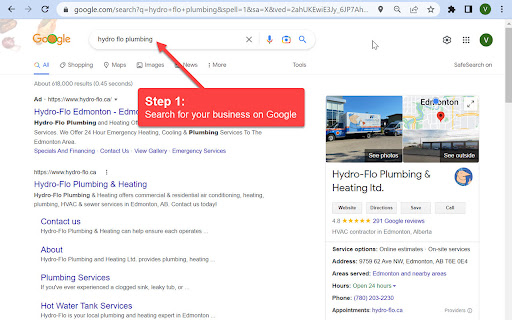
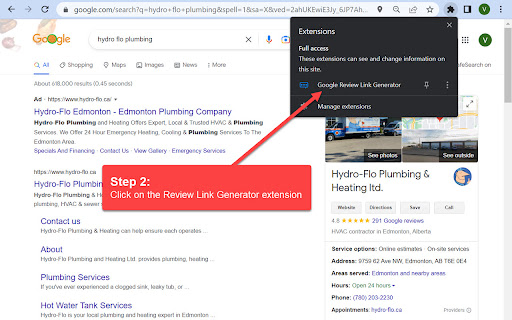

This extension helps you easily find your Google place id and generate a Google review link for your business on Google Maps. Find the place id and generate the Google review link for any business on Google Maps. Follow the steps below in order to obtain your Google review link: 1. Find your business on Google 2. Click on the ReviewsOnMyWebsite extension 3. Copy your Google review link and share it with your customers

Google™ Review QR Code Generator with FREE QR Code Templates
This extension allows users to easily generate Google™ Review QR Codes. Instantly generate a QR code, shortlink, and templates. The Google™ Review QR Code Generator is a powerful tool that makes it easy to create review QR codes using data directly from Google Maps. Save time by automatically detecting essential business data such as Place ID, CID, Google Review links, and business addresses from any Google Maps listing. The extension provides instant access to tools for checking if a business is claimable, enabling users to see if the listing is verified or needs to be claimed. This is perfect for businesses seeking to streamline their online reputation management. 1. Visit any Google Maps business listing and use the extension to extract data instantly. 2. With a single click, you can generate a Google Review QR code linked to the business’s review page. 3. Access additional features like generating short links and downloading customizable QR code templates for free. The tool also allows you to seamlessly add review QR codes to print or digital media, making it ideal for improving customer engagement. Add the generated QR codes to your business cards, flyers, or emails to encourage customers to leave positive feedback with ease. - Who Is It For? This extension is designed for small business owners, marketers, agencies, and anyone looking to boost their Google My Business presence by making it easy for customers to share reviews. With a simple interface and robust functionality, it’s a must-have for businesses of all sizes. Collecting reviews is a vital part of maintaining a strong online presence, and our tool simplifies the process by allowing customers to scan a QR code and immediately access your Google Review page. Improve your local SEO, build trust with potential customers, and increase your review count with this easy-to-use extension. 1. Google Maps Integration: Automatically capture business data such as Place ID, CID, and Google Business Profile review link. 2. Generate Review QR Codes: Create Google Review QR Codes for free with a single click. 3. Check Claimable Status: See if a business is claimable directly from the extension. Shortlinks & Templates: Easily create shortlinks and download ready-to-use QR code templates for marketing.

GMB Page - CID & PlaceID Finder
This plugin will help you to find the CID & PlaceID of the GMB page. Designed in mind for Google Street View publishers, 'GMB Page - CID & PlaceID Finder' is an essential Chrome plugin that simplifies the process of identifying the CID (Customer ID) and PlaceID of businesses on Google Maps, for the case when you can not create a tour in GoThru because the Google Map business search function does not return the business you are looking for.

GMBspy
Allows viewing of Google Business Profile, Google My Business "Categories" for single listings or top 20 Google search results. *NEW VERSION 3.5.3 updated August 2025 to fix known bugs, supporting Google search and map updates. Do you love keeping an 👀eye on your competitors? Just wait until you try GMBspy🕵🏼 With one simple click, we show you the current categories for any Google Business Profile, or GBP (formerly known as Google My Business, or GMB, hence the name GMBspy!). You can also find common GBP categories for any top 20 search results, in either Google Maps or Google Local Finder. Audit your GBP page along with competitors and see certain listings are winning in local search! Why are GBP Categories so important? Categories are one of Google's number one local search engine optimization (local SEO) ranking element. Categories are important content elements that help feed Google's knowledge graph, and can help improve your rankings in local Google Search. Choosing the right GBP categories is an important first step in optimizing the listing for SEO. While the GBP category information is public, it can be difficult for the average user to locate this information manually in the HTML. The GMBspy tool saves you tons of manual work, automating this "spying" process! You can even download a comma-quote-separated file with the business names and categories for the top 20 search results for any Google Maps or Google Local Finder search query. From car dealers to pizza parlors, small retailers to big box national brands, we show you all of the individual GBP categories, or the categories of matching businesses in search results, so you can see why one business may be outranking another in local Google search. 📕INSTRUCTIONS: Now that you have located the GMBspy extension in the Chrome Store, click on the “Add to Chrome” button on the top right. Once you install the GMBspy Chrome Extension you should then click on the thumbtack icon in the upper right Chrome toolbar to “pin” the GMBspy extension onto your Chrome toolbar. This will allow the extension to always appear in the toolbar, ready for action! Next you are ready to use the extension. First you must select a GBP listing from Google Search or Google Maps, you then fire the GMBspy extension to view current categories for this individual selected listing. The default tab is “Selected”, this shows the categories for the single, selected GBP page. If you want to see the GBP Categories for listings in the “local map pack” of 3 results, simply select the Local Pack tab. If you would like to download a comma-separated-value (.csv) file containing the names, primary categories, and secondary categories of the top-20 ranked GBP listings, simply click “Download as CSV” at the bottom of the window. Once the CSV file is downloaded, it can be opened and viewed by applications such as Microsoft Excel or Apple Numbers. 👩🏻💻For technical support on GMBspy, 🐦Tweet to @generationsdig Here are the top troubleshooting tips: 1. Make sure you have first selected a Google Business Profile before firing the GMBspy extension. 2. The Local Pack tab will only work when searching for a business category, vs. a specific business name. An example search would be 'coffee near me'. 2. If the extension doesn't deliver the correct business categories, or gives an error, simply refresh the Chrome browser window. 3. When all troubleshooting fails, you should remove the GMBspy extension and re-install it from the Chrome Store. ❓🕵🏼❓If you have additional questions, visit our GMBspy web page at: https://www.generationsdigital.com/gmbspy ⭐️⭐️⭐️⭐️⭐️Thank you for your support! 🕵🏼

PlePer Local SEO Tools
Useful shortcuts and quick analyzes for Local SEO`s The extension offers collection of tools and shortcuts for Local SEO's. With this extension you get detailed information for every google my business listing in Maps, Local Finder, Knowledge panel and making four different analysis based on maps search results. Listing details returned by the extension: Name / Address / Phone / All Categories / Verification status / Attributes / Coordinates / All important Google ID’s (CID, Place ID, Knowledge Graph ID) / Export function / Pin function / Links to popular business directories, search engines, different website analysis tools (Speed Test / Mobile Friendly Test / Whois information / Domain backlink analysis etc ). For US listing direct link to corespondig Secretary of state business lookup website. Four different analyzes when searching in Maps: - Categories - top categories used, average categories per listing, max categories per listing; - Reviews - average rating and reviews, maximum/minimum rating and reviews, listings without reviews; - Attributes - all the attributes used; - Business Hours - when business are open and the average business hours; Pin function - the listing information on any website with keyboard combination (CTRL + ALT + E). Easiest way to compare / enter data anywhere. The chrome extension is plug and play - no settings or configuration needed! Instructions: 1. Install the extension 2. Open in new tab google maps 3. Make a search and you will see the analyses. 4. Select any listing from the results and you will see the details.
