
boaklbonokjlghdimdagnkgmfglpgkod
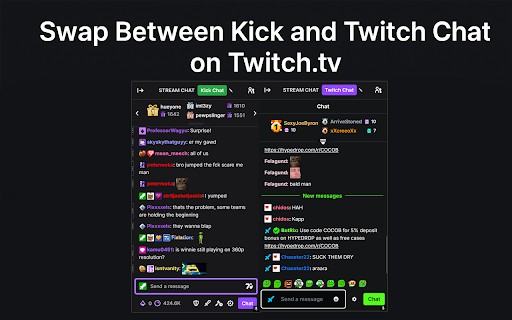
Swap between Twitch chat and Kick chat without leaving Twitch. Kick Chat for Twitch adds a simple toggle button to every Twitch channel’s chat panel, allowing you to flip between the native Twitch chat and a fully functional embedded Kick chat box – all without leaving Twitch. Once you have added the extension click the extension from the drop down and login to Kick, If it doesn't work/tells you to login to Kick then make sure you allow all cookies on Twitch and Kick and try again. The Kick chat will default to whatever Twitch channel you are currently on, if their usernames aren't the same on both platforms then you can edit the Kick chat username by clicking the pencil icon next to the toggle button, this will be saved on that specific channel.

ClearTok - TikTok Repost Remover
Instantly remove all your TikTok reposts—no scrolling, no tapping. ✅ How to use 1️⃣ Make sure you’re logged into TikTok (open tiktok.com in a new tab). 2️⃣ Open ClearTok and click Start Removing. 3️⃣ The tool will automatically: — Open each reposted video — Remove it from your account activity — Loop until every repost is removed 🔧 Key features - One-click bulk removal of all TikTok reposts - Runs in your browser—no password required - Export report — download a CSV/XLSX log after cleanup - Works on Windows, macOS, Linux, and ChromeOS 🔒 Safety & Privacy - ClearTok never collects personal data or TikTok credentials. - All clicks are simulated locally and visibly on-screen. - You can stop anytime by simply closing the TikTok tab. 💡 Troubleshooting If TikTok rate-limits your account, ClearTok pauses automatically. Wait about an hour, then click Resume or Start again. Clean your profile in seconds. Start fresh—install ClearTok now. ## Recent Updates ### v1.8.6 (2026-06-06) - Improved Reposts tab loading detection to avoid false "no reposts found" results while TikTok is still rendering the tab - Added a refresh confirmation step before treating a missing Reposts tab as an empty repost list - Added lightweight workflow scan signals for diagnosing Reposts tab loading issues ### v1.8.5 (2026-06-03) - Improved Start behavior so ClearTok focuses the TikTok tab/window where removal is running - Fixed a startup messaging issue that could be logged when TikTok navigates or reloads during removal startup - Tightened own-profile preflight checks before opening the Reposts tab ### v1.8.3 (2026-06-01) - Improved bulk repost removal stability with verified removal counting and safer recovery when TikTok pages get out of sync ### v1.8.2 (2026-05-09) - Better support for TikTok’s latest 2026 Reposted Videos tab layout - Safer repost removal flow with stronger checks before deleting anything - More stable detection when TikTok updates buttons, tabs, or page selectors - Automatic recovery when cached TikTok UI selectors become outdated - New mobile app download area with QR code, App Store, and Google Play links, with custom bulk delete ranges - Full localization support for the new mobile download section ### v1.8.0 (2026-04-15) - Fixed a rare issue where the extension could mis-target the Videos tab and create new reposts instead of removing them - Improved Reposts tab detection using TikTok's official anchors for more reliable targeting - Added automatic recovery when cached TikTok selectors fall out of date — no reinstall needed - Redesigned the side panel UI and on-page overlay for a cleaner, more professional look v1.7.0 (2026-03-16) Improved initial repost loading logic to fetch a fuller list (up to 100 items) before starting deletion Fixed an issue where the last repost could be clicked repeatedly instead of stopping cleanly at the end Replaced the “Share Card” button with a “TikTok” button linking to the official ClearTok account Simplified popup completion logic and removed unused share-card code paths for better maintainability ### v1.6.9 (2026-02-11) - Refactored workflow to always click the profile button to navigate to the profile page - Increased timeout for waiting for the repost tab - Added support for multiple languages - **UI/UX Improvements**: Boosted text contrast, added focus rings for accessibility, and enhanced button interactions ### v1.6.8 (2025-01-04) - Enhanced selector fallback system for improved TikTok UI compatibility - Improved logging and debugging for element detection - Optimized DRY_RUN mode for testing purposes - Bug fixes and performance improvements v1.6.6 (2025-12-18) Added 10 new languages: Arabic, Filipino, Indonesian, Italian, Malay, Burmese, Dutch, Polish, Portuguese, Turkish Improved language detection and switching experience Updated localization files for German and French ### v1.6.0(2025-09-25) - optimized the extension to work with the new TikTok UI - improved the detection algorithm - added a premium version with more features - added a new language: Chinese ### v1.1.2 (2025-07-12) - Added multi-language support (Franch, Arabic, Japanese, Spanish, and more) ### v1.1.0 (2025-07-01) - One-click bulk removal of all TikTok reposts - Automatic login detection and prompt - Export and copy log of removed videos ### v1.0.0 (2025-06-15) - Initial public release of ClearTok - Chrome extension for one-click TikTok repost cleanup

Twitch-in-Twitch
Features: - Pop up one or more Twitch streaming windows inside Twitch or other supported streaming platform channel (Currently supported: Twitch, Youtube, Naver eSports, AfreecaTV) - Pop up Twitch chat window (not supported for VOD) - Find the latest VOD of streamer and pop it up - Go to the latest VOD of streamer - Move or resize popped streaming or chat (using header bar) - Add streamers to Favorites - Set delay for main broadcast - Support Move Time Together mode and Spoiler Free mode for Twitch VODs How to Use: [Basic Features] - The extension icon will only be activated once you get into a supported streaming platform. - Click the icon to open control panel. - Type a streamer ID or VOD ID in [streamer/VOD ID] field. - Example: www.twitch.tv/some_streamer -> streamer ID: some_streamer www.twitch.tv/videos/12345678 -> VOD ID: 12345678 - Click Twitch button to open streaming window. - Click chat button to open chat window. - Click video button to open the latest VOD of the streamer as window. - Click video with arrow button to go to the latest VOD page of the streamer. - Click the star button to add to Favorites. Click the empty star button on Favorites list to remove from Favorites. [Dark Mode] - Toggle the switch on "Dark mode" panel to enable/disable dark mode. - The dark mode will be applied to: - Control panel - Streaming window - Chat window [Twitch VOD Only Features] - Move Time Together: While you are watching Twitch VOD with other Twitch VODs popped up as streaming windows, you might want all VODs move time together when you fast-forward / back with arrow keys. You can do this with Move Time Together mode enabled. Toggle the switch on "Twitch VOD only features" panel's "Move time together" to enable / disable Move Time Together mode. - Spoiler Free Mode: Sometimes you might not want to look at time information of a VOD because it is kinda spoiler for something like Bo5 match. You can hide time information with Spoiler Free mode enabled. Toggle the switch on "Twitch VOD only features" panel's "Spoiler free" to enable / disable Spoiler Free mode. [Stream Layer Config] You can choose one of the two streaming layer configuration. - Inside main: The streaming windows will be inside the main broadcast. You cannot move the windows out of the main broadcast, but they will be still visible in fullscreen mode. - Outside main: The streaming windows will be outside the main broadcast. You can move the windows to everywhere, but they will not be visible in fullscreen mode. [Window Finder] When you cannot find the opened window, click the "I can't see streams or chat!" button. It will reveal the position of opened windows with colored layout. If they are hidden underneath other HTML elements at their first open (so that you don't even have a chance to move them), you can go to Options and change initial window position. If you still cannot find anything after the button click, then just refresh the page. [Main Broadcast Delay] - Type number in field next to [Main Broadcast Delay] and click "APPLY" button to apply delay on main broadcast. - You can also apply negative or decimal values. FAQ: - I can't find any stream or chat when I clicked the buttons. : There are two possibilities; one is that the frames actually didn't pop up, and the other is that the frames did pop up but at positions not visible to you. To check, click extension icon and click "I can't see streams or chat!" button. If the frames exist, their overlays will be highlighted one by one. If they don't, try refreshing the page. If the initial position of the frame is unreachable, go to options and adjust initial position and size of the frame. - A purple screen with some texts appears intermittently and blocks screen. : It is shown to you instead of Twitch Ad. There is no way other than subscribing. - I mistakenly moved the frame out to unreachable place. : In Twitch-in-Twitch, it remembers the last position and size of the frame for each streamer and uses it when it pops up the frame again. So if you want to initialize the position of the frame, you have to reset data. Go to options and click data reset button. - I got #2000 error. : Twitch's #2000 error occurs due to network issues. Some publicly known solutions are below. - Turn off Adblock - Delete internet browsing history on your browser - Turn off VPN (in case you are using it) - Relogin Twitch - Add Twitch to exceptions on your antivirus software - Restart your computer - Use secret mode - Use other browsers (Edge, Whale, ...) If any of these don't work, please check your network. v1.2 - add options page - manage favorites - adjust initial position and size - reset data - add dark mode - add content finder - add showing current delay - enable minus delay v1.2.1 - fix bug with popup not showing (caused by Twitch UI update) v1.3 - fix bugs - chat window not open at its last position before close - chat window position is not initialized after data reset - changing initial position to value 0 not working in Options page - add Twitch VOD related features - open the latest VOD of the streamer - go to the latest VOD page of the streamer - Move Time Together mode - Spoiler Free mode - add stream layer config so that users can choose in which layer to locate streaming windows - add multi-platform support for Youtube, Naver eSports and AfreecaTV v1.3.1 - fix bugs - fix spoiler-free mode - Make move-time-together mode work more smoother - Add choices for time move unit - Make "Go to the latest VOD" button work anywhere - Add Reset pos/size button

Anu Twitch Chat Overlay
Show Twitch chat on top of the stream player. Read chat, send messages, claim points, and more, without leaving fullscreen mode *Now open source and looking for collaborators* Show Twitch chat on top of the stream player (live and VOD). Keep up with chat, send messages, automatically claim channel points, and more, without leaving fullscreen mode (or expanding sidebar chat). Customize position, font, background on a per stream basis and sync and store your preferences across your devices. Twitch dark and light themes supported by default. Once installed, a Chat Overlay button will be added to the bottom right buttons panel of the Twitch video player which you can click to toggle the chat overlay on/off. Choose the perfect position, font size, color and that's it!

Kitch - Kick & Twitch notifications
Follow your favorite streamers on Kick and Twitch - See who is currently live on Twitch and Kick - Browse top categories and streams on Twitch - Search for a user from Twitch Thanks to Oszunia for coming up with the name :D
