
khjnemehcblfobbhkhlmjjeionfabgab
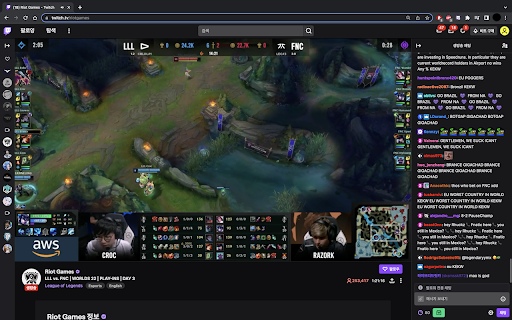


Features: - Pop up one or more Twitch streaming windows inside Twitch or other supported streaming platform channel (Currently supported: Twitch, Youtube, Naver eSports, AfreecaTV) - Pop up Twitch chat window (not supported for VOD) - Find the latest VOD of streamer and pop it up - Go to the latest VOD of streamer - Move or resize popped streaming or chat (using header bar) - Add streamers to Favorites - Set delay for main broadcast - Support Move Time Together mode and Spoiler Free mode for Twitch VODs How to Use: [Basic Features] - The extension icon will only be activated once you get into a supported streaming platform. - Click the icon to open control panel. - Type a streamer ID or VOD ID in [streamer/VOD ID] field. - Example: www.twitch.tv/some_streamer -> streamer ID: some_streamer www.twitch.tv/videos/12345678 -> VOD ID: 12345678 - Click Twitch button to open streaming window. - Click chat button to open chat window. - Click video button to open the latest VOD of the streamer as window. - Click video with arrow button to go to the latest VOD page of the streamer. - Click the star button to add to Favorites. Click the empty star button on Favorites list to remove from Favorites. [Dark Mode] - Toggle the switch on "Dark mode" panel to enable/disable dark mode. - The dark mode will be applied to: - Control panel - Streaming window - Chat window [Twitch VOD Only Features] - Move Time Together: While you are watching Twitch VOD with other Twitch VODs popped up as streaming windows, you might want all VODs move time together when you fast-forward / back with arrow keys. You can do this with Move Time Together mode enabled. Toggle the switch on "Twitch VOD only features" panel's "Move time together" to enable / disable Move Time Together mode. - Spoiler Free Mode: Sometimes you might not want to look at time information of a VOD because it is kinda spoiler for something like Bo5 match. You can hide time information with Spoiler Free mode enabled. Toggle the switch on "Twitch VOD only features" panel's "Spoiler free" to enable / disable Spoiler Free mode. [Stream Layer Config] You can choose one of the two streaming layer configuration. - Inside main: The streaming windows will be inside the main broadcast. You cannot move the windows out of the main broadcast, but they will be still visible in fullscreen mode. - Outside main: The streaming windows will be outside the main broadcast. You can move the windows to everywhere, but they will not be visible in fullscreen mode. [Window Finder] When you cannot find the opened window, click the "I can't see streams or chat!" button. It will reveal the position of opened windows with colored layout. If they are hidden underneath other HTML elements at their first open (so that you don't even have a chance to move them), you can go to Options and change initial window position. If you still cannot find anything after the button click, then just refresh the page. [Main Broadcast Delay] - Type number in field next to [Main Broadcast Delay] and click "APPLY" button to apply delay on main broadcast. - You can also apply negative or decimal values. FAQ: - I can't find any stream or chat when I clicked the buttons. : There are two possibilities; one is that the frames actually didn't pop up, and the other is that the frames did pop up but at positions not visible to you. To check, click extension icon and click "I can't see streams or chat!" button. If the frames exist, their overlays will be highlighted one by one. If they don't, try refreshing the page. If the initial position of the frame is unreachable, go to options and adjust initial position and size of the frame. - A purple screen with some texts appears intermittently and blocks screen. : It is shown to you instead of Twitch Ad. There is no way other than subscribing. - I mistakenly moved the frame out to unreachable place. : In Twitch-in-Twitch, it remembers the last position and size of the frame for each streamer and uses it when it pops up the frame again. So if you want to initialize the position of the frame, you have to reset data. Go to options and click data reset button. - I got #2000 error. : Twitch's #2000 error occurs due to network issues. Some publicly known solutions are below. - Turn off Adblock - Delete internet browsing history on your browser - Turn off VPN (in case you are using it) - Relogin Twitch - Add Twitch to exceptions on your antivirus software - Restart your computer - Use secret mode - Use other browsers (Edge, Whale, ...) If any of these don't work, please check your network. v1.2 - add options page - manage favorites - adjust initial position and size - reset data - add dark mode - add content finder - add showing current delay - enable minus delay v1.2.1 - fix bug with popup not showing (caused by Twitch UI update) v1.3 - fix bugs - chat window not open at its last position before close - chat window position is not initialized after data reset - changing initial position to value 0 not working in Options page - add Twitch VOD related features - open the latest VOD of the streamer - go to the latest VOD page of the streamer - Move Time Together mode - Spoiler Free mode - add stream layer config so that users can choose in which layer to locate streaming windows - add multi-platform support for Youtube, Naver eSports and AfreecaTV v1.3.1 - fix bugs - fix spoiler-free mode - Make move-time-together mode work more smoother - Add choices for time move unit - Make "Go to the latest VOD" button work anywhere - Add Reset pos/size button

T1080
트위치 SEL(한국) 1080p API 지원 !! 현재 T1080은 문제 해결과정에 있습니다 !! 문제 수정이 끝날때까지 1080p의 시청이 제한됩니다. 불편을 드려 죄송합니다. 이 확장프로그램은 한국 클라우드망을 경유하여 트위치를 볼수 있도록 개발하였습니다. 영상 화질은 최대 1080p60까지 지원됩니다. 기존 트위치 확장프로그램들은 대부분 유럽에 서버가 있어, 영상 시청에 딜레이가 높은것을 문제로 생각하였습니다. 확장 프로그램을 설치한 뒤 아무 작업도 필요 없이 트위치에서 영상을 시청하시면 됩니다. Github: https://github.com/onTDB/T1080 Support & Issue: https://github.com/onTDB/T1080/issues Discord: https://discord.gg/s8bnKD8

Cheese-PIP
치지직에 녹화, 스크린샷 등 다양한 기능을 추가합니다. 네이버 게임 스트리밍 서비스 치지직에 녹화, 스크린샷, 다운로드 등 다양한 기능을 추가해주는 확장 프로그램입니다. 🚀 주요 기능 ⭐️ 스트림 녹화 / 스크린샷 버튼 추가 ⭐️ 방향키를 이용한 이전 스트림 내용 탐색 ⭐️ 자동 최대 품질 해상도 적용 ⭐️ 확장된 기능을 제공하는 PIP+ ⭐️ 팔로우 즐겨찾기 (베타) ⚠️ 주의 브라우저의 여러 제약으로 긴 영상의 녹화에 오류가 발생할 수 있습니다. 🧑💻 기여하기 Cheese-PIP는 오픈소스 프로젝트로, 누구나 개발에 참여할 수 있습니다. 아래 링크에서 Cheese-PIP의 소스를 확인하고, 여러분의 아이디어나 개선점을 기여해보세요. https://github.com/khk4912/Cheese-PIP Cheese-PIP는 네이버 치지직(chzzk)과 관련이 없는 개인 프로젝트입니다.

네이버 동영상 플러그인
네이버 동영상 서비스 이용을 위한 확장 프로그램 네이버 동영상 플러그인을 이용해 네이버의 다양한 동영상 서비스를 즐겨보세요! 크롬 브라우저에서 네이버 동영상 서비스 이용을 위해서는 네이버 동영상 플러그인의 설치가 필요합니다. 2015년 9월 부터 크롬브라우져에서 NPAPI 지원이 중지되어 “네이버 동영상 플러그인” 설치 후 아래의 동영상 서비스를 이용해주세요. 1. 네이버 라이브 스트리밍 : 스포츠, 네이버TV, 뉴스 등 생중계 서비스 HD 화질 시청

치지직 통나무 파워 자동 획득
This program is free software: you can redistribute it and/or modify it under the terms of the GNU General Public License as published by the Free Software Foundation, either version 3 of the License, or (at your option) any later version. This program is distributed in the hope that it will be useful, but WITHOUT ANY WARRANTY; without even the implied warranty of MERCHANTABILITY or FITNESS FOR A PARTICULAR PURPOSE. See the GNU General Public License for more details. You should have received a copy of the GNU General Public License along with this program. If not, see .
