
bmnofgbgldbkkpgpahilcgalnjocgbla
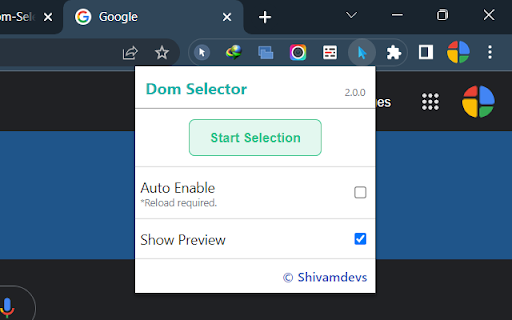
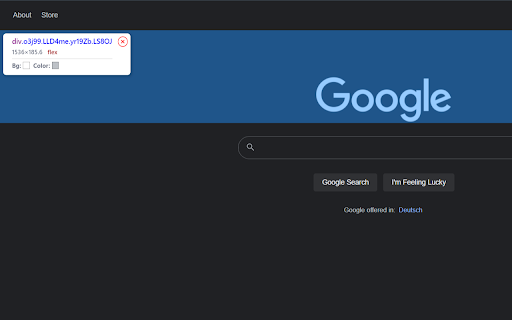
A simple document element selector for styling and tagging purposes. Get NodeName, classList, and id along with width, height, display, padding, margin and border of elements without opening Console.

Dump Dom
One click to dump Dom tree in html format !It is convenient to save your progress when modifying on Devtools Elements tab. Inspired from this :https://stackoverflow.com/a/66978187/10096812

PageTree Inspector
Visualize distribution of DOM nodes in the document tree Visualize the distribution of DOM element nodes within the document tree of any web page. You have the ability to generate interactive tree views for any element, just like inspecting an element using the DevTools element inspector. 🌳 Visualize Document Trees: See the organization of DOM nodes in any web page through an interactive tree representations. 🌚 Dark Mode: Reduce eye strain during late-night sessions with our Dark Mode option for a more comfortable experience. 👆Interactive Navigation: Easily traverse parent, child, and sibling nodes within the DOM tree to grasp relationships. 🔄 Observable Updates: Keep up with document tree changes by refreshing and instantly viewing updates. 🌐 Customize Orientation: Tailor your visualization to your preference with horizontal or vertical tree orientations. ✒️ Path Rendering Options: Choose from various path rendering styles – diagonal, straight, elbow, or step – for a customized look.

Pointer - Element Inspector for DevTools
Enhanced element inspection with cursor-driven workflow. Visual highlighting, measurements, and DevTools integration. Pointer enhances Chrome's built-in element inspector with a persistent, intuitive DOM navigation tool that stays active while you work. Unlike the default DevTools inspector that turns off after selecting an element, Pointer keeps running so you can quickly inspect multiple elements without constantly reactivating the tool. — Always-On Element Selection - Navigate the DOM using arrow keys or click to select elements. The pointer stays active between selections. — Visual Box Model Display - See margin, padding, and content areas with color-coded overlays. — Element Information - Hover over any element to see its tag name, dimensions, CSS classes, and behavioral badges (flex, grid, media, scroll containers and event listeners). — Built-In Ruler - Hold Alt to see pixel distances between selected and hovered elements. — DevTools Integration - Selected elements automatically sync with Chrome DevTools Elements panel. The inspector scrolls elements into view and maintains selection state when DevTools is reopened. — Pass-Through Mode - Hold "`" (backtick) to temporarily interact with page elements normally while keeping the inspector active. — DOM Manipulation - Cut, copy, paste, delete, and duplicate (Cmd/Ctrl+D) elements directly in the page. Full undo/redo support. — Inline Attribute Editor - Press "/" to add attributes, classes, and properties to selected elements without switching to the DevTools elements panel. — JavaScript Console - Press ";" to execute JavaScript commands with the selected element as "this" context. Perfect for quick DOM modifications and debugging. — Selector Search - Press "f" to enter find mode and highlight all elements matching a CSS selector in real-time. Navigation — Arrow Keys - Navigate between elements (up/down for siblings, left for parent, right for children). Inspection Tools — Alt - Show measurement rulers between selected and hovered elements — ` (backtick) - Hold to enable pass-through mode so you can interact with the web page

html-dom-lens extension
extension for checking DOM element information on the screen Extension that helps you get things done in Front-End development!
