
blkboeaihdlecgdjjgkcabbacndbjibc
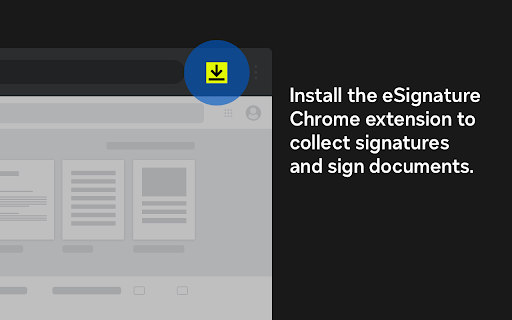


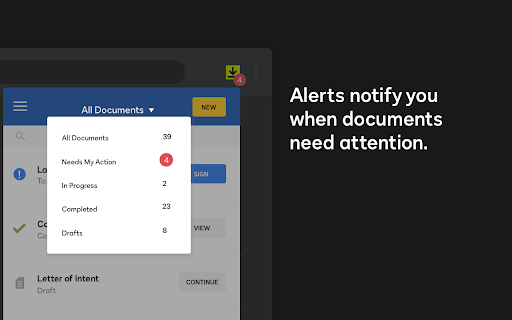
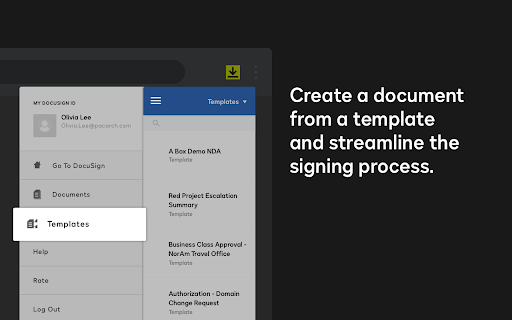
Access Docusign eSignature anytime you’re in Chrome. Whether you’re online shopping, surfing the web, or watching your favorite show, stay in the loop and act on your documents using the Docusign eSignature Chrome integration. View envelope status, send reminders, sign documents, and start collecting signatures directly from your Chrome browser. Sign documents in one click and turn your browser into a powerful signing tool. Start collecting signatures by uploading a document to the Docusign eSignature Chrome integration and finish the tagging process in Docusign. Monitor the status of all your documents. Send reminders and take immediate action when you need to sign a document. Boost security, privacy and efficiency with complete workflow integration between eSignature and Google Chrome. Free and easy: Get started with Docusign's basic features including eSignature, document routing and mobile app access Docusign eSignature is the world's #1 way to sign electronically on practically any device, from almost anywhere, at any time. Today, more than 560,000 customers and hundreds of millions of users in over 180 countries use Docusign to accelerate the process of doing business and to simplify their lives. Here’s what comes with your free plan: - Endless signing: Sign unlimited documents as a recipient. - Prepare and send documents out for signature: Send up to three documents for others to sign. - Your free plan includes all the basics: This includes “sign here” tags, document routing and mobile app access. Questions? Have questions or comments about Docusign? We would love to hear from you, so please reach out to google@docusign.com.

Google Voice (by Google)
Make calls with Google Voice with a click. Extension Features: - Makes phone numbers on websites callable via Google Voice by just clicking on them. - If a phone number doesn't turn into a link, you can select the text with your mouse and right-click to make a call (note: might not work with all numbers). Info: - If you don't like the extension turning numbers into Voice icon links, you can turn it off in the extension options.

Share and attach files in Gmail™ by cloudHQ
Attach and share files effortlessly from OneDrive, Dropbox, Box, Google Drive, Evernote and many more. When you're in Gmail, wouldn't you love a button that you could just click to attach any of your cloud files to your email? Well, with Share and Attach Files in Gmail, you can! You can attach any of your cloud files too, like: Google Drive, Salesforce, Microsoft Excel, Dropbox files. You name it- we give you access with 1 little button right from your Gmail. This handy tool: ✅ Saves you time from searching through numerous cloud platforms ✅ Keeps everything in the cloud (great for Chromebook users) ✅ Keeps your files off your hard drive so that you can have a faster computer. 💻 Website: https://cloudhq.net/chrome_extensions Pricing: FREE Support page: https://support.cloudhq.net/ Blog: https://blog.cloudhq.net cloudHQ. Helping your productivity, 1 click at a time. Gmail, Google Shared Drive, Google Drive, and Google Workspace are trademarks of Google LLC. Use of these trademarks is subject to Google Permissions.

Save Emails as PDF by cloudHQ
Export, convert and save Gmail™ emails as a PDF document This extension lets you easily save Gmail emails and labels as a PDF document. Our service works in just 3 clicks, and you're done! With this extension you can: ✔️ Create a hard copy backup of messages for your own records ✔️ Merge multiple emails into one PDF ✔️ Backup multiple messages into separate PDFs ✔️ Save only the attachments of your Gmail messages into PDF ✔️ Great to upload your correspondence and: - Upload them into your CRM, like Salesforce, Zoho, etc. - Send it to your lawyer for legal proceedings - Send your bills, receipts, or invoices to your accountant - Send it to your human resources department for any internal issues This this extension is great for: 1. Real estate agents: 🏡Package all your Gmail messages regarding your sales transactions and upload them into SkySlope or another CRM that you're using. 2. Lawyers and legal professionals: ⚖️ Save, organize and sort all Gmail messages into one document and submit it to court. ⚖️ Convert all online conversations (sent documents, received documents, etc.) into a single file that you can then easily Clio or another CRM that you're using. 3. Project Managers and Team leads: 🚧 Archive all project communication as one document and keep it organized. 🚧 Setup an automatic saving of Gmail labels with project-related conversations to your Google Shared Drive for collaboration with your team. 4. Business owners: 💼 Get all your Gmail messages with receipts and organize them by date, customer, etc. 6. Contractors: 👩💻 Archive all communication with your clients. 7. Anybody who needs to convert, save and archive important online conversations, this is FOR YOU! 🕵️👮🏾♀️👨🎨🧑🎤👨💻🤵🏻♀️👩🔬🧕🏽🧑💼🧑🔧👩🏿🏫🧏👷 Here's everything you can do with this Convert Gmail to PDF Chrome extension: 1. You can save: - A single message or conversation - Multiple messages or conversations - An entire Gmail label - Messages and conversations matching filters - Your entire account 2. To any of these platforms: - A downloadable PDF to your local hard drive - Google Drive - Dropbox - Box - Egnyte - OneDrive 3. Feature Options you can choose to: * Include or exclude attachments * Append emails to an existing PDF document * Save your attachments only (not the body itself, but just the attachment) * Add page numbers * Condensed format (all signatures, quotations and other unnecessary data is removed) * Select an appropriate page size for printing purposes * Encrypt your file with password protection (highly encouraged for legal documents) * Forward your Gmail mails as a pdf attachment to someone else * Save your online conversation as one document with your selection * Convert and save your online conversation as a zip file with each Gmail message or conversation in separate PDF files * Convert and save your online communication one text (TXT) file * Convert and save your online communication as one HTML document * Share packages with your online conversations using secure share links We know that not one size fits all—especially when it comes to your Google e-mail, but with these flexible features, you should be covered with this extension. cloudHQ. Helping your productivity, 1 click at a time. cloudHQ website: https://www.cloudhq.net Website: https://www.save-emails-as-pdf.com Pricing: https://www.save-emails-as-pdf.com/pricing Support page: https://support.cloudhq.net/category/browser-extensions/save-emails-to-pdf/ Blog: https://blog.cloudhq.net Gmail, Google Calendar, and Google Workspace are trademarks of Google LLC. Use of these trademarks is subject to Google Permissions. cloudHQ is trademark of cloudHQ LLC. https://tsdr.uspto.gov/documentviewer?caseId=sn97775615&docId=ORC20250405001500&linkId=2#docIndex=1&page=1

Briskine: Email templates for Gmail™
Write emails faster! Increase your productivity with templates and keyboard shortcuts on Gmail™, Outlook, or LinkedIn. Write emails faster with templates. Create templates from repetitive pieces of text. Insert them into your emails or messages in seconds using shortcuts, and respond faster to your customers! ➤ Use for: Customer Support, Sales, Personal productivity. ➤ Works great on Gmail™, Outlook.com, LinkedIn, Facebook, and many more sites. ★ Keyboard shortcuts (or snippets) Do you always end your emails with “Kind regards, Ken”? With keyboard shortcuts, you can type kr, press the TAB key, and get the same result — only faster! ★ Create your own templates Do you often find yourself typing the same text in your emails? Turn it into a template! Then, use a shortcut to insert it and reply within seconds. Templates are similar to Gmail™ Canned Responses but are faster, easier to customize, and work on any site. ★ Variables Do most of your emails start with “Hello firstname”? Press h and then TAB, and Briskine will write “Hello Jennifer” (if you’re writing to Jennifer, of course). ★ Search Don’t remember your shortcuts? Search and insert templates directly from the compose box. ★ Share templates with your team (Premium) Make sure everyone has access to your company templates and set a consistent tone for your external emails. ★ Permissions and privacy Briskine needs broad permissions to work on any site. But you’re always in control: you can block it from running on specific sites (from the blocklist in the Briskine dashboard) or allow it to run only on some sites through Chrome’s extension settings. Find out more at https://www.briskine.com/ Your feedback is welcome at support@briskine.com
