
bhmibpbadaengbikmoglphhlhioajdjn
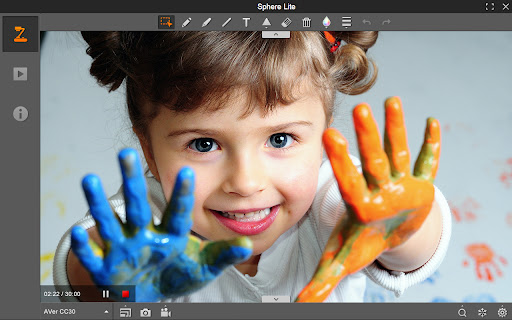
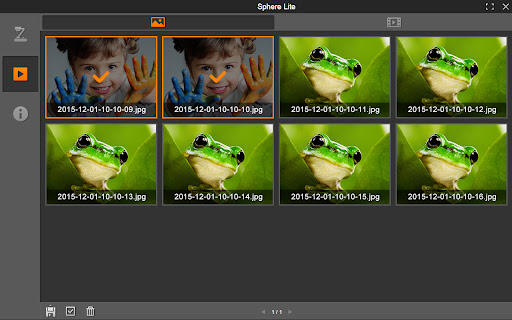
- Using AVer’s document camera stream live video of artifacts, experiments and more directly to the AVer Sphere Lite. - Move, resize, annotate and record it all. - In new version, the widget tool of Sphere Lite provide the One-touch connect allows you to easily connect your AVer DocCam in any web page. - Insert the widget tool into Google Slides to show your DocCam streaming during the presentation. - In widget tool mode, you also can use record, capture and related camera settings.

vCastSender
vCastSender works hand-in-hand with ViewBoard® vCast to make screen sharing, live streaming, and content casting fast and effortless. Just open the extension, enter the code or IP address, and start sharing—your screen, photos, or videos go straight to ViewSonic® ViewBoard®. No messy cables. No hassle. Just smooth, wireless magic. Whether you're online or on the same local network, vCastSender lets your ideas flow wirelessly. Perfect for classrooms and meeting rooms, it helps turn group discussions into smooth, engaging, and productive sessions. Release note: 1. Enhanced Moderator mode performance. 2. Improved performance and stability.

OKIOCAM Live
The perfect app for live presentations. Display your camera's image on a larger screen or share it through conferencing software. OKIOCAM Live is the perfect app for live presenting with your document camera, allowing you to display your camera's image on a larger screen or share it through conferencing software. The app comes with new exciting features that you have been asking for — Annotation, PiP (Picture-in-picture), and exclusive Presentation Modes to be used together with our new OKIOPoint visual pointer. Get the most out of your document camera with OKIOCAM Live! ★Zoom and Follow Zoom and follow is the default mode when you turn on the OKIOPoint feature in the OKIOCAM Live App for the first time. In this mode, the camera will zoom in at the place you point with your OKIOPoint. Great for: -In-class read-alouds. -Close ups on pictures and graphics. -Creating variety to make your audience alert while they follow your movement! —------- ★Highlight In Highlight mode, only a small area next to where you are pointing is shown clearly to make it easy to see where everyone should be focusing on now. The Width and Height of the area can be adjusted to fit your needs. Great for: -Minimizing distractions when reading. —------- ★Fluorescent Marker In this mode, a small area you are pointing at will be highlighted just like how you would highlight certain parts of a text using a highlighter to let students know that “this is important”! You can take snapshots at any point of your presentation on the App and distribute the shots as review materials after. —------- Great for: -Highlighting an important section of the text. -Highlighting a math formula that’ll be on the test! —------- ★Underline Underline mode is perfect for teaching kids how to read graphs. As a bonus, it makes it much easier for teachers to line up the names with numbers in attendance registers and grade books too! Great for: -Making it easy for students to follow along in class -Accentuating important information —------- ★Spotlight Bring a theatrical spark into your lessons! Spotlight mode shows whatever you are pointing at in the spotlight, while darkening the surrounding areas. Great for: -Playing games in class. -Making reading roleplays more fun. Handy Tools for Teachers: ★Annotation Make annotations in class to enhance visual memory, take a snapshot, and save it for future review! Includes handy functions like freehand drawing, framing, lines, and arrows. ★Secondary Camera (PiP) With the built-in PiP function, you can easily show your face using a second camera (like using another OKIOCAM or webcam) at the same time as you show your work with your main OKIOCAM camera. This way, you can strengthen relationships during online presentations by showing your personality to the audience!

Brisk Teaching – AI Assistant for Teachers
More than 1 million teachers have installed Brisk. Here's what they use it for: More than 1 million teachers have installed Brisk. Here's what they use it for: Create Build lesson plans, quizzes, Google Docs, Forms, and Slides in 30+ languages. Everything saves straight to your Google Drive. Give Feedback Write personalized, rubric-aligned feedback on student work for one student or the whole class at once. Inspect Writing See how students built their work. Replay their writing process to understand their thinking beyond the final draft. Boost Student Activities Create interactive, standards-aligned activities with AI guardrails you set. You monitor progress while students work. Brisk reads the page you're on and works with what's there. Nothing to export, copy, or paste. Why teachers stick with Brisk It fits how you already teach. You don't have to learn a new platform or rework your process. Creating a quiz from a slide deck takes minutes. So does turning a YouTube video into a lesson plan, or writing feedback for 30 students. You stay in control. You set the rubric, the standards, the guardrails. 1. Add the Brisk extension to Chrome and pin it to your toolbar. 2. Open any Google Doc, Slide, or webpage. 3. Click the Brisk icon and start building. Ready to save time and boost your teaching game? Visit www.briskteaching.com and join the 1 million+ teachers who’ve made teaching Brisk!

Screencastify - Screen Video Recorder
An easy-to-use screen recorder for your browser. Capture, edit and share videos in seconds. An easy-to-use screen recorder for Chrome. Capture, edit and share videos in seconds. Screencastify, now part of Castify is Chrome's simplest free screen recorder and interactive video platform, empowering anyone to become a better communicator by recording, editing, and sharing videos in seconds. Plus, easily turn any video into an assessment by adding Interactive Questions. With Screencastify, use simple yet powerful screen recording tools to: ▸ Record your desktop, browser tab, and/or webcam ▸ Edit video from your browser ▸ Edit YouTube videos ▸ Translate and add voiceovers on any video in 90+ Languages ▸ Share your video in multiple ways ▸ Add Interactive Questions to videos and see analytics to measure engagement ▸ Request video submissions with Submit Educators, professionals, and personal creators across the world use Screencastify screen recorder as a simple way to communicate more effectively through video. 🎬 Join a massive community of video creators ✔ Millions of weekly users ✔ Hundreds of millions of videos recorded ✔ Incredibly easy to learn and use 🎥 Create engaging videos with our easy-to-use screen recorder ▸ Record your browser tab, desktop, and/or your webcam ▸ Narrate with your microphone’s audio ▸ Embed your webcam into the recording ▸ Annotate in real time to highlight key points ▸ Add captions to make your video more accessible ▸ Add questions to check viewer comprehension ✂️ Simple video editing ▸ Trim the start and end of your videos ▸ Draw on your tab with the pen tool ▸ Merge, crop, and add text to videos 🚀 Share with your audience, wherever they are ▸ Share directly from Screencastify ▸ View and share videos on Google Drive ▸ Share to Google Classroom ▸ Export as MP4, animated GIF, or MP3 ▸ See who has viewed your videos ▸ Translate the captions on your video into 50+ languages 👀Available free ▸ Create your first 10 videos free or upgrade for unlimited video creation ▸ Record videos up to 30 minutes for free 🎓 Education ▸ Create instructional videos to engage your students ▸ Add Interactive Questions to turn videos into assessments ▸ Personalize learning by creating differentiated videos for each level ▸ Embrace flipped classrooms or blended learning with video lessons ▸ Have your students practice foreign languages or public speaking ▸ Empower student video creation with Submit assignments 🏛️ At Work ▸ Eliminate emails or meetings in favor of more effective, async communication ▸ Create performance review videos for coworkers ▸ Share engaging messages with your customers, users, and colleagues ▸ Create training and onboarding videos that captivate your employees ▸ Cancel meetings by sharing video instead 🌍 Everyday creators ▸ With millions of weekly users, we’ve helped creators share countless ideas for videos to life - from professional YouTubers to personal trainers and attorneys to UFO hunters. What are you waiting for? Install Screencastify and inspire the world with your video communication. 📝 Specs: ▸ Screencasts are captured as webm/vp8 files with ogg vorbis audio ▸ Videos can be saved to your local disk as various file types (GIF, MP4, etc), directly to your Google Drive, or you can simply share the link ▸ Screencastify screen recorder does not depend on any external software (like Java, Flash or other plugins) so it runs on Chrome OS, Chromebooks, and Chromeboxes ▸ Screen recording is a CPU intensive task. Older or weaker computers may lag if multiple programs and tabs are open at the same time as a screencast
