
bgibefjpafcdgmgdjfdclpojjgfbnkac
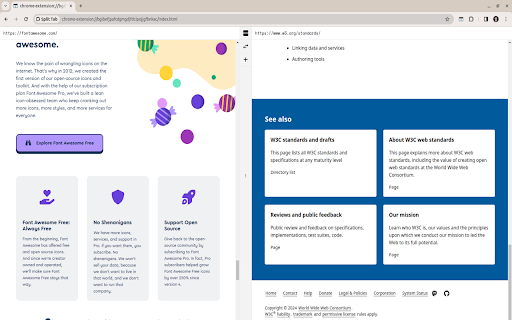
Split tabs, supercharge productivity with multitasking Split tabs supercharge productivity by enabling multitasking. Users can view multiple web pages side by side within a single browser window, enhancing efficiency and facilitating seamless information access. This feature is particularly beneficial for research, comparison, and referencing tasks, allowing users to stay focused without constantly switching between tabs

Split Screen on Mac
Use Split Screen on Mac: seamlessly resize tab. Have a split screen on a macbook to get boosted productivity! 🚀 Elevate Your Productivity with on Split Screen on Mac! Tired of juggling multiple tabs and windows? Our Split Screen on Mac Chrome Extension streamlines your workflow, allowing you to multitask efficiently. It's perfect for both professional and personal use. Split your display easily and handle various tasks at once. Installation and Ease of Use ➤ Quick Installation Download Split Screen on Mac from the Chrome Web Store. Follow the easy setup instructions on-screenshots. Use immediately after installation—no restart required. ➤ Keyboard Shortcuts ⌨️ Assign custom shortcuts for quick operations. ⌨️ Default shortcuts help new users get started. ⌨️ Detailed guide in the extension help section. Customization and Flexibility ➤ Two-Click Browser Tab Resize Click the Split Screen on Mac icon to enter resizing chrome window. Choose your preferred mac split screen setup from a popup. Instantly resize tab to the chosen layout. ➤ Multiple Standard Sizes Options include vertical, horizontal, and quadrant splits. Pre-set ratios like 50/50, 70/30, or customize as needed. Easily switch between sizes for different tasks. ➤ Customizable Chrome Split Screen on Mac Layouts Save custom Layouts with a single click. Manage and edit screen via the extension interface. Share and import layouts to enhance team productivity. ➤ Dynamic Window Pairing Choose from predefined or custom window ratios. Switch easily between single and dual scree. Visual guides aid in changing tab resize and aligning. Performance and Compatibility ➤ Cross-Platform Compatibility 📍 Split screen on Mac works on both iOS and Windows. 📍 Integrates with native window management settings. 📍 Consistent performance across various hardware. ➤ Compatibility with All Major Browsers for Mac 🔥 Compatible with Chrome, Firefox, and more. 🔥 Smooth functionality maintained with browser updates. ➤ To boost productivity, streamline your workflow by minimizing time spent switching between tabs and windows, organizing your workspace for efficient multitasking, and using tools that reduce distractions. ➤ For multi-monitor setups, adjust windows effectively, using features like screen duplicating and extending, and manage layouts either independently or synchronized across monitors for optimal display configuration. Advanced Features ➤ Automatic Adjustment Auto-detects content to suggest split ratio. Adjusts to optimal layout when opening new content. Remembers last configurations for quick reuse. ➤ Screen Edge Snapping Windows snap smoothly to each other and screen edges. Customize snapping sensitivity in the settings. Additional Utilities 🔥 Merge and Maximize: Merge all split screens into one with a single click, maximize any window to full screen from split mode, and easily revert to the original layout. 🔥Mac Window Management: Mimics Mac's focused window behavior, with customizable settings for minimizing other windows when one is focused. 🔥Duplicate with a Click: Clone the current tab to a new split. ❓Frequently Asked Questions about Split Screen on Mac: 📌 How to split screen on Windows? 💡 Click the extension icon in your browser, pick a layout from the pop-up menu, and watch your screen split instantly to enhance your multitasking capabilities. 📌 How to split the screen on Mac? 💡 Simply click the extension icon in your browser toolbar, select a suitable layout, and effortlessly divide your Mac Book screen for improved productivity. 📌 How to split screen on dell? 💡 Just as well as for Mac and Windows 📌 What is the tab resize feature? 💡 Adjust browser tab sizes within the split screen on Mac layout for effective multitasking and content comparison. 📌 Split screen how to use shortcut? 💡 Press the full screen shortcut windows, then activate our extension to select your split display setup, ensuring smooth transitions. 📌 How to change browser window size in two clicks? 💡 Open the Split on Mac option in the menu, choose a predefined size, and adapt your workspace instantly. 📌 Does this resolution scale work only on MacBook? 💡 No, it's designed for both Mac and Windows, enhancing multitasking and usability across platforms. 📌 Does the Dualles feature with tab resize and smart mode work on Mac? 💡 Yes, the Split screen on Mac supports tab resize, enhancing productivity and multitasking with its smart mode.

Small Tabs
Smaller tabs increase productivity Makes all tabs small! Reduces tab anxiety by making all tabs as small as possible!

Group Tabs By Domain
Take charge of your browsing experience with Group Tabs by Domain – the essential Chrome extension designed to streamline your tab management process. Say goodbye to tab clutter and hello to enhanced productivity, all without spending a dime or enduring pesky ads. 🔄 Automatic Tab Grouping: Seamlessly categorize your tabs by website domain, ensuring a clutter-free workspace and effortless navigation. 🎯 Customizable Grouping Threshold: Tailor your experience by setting the minimum number of tabs required before automatic grouping kicks in, providing flexibility to match your browsing style. 📌 Exclude Pinned Tabs: Keep important tabs readily accessible by excluding them from the grouping process, maintaining a clear distinction between vital information and everyday browsing. 📉 Auto Collapse Groups: Maximize screen space and minimize distractions with automatic collapsing of inactive tab groups, creating a cleaner browsing environment. 🔝 Move Active Group to End: Easily locate your most recently used tabs by ensuring the active tab group is always moved to the end of the tab bar, simplifying access to important content. 💡 Temporarily Disable Extension: Gain control over when the extension operates by toggling it on or off as needed, providing flexibility and convenience. ----------------------------------------- Release Note for v0.0.1.1 ----------------------------------------- 🔑 Enhanced Keyboard Binding: Fixed the keyboard binding for quick access to our extension. Now, simply press Ctrl + Shift + K to group tabs. 🚀 Improved Group Navigation: When a group is uncollapsed, the extension will now automatically activate the most recently accessed tab within that group. This enhancement eliminates the need for an extra click and streamlines tab navigation, particularly in groups with multiple tabs, saving valuable time and effort. ----------------------------------------- Release Note for v0.0.1.2 ----------------------------------------- Bug fix for activating last tab within specific group

Split Screen in Tab - TradingView
Split View in One Tab! Multitask with TradingView! Features 🌟 Side Panel: Open ChatGPT for a seamless AI experience (writing, email replies, image generation, etc.). 🌟 Layout: Horizontal, Vertical, and Custom Drag & Resize layouts. 🌟 Group: Store websites and open them quickly in a tab, like for multiple social media postings. 🌟 Context Menu: Right-click to open the Side Panel, Group, or Template. 🌟 Shortcut: "Ctrl+Shift+S" to open the Side Panel. (Changeable in FAQs.) 🌟 Import Tabs: Quickly import opened tabs 🌟 Open link in Side Panel: right click the link and select the context menu. 🌟 Auto Refresh: Set the time to auto refresh (etc, stock group). FAQs 🤔Is It Free? -- Free Tier already Covers Most Needs.😊💖 -- Upgrade to Pro for more Custom Groups. Go Pro and help us build even more features!💪✨ 🤔Change Shortcut⌨️ -- Use the shortcut button on the top toolbar to manage more. -- Mac shortcut: Command+Shift+S 🤔Security Testing🛡️ -- Here is a link to test that iframe won't be globally cross-origin when using this extension: https://tools.wow2fun.com/splitScreen Normally, you will see 'chatgpt.com' refuse to connect, which indicates enhanced security enforced by the browser. 🤔Need More Help? -- Click the "Visit support hub" below or email me. 📝If you’re happy with our service, please consider leaving us a review below!⭐ Your feedback helps us improve and supports our growth🌱. Thank you!🤝
