
bfkjochdalcdahjnliojhpldoogkbglc

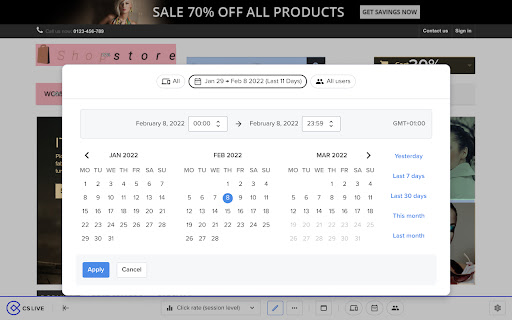

Contentsquare’s CS Live extension will allow you to display Contentsquare’s unique UX metrics directly on your website. For every zone on each page, you can seamlessly see metrics like click recurrence, hesitation time or engagement rate.

Ignore X-Frame headers
Drops X-Frame-Options and Content-Security-Policy HTTP response headers, allowing all pages to be iframed. Should be used only temporarily and only for development, testing, or troubleshooting purposes because it disables important browser security mechanisms. Use at your own risk. No custom options or installation instructions: just install the extension and enable it on the relevant websites using the standard browser controls. Release notes: v2.0.0: reimplemented with declarativeNetRequest and Manifest V3, no functional change v1.2.2: Chrome 89 permission fix v1.1.1: added icons

Debugger for Adobe Analytics
Adobe Analytics Debugger for POST and GET requests. Prints following info: - displays all page load data, link events, file downloads - shows information about data collection servers and informs if it is an RDC server or not - provides recommendations on how to improve the implementation - displays Adobe Marketing Cloud visitor ID and Adobe Marketing Cloud organisation ID

dataslayer
Debug and test tag management (Google Tag Manager, DTM, Tealium) and analytics implementations. dataslayer adds a panel to Chrome Developer Tools that monitors tag management data layers and displays changes in an easy-to-read, user-friendly format. Supported TMS/variables include: - Google Tag Manager dataLayer variable - Adobe Launch rules and data elements - Adobe DTM page load rules and detection - Tealium data layer - TagCommander data layer - custom data layers (any variable represented as a JavaScript object) dataslayer supports multiple data layers / GTM containers on a single page, including those in embedded iframes. dataslayer also decodes and displays tags (including pageviews, variables, and click events) from: - Google Analytics (including App + Web, Universal Analytics / analytics.js, dc.js, and ga.js) - Adobe Analytics / Omniture SiteCatalyst - Floodlight For feature requests and bug reports, please either use the 'Send Feedback' option in the Chrome Web Store or reach out directly to info@dataslayer.org Source lives at https://github.com/sean-adams/dataslayer if you'd like to contribute!

Adswerve - dataLayer Inspector+
DataLayer Tools for Digital Analysts The Adswerve dataLayer Inspector+ is a tool kit of utilities for a digital analyst. Inspect Google Analytics activity - Monitor the dataLayer in real time - See the Google Analytics hits in the console, as they happen - Evaluate common dataLayer pushes formats: events and ecommerce Insert additional resources in the page - Push a dataLayer message for setup - Add a GTM container to test it - Insert code into the page to monitor and modify How to use the dataLayer Inspector+: https://adswerve.com/resources/adswerve-data-layer-inspector-2 Update for v2024.11.1.1 Due to new restrictions on external script tags in Chrome extensions, the "Insert GTM Container" option has been removed from dataLayer Inspector+. Follow these steps to insert a GTM container into a web page with the "Inject Code" feature instead: Go to tagmanager.google.com. Under the Admin tab for your container, select "Install Google Tag Manager." As shown in the screenshot below, where it says "Paste this code as high in the of the page as possible," copy just the snippet code content. Note: Do not include , only the code between them. In the DataLayer Inspector popup, under "Add Functionality," check "Inject Code." Paste the code snippet from Tag Manager into the text box that appears. Click the button to "Save Settings & Reload." The GTM container will be inserted until the "Inject Code" box is unchecked and "Save Settings & Reload" is clicked again. Be sure to do this when you've finished testing.
