
apdibnmkginffckcfafdmalidahbjlfe
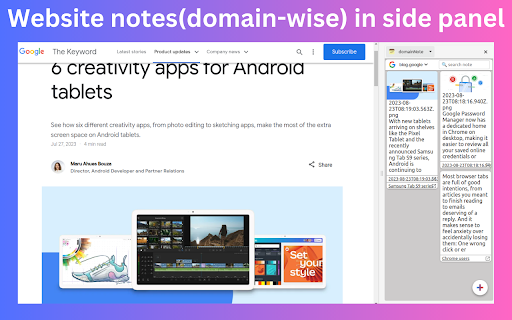
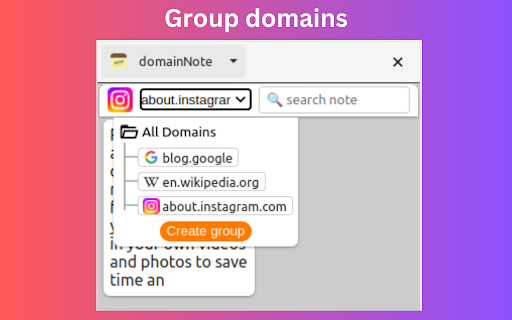
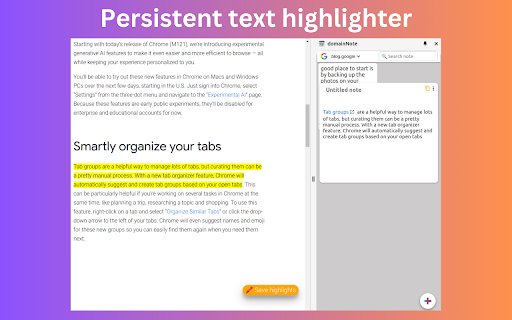

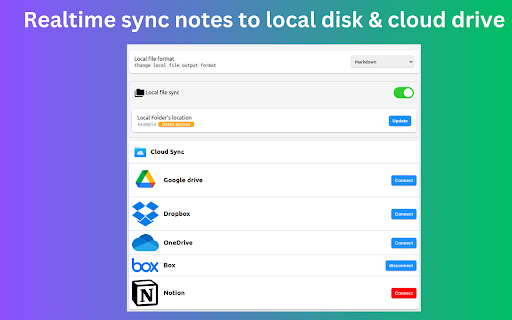
Take domain specific notes with live-preview markdown note editor in side panel. domainNote sync notes with local files, GDrive, Box 📢 Take Website specific notes in side panel with live preview markdown and local disk realtime sync. 📌 Why you should consider this: ✪ Live preview markdown editor ✪ Website specific (Domain-wise) sticky notes ✪ No signup required ✪ Fuzzy search ✪ Persistent Text Highlighter ✪ Take screenshot and insert into notes ✪ Dark mode and custom themes. ✪ Sync with desktop local file manager. ✪ Sync with cloud drive: GDrive, oneDrive, Dropbox,box,notion. ✪ Pure & clean code that powers fastest performance. ✪ Cloud & Cross-devices realtime sync . ✪ Export notes in three format: markdown,html and pdf ✪ All notes and media-files saved locally. Never touch our server ✪ No tracking & no Ads. ✪ Lightweight 80KB only ✪ No third-party library used. ✪ Negligible memory consumption (consume 400% less memory than new tab). 📌 == FEATURES == ✅ Markdown live preview editor You don't need to open separate panel to preview your markdown. domainNote provides a real live preview like WYSIWYG editor. you can update existing markdown's mark to change formatted text. ✅ Create Website specific sticky notes you can group multiple domains ✅ Remind todo you when you visit website(coming soon) ✅ Persistent text highlighter Highlight text by right click menu or (Alt + H when copy listener on). Fastest highlighter in chrome web store. domainNote highlight text without creating new DOM element. Read more: https://web.dev/dom-size-and-interactivity/ ✅ Time has come to forget ctrl+c and ctrl+v Drag and drop any web content e.g images,selected text. domainNote doesn't convert text into image like others do. domainNote format into markdown so that you can easily modify them selected text will auto-copied to domainNote when you press ctrl+c on any webpage keyboard shortcuts (work only when copy listener on) Ctrl+Z ⇒ undo Ctrl+Y ⇒ redo Alt+H ⇒ highlight Ctrl + Shift + H ⇒ remove highlight Ctrl+ Shift +Z ⇒ undo highlight Ctrl+ Shift +Y ⇒ redo highlight Shift + Space ⇒ extend selection 🖥️ Take screenshot Click on screenshot icon for capture and save screenshot Use Keyboard shortcut (Alt + S) 🖍️ Highlight text When you clip selected text, selected text will highlighted automatically Click on Save Highlight button on right bottom corner to save highlight. For remove highlight, Select again highlighted text and press Ctrl + Shift + H. For disable highlight, Go to options page ✅ No vendor locked in. domainNote realtime sync your notes with desktop local file manager in three format: markdown,html & pdf You can view and edit notes in any other markdown based note editor. ✅ Realtime sync notes with other cloud providers You can sync notes with cloud drive providers:GDrive, oneDrive, Dropbox,box. You can sync notes with cloud notes providers:Notion, onenote (coming soon). ✅ Private and secure All data saved locally. Your notes or media file e.g images, videos never touch our server. You can mail us: noderailhelp@gmail.com 🚀 Version 0.0.62 Added: Delete domain & its notes feature added ⇒ ADDED: Sync screenshot with local disk & cloud drives ⇒ FIXED: markdown paste issue fixed ⇒ FIXED: Search then click on note bug fixed 🚀 Version 0.0.60 ⇒ ADDED: Realtime sync feature added ⇒ ADDED: Markdown guide & sync notes option available on extension's right click ⇒ IMPROVED: Improved sync feature ⇒IMPROVED: Options page improved ⇒IMPROVED: domainNote now available in 20 languages

Floating Notes
Use Floating Notes app for sticky notes and an offline notepad app with desktop post it notes on any webpage - sticky and floating Create fast post it notes while you browse and keep your ideas in view. This tool stays on top of the site, so you can write without losing context. You can drag, resize, and place floating notes windows where they don't cover important content. Attach a memo to a page URL, keep it for the whole domain, or open a separate floating window for your desktop workflow. You can create several memos per context as a notepad and switch between them, so notes floating stays simple even during long reading sessions. 🚀 Quick start 1. Add the extension to Chrome 2. Open any website 3. Click the floating notes icon 4. Start typing and save instantly 5. Use a keyboard shortcut to open a memo even faster 6. Select text on a page and save it into a note from the context menu 1️⃣ Pin sticky notes to a specific page for reminders and checklists 2️⃣ Keep sticky cards for desktop style work, because the cards stays visible while you scroll 3️⃣ Switch between several cards as a stack, like desktop sticky note pad inside the browser 4️⃣ Capture selections from a webpage into your posted notes in one click 5️⃣ Auto save your text and restore it after refresh or browser restart 6️⃣ Open an always-on-top floating window that stays above other apps to keep your memos visible above other apps 7️⃣ Search and review old memos later, so your notepad becomes a lightweight archive 8️⃣ Minimize cards when you need more space, then expand to edit instantly 9️⃣ Bold, italic, underline, and lists help you organize thoughts without extra tools 🔟 Checklists let you track progress directly inside a memo ✨ Simple and distraction-free The interface uses clean lines and soft colors that blend with any website. Buttons appear only when you hover, so the focus stays on your text in your notpad. Keyboard shortcuts help power users work faster without touching the mouse. ➤ Studying and research, saving quotes and links next to the source ➤ Shopping and planning, adding stick memos for prices, sizes, and decisions ➤ Writing and brainstorming, drafting text in an offline notepad before publishing ➤ Daily tasks, keeping sticking notes and todos on the pages you visit often ➤ Support tickets and QA, leaving quick comments on web tools and dashboards ➤ Learning new topics, building a personal summary right next to the article 📍 Memos that match your context - Page note for one exact URL - Site memo for the whole domain - External card that isn't tied to a page and can float like a desktop widget - Multiple memos per page, so you can separate ideas and keep a clean workspace 🖥️ Windows and mac friendly If you need a notes app for windows, floating notes for windows works inside Chrome. You can also use floating notes mac on any computer that runs Chrome. On macOS, floating cards bring the same experience. 🔐 Offline and private Your notepad is saved locally, so it works as notepad offline. Use it like a simple notepad app without accounts. This is ideal when you need quick memos during travel or unstable internet, and it helps you keep control of your personal drafts. Q: Can I use mac floating notes on desktop while I scroll A: Yes, the memos stays fixed and visible, so you can keep floating notes on desktop as you read Q: Does it work on many websites A: Yes, floating notes works on any webpage where Chrome extensions can run and you can keep your notes floating Q: Where do my memos live A: Memos are stored locally in your browser, so floating notes is a true offline notepad Q: Can I create multiple sticky notes on one page A: Yes, create several cards and cycle through the stack with the extension icon Q: Can I move and resize a card A: Yes, drag it anywhere on the page and resize it to fit your layout Q: Is my data synced to the cloud A: No, all content stays on your device. This keeps your drafts private and loads them instantly without waiting for a server Q: Can I format my text A: Yes, use bold, italic, underline, strikethrough, and bulleted or numbered lists. Keyboard shortcuts like Ctrl+B work too Q: Does the extension slow down my browser A: No, the code is lightweight and only runs when you interact with a memo. Idle pages use almost no resources Get floating notes download from the Chrome Web Store and turn any webpage into your personal sticky notes app. Keep your ideas in context and reduce tab switching while you work.

NotePADD - notepad offline
Use NotePADD - notepad offline for easy note taking. Create quick notes, keep notes securely organized inside Chrome’s side panel. NotePADD - notepad offline brings a seamless way to capture every idea that sparks while you browse the internet. No more juggling between separate tools — just open the extension, and your notes are right there waiting. Thanks to online notepad integration, you can type instantly without hopping from tab to tab. Whether you’re saving a recipe or brainstorming a new project, the user-friendly format of notepad online ensures effortless storing of vital information. With your entire workspace condensed into this convenient panel, you’ll discover a more streamlined approach to writing, referencing, and sharing. 💬 Why choose NotePADD - notepad offline? • Combines the versatility of notepadd online with real-time syncing. • Offers a simple and efficient alternative to traditional note taking apps. • Enables seamless notepad offline access for uninterrupted productivity. • Built to support capturing information for both personal and professional needs. 🗝 Key features ✔ Export Options: Effortlessly export note entries for use in other applications. ✔ Offline Mode: Work on entries without an internet connection, with automatic syncing. ✔ Google Document Integration: Your entries are securely stored in a synced Google Doc. ✔ Data Security: Use advanced encryption options to ensure your writings remain protected. 🌟 NotePADD - notepad offline is an advanced tool for better record-keeping ▸ Create polished entries with robust note taking software. ▸ Keep your entries close at hand with the browser notepad panel. ▸ Manage projects effectively using chrome notes synchronization. ▸ Switch between any tabs and leave the notepad extension always on screen. ✈️ Productivity wherever you are Ever find yourself without the internet but bursting with ideas? The extension solves this with its offline notepad feature, ensuring you can capture your thoughts anytime, anywhere. Whether you're in a busy café or on a long flight, your entries remain accessible. Once back online, all changes are automatically synced, saving you time and hassle. 🔐 Built for security ☑️ Note encryption ensures sensitive data remains private. ☑️ Google-backed cloud integration supports your chrome notepad needs. ☑️ All your secure notes are accessible only to you, and you can also encrypt them. ⚙️ How to use NotePADD - notepad offline ∙ Install the extension from the Chrome Web Store. ∙ Pin the extension for quick access to your simple notes. ∙ Type directly into the sidebar and organize content as you prefer. ∙ Watch your cloud notes update in real-time on Google Docs. 💻 Multitasking made easy Capture thoughts in real time with NotePADD - notepad offline. The quick note feature ensures you can jot down fleeting ideas without disrupting your workflow. Whether you’re saving a simple note for later or brainstorming a major project, this extension keeps everything at your fingertips. For professionals, students, and creatives alike, this extension offers unmatched simplicity. This notpad is here to help. 👀 Who benefits from NotePADD - notepad offline? 👤 Students: Keep notes for organizing research and learning. 👤 Professionals: Start notepadding tasks and ideas efficiently with our extension. 👤 Creatives: Turn fleeting inspiration into detailed outlines with the quick notes feature. 📈 Expand your productivity • Access all entries offline with robust offline notes capabilities. • Arrange tasks and projects effortlessly with our note organizer. • Transition between chrome devices, keeping your ideas and tasks at your fingertips. 🌟 Why NotePADD - notepad offline is essential The extension combines simplicity and security in one powerful Chrome extension. transforms your browser into an efficient online writing notepad. Quickly organize thoughts and store ideas in one place. Its easy-to-navigate design mimics a unusual notpad, so you can focus on your content without distractions. it’s perfect for creating detailed outlines, journaling, or storing references. By offering export options alongside encryption, it ensures privacy without compromising convenience. 🔍 Frequently asked questions ❓ How to take digital writing notes? 📌 Start by organizing your thoughts into clear sections, using a structured tool like our extension! ❓ Does it support offline use? 📌 Yes, it supports offline use. The offline mode ensures productivity without internet access. ❓ How secure is my data? 📌 Your cloud notes are encrypted and stored securely in your Google account. ❓ Can I export it? 📌 Yes, you can easily export and import your notpad notations entries to other formats. 🚀 Elevate your daily tasks with NotePADD - notepad offline Whether you're drafting ideas for work or managing personal projects, our extension is the ultimate productivity tool. It’s designed to keep your entries organized, secure, and ready to tackle anything. Install NotePADD - notepad offline now and transform how you take notes!

Page Notes
Attach notes to any webpage — they're right there when you come back. Syncs via your own Google Drive. No third-party servers. Page Notes — notes that live where you need them Attach a note to any web page. When you come back, it's right there — no searching, no switching tabs. Perfect for login hints, tracking IDs, project context, or anything you'd otherwise forget. SMART & LIGHTWEIGHT Create notes scoped to a specific URL (one article, one order page) or an entire domain (everything on amazon.com). Use #tags to organize notes across sites, and spot pages with notes instantly — the icon changes color when there's a note waiting. YOUR DATA, YOUR RULES, NO LOCK-IN Page Notes never sends your data to third-party servers. Notes live in your browser by default, or sync to your own Google Drive for cross-browser access. For sensitive notes, enable client-side encryption with a passphrase that's never stored anywhere. WORKS EVERYWHERE Syncs across Chrome, Edge, Brave, and all Chromium browsers — plus Firefox. View and edit notes on mobile via the web app at pagenotes.app. • FAQ: pagenotes.manugarg.com/faq • Bugs & feature requests: GitHub Issue Tracker (Store review replies don't work!) • Firefox Add-on: addons.mozilla.org/firefox/addon/mg-page-notes • Privacy Policy: pagenotes.manugarg.com/privacy.html • Blog: https://medium.com/@manugarg/10-000-users-for-page-notes-1f75786c2a41 • Website: https://pagenotes.manugarg.com

Annotate: Web Annotations with Screen Sharing
Annotate web pages, PDFs, Google Slides, and Google Docs to improve engagement. Annotate in Google Meet when screen sharing. New in v8.53+ • Support for In-Document questions for converting printable paper worksheets into fully digital assignments. New in v8.22+ • Student note taking on web pages, Google Slides, and PDFs • Student note taking during LiveStreams for Google Slides and PDFs • Livestream student work (Google Slides and PDFs) to student devices and to a classroom display using Chrome Client Lite. • Review student work and provide feedback in real time New in v8.19+ • Livestream support for PDFs and Google Slides • More robust export for web page annotations • General bug fixes Freely annotate web pages, PDF documents, Google Slides and Google Docs content when presenting. Keep your audience engaged with live annotations during your remote learning and Google Meet sessions. New! Annotate PDFs on your Google Drive or on the web by selecting “Open with Annotate”. Annotations are sticky and remain in place as you zoom, scroll, and navigate. The same user interface and annotation tools now work across PDFs, Google Slides, Google Docs, and web pages. With improved compatibility with Google Slides and Google Docs, we track annotations for every slide/ page so your annotations remain in sync as you navigate across slides/ pages. Tight integration with Google Slides and Google Docs also enables switching between app controls/ menus and our annotation tools seamlessly. Our annotations are smooth, fast, and anchored in place as you zoom and navigate, making your content look professional and engaging. Save your annotations in your account for review later. Share them with others or come back and continue working from where you left off. Capture screenshots of marked up pages and insert them directly into your Annotate notebook. All this as you share¹ your entire screen, an application, or just a single Chrome tab with a projector² and multiple student devices. The plugin works seamlessly with your Annotate.net instructor account to enable annotations over web pages and screen sharing¹ during LiveStreams. When installed on classroom devices, you can empower students to take an active role in their learning by giving them the ability to annotate web pages and share their screens using the "Pass Control" feature. Teachers, students, and Google Meet users shall be able to: • Freely annotate web pages, PDFs, Google Slides, and Google Docs using the pen and highlighter tools³. • Annotate PDFs on their Google Drive or on the web by selecting “Open with Annotate”. • Annotate Google Slides in both edit and present modes. Google slides annotations are tracked and saved for every slide. • Save annotations directly into their Annotate web account⁴. • Share their annotations with others⁴. • Capture screenshots of web pages with annotations and add them directly into an Annotate notebook. • Insert images from the web, including image searches, directly into their Annotate notebook with just a click. • Use the laser pointer tool to point out details and draw attention. • Stream their entire desktop screen, a single application, or just a Chrome tab¹. • Stream speaker and microphone audio¹ from their computer to a projector² and student devices. • Select a monitor for sharing if they have multiple screens/monitors connected to their computer¹. ¹The extension provides screen sharing and audio streaming support in your Annotate web account in older versions of Chrome. ²Requires the Annotate Mirror Client v11.0+ or the Annotate Chrome Client Lite running on the PC/ Mac/ Chromebox connected to your projector. ³Feature limitations may apply depending on your account type. Please review https://annotate.net/pricing for the list of features available in different accounts. ⁴Some features are not available in student accounts. New in v7.22+ • Page rotation in PDFs • Blank document/ Infinite canvas support for PDFs and web pages New in v7.00+ • Bug fixes and general improvements Tools and features added in versions prior to 7.0 • Screen Shade tool with Spotlight support • Comments in web pages • Improved compatibility with Canva • Drawing support when toolbar is minimized • Export Google Slides with annotations and media³ • View, add, edit, and reply to comments in PDFs • Export PDFs with annotations and media³ • Add Media (images and videos) • Timer and Stopwatch • Voice notes • Screen + Camera recording • Multi-line Equation Editor • Line, Rectangle (Box), and Ellipse
