
anmikanblfemkldmaldbhdejcfpodkpd
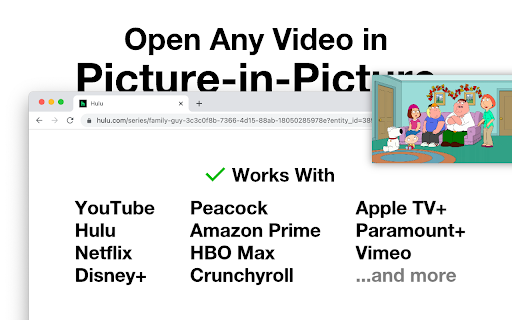
Enables picture-in-picture mode, even for sites that have disabled it This extension functions similarly to the official Google extension, except it does not include Google Analytics and it ignores the `disablepictureinpicture` attribute on HTML videos. This means that sites like Netflix, Disney Plus, and Hulu will work!

Picture in Picture for Videos
Picture in Picture for floating video from any site Picture in Picture for Videos – Floating Video Player for Chrome Watch videos while you work with Picture in Picture for Videos, a powerful floating video (PiP) Chrome extension that lets you play any video in a movable, resizable always-on-top window. Whether you’re watching YouTube, Netflix, Vimeo, Prime Video, or any other video website, this extension keeps your video visible while you browse other tabs, chat, code, or work — without interruptions. 🎥 Picture in Picture Mode Play videos in a floating PiP window that stays on top of all other tabs and apps. 🖥️ Movable & Resizable Player Drag and resize the video window to perfectly fit your screen and workflow. 🌐 Works on Any Video Website Supports YouTube, Netflix, Vimeo, Prime Video, and most HTML5 video players. 🖱️ One-Click Activation Enable Picture in Picture instantly using the Chrome toolbar icon. 🎯 Perfect For ✔ Multitaskers who want to work and watch videos together ✔ Students attending online classes or tutorials ✔ Developers & designers following video guides ✔ Remote workers, traders, and content creators ✔ Anyone who wants distraction-free video viewing 🚀 Why Choose Picture in Picture for Videos? 📺 Always on Top – Your video stays visible while you work ⚡ Fast & Lightweight – Smooth playback with minimal system usage 🔌 Seamless Chrome Integration – Simple and intuitive to use 🛠️ Built for Productivity – Designed to enhance multitasking 1. How does Picture in Picture for Videos work? Just open a video on any website and click the extension icon to launch the video in a floating PiP window. 2. Does it work on all websites? Yes, it works on most websites that use HTML5 video players, including YouTube, Netflix, Vimeo, and more. 3. Can I resize or move the PiP window? Absolutely! You can resize and move the floating video window anywhere on your screen. 4. Is this extension free to use? Yes, Picture in Picture for Videos is completely free to download and use. 5. Will the video keep playing when I switch tabs? Yes, the video continues playing while you switch tabs or applications. We collect only the minimum data necessary to ensure smooth performance and improve functionality. This information is used solely to enhance the user experience and is never shared with third parties. Note: We do not collect any personally identifiable information. Install Picture in Picture for Videos today and enjoy the freedom to watch videos while staying productive — simple, powerful, and distraction-free.

Picture in Picture - Floating player
Picture-in-Picture mode allows you to watch a video in a floating window with playback video and volume controls. This extension brings a PiP view to all websites with an HTML video element. Press the extension icon to open the active player in the picture in picture mode. This extension automatically tries to use the active player. Now stream movies, series or sports on any tab. Install Picture in Picture chrome extension to enable the floating video. We support this feature on every streaming site. For YouTube, the extension also offers an in-player button next to the settings button to open the YouTube video in the picture-in-picture mode. You can use this extension to watch YouTube videos in a floating window that is on top of all other windows so tabs can be switched and still the player is visible. The floating window has play and pause buttons, and you can exit from the picture-in-picture mode anytime. How Extension works: 1. Find the video and run it. 2. Click the extension icon to reduce the video player on YouTube and other sites. 3. Select the “Floating Picture in Picture” and you're done. A floating video allows the viewer to scroll through your webpage and keep your video in view the whole time. Video Playback Controls Enjoy full control over your video playback with intuitive controls directly within the floating player: - Volume control; - Stop and play video; - Video speed control; - Switch to next video. Just click on the Floating Player and Video Control icon to display the video player on YouTube, Netflix or any other websites on the Web. This window will play the video on all pages of the browser on which there is a video resource. Pic-in-pic mode supports all video formats and works with popular video hubs like Youtube and many others We hope you find our tool useful! We are waiting for your feedback and ratings!

PIP-VID
Enable Picture-in-Picture mode for video content with one click Watch videos from any platform using the Picture-in-Picture mode while doing other work. Perfect for viewing your favorite videos while staying productive such as going along a tutorial or watching a movie. This extension can be used on the browser and on desktop Note: the source of the video must be open (ex.Youtube video) so do not close Chrome. This extension is supported on Youtube, Netflix and Twitch. Instructions: 1. Once installed go to any video platform ex. Youtube. 2. Select a video to watch and once selected click on the extension button or you can press Alt+V to go into picture-on-picture mode. 3. You can move the video window around and resize it to your convenience. 4. You can exit from the picture-in-picture mode anytime by clicking on the extension again or Alt+V.

Picture-In-Picture for Videos
1. Install and add the extension to Chrome. 2. Play the video🎥, click on the extension icon. 3. The video will be playing in a floating screen on top of other windows. A mini-video player with which you can keep an eye on what you’re watching while interacting with other sites, or applications.
