
ancooclifmcdfafbgjmgpmcembfaknka

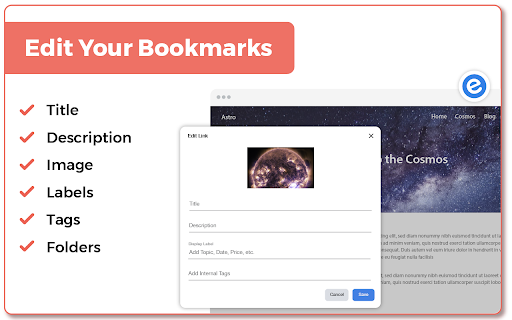
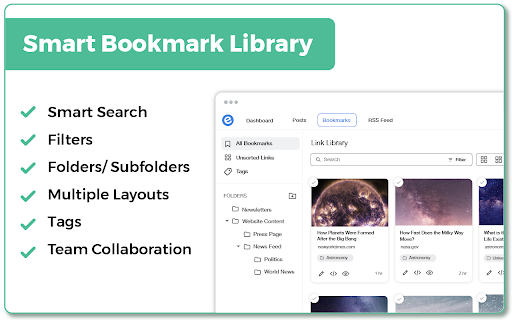

Best visual Bookmarker for creating content for your Gmail Newsletters, HTML Newsletters, Website/Blog and Social bio links. elink bookmark extension for Chrome is the best bookmarking tool for saving & organizing visual bookmarks in one place. When you save a bookmark or a link you can can choose an image, capture a screenshot or upload your own image. You also have the ability to edit the title and description to add your own voice or notes and even bundle links together and share your link collection with others. More than 70,000 users use elink everyday to collect and share digital information professionally. From these bookmarks you can create beautiful Gmail newsletters, HTML email newsletters, content for your websites and blogs, RSS Feed powered website content, bookmark powered website content, social bio links, automated content publishing and more. Elink bookmarking tool is a must use tool for just about everyone. • Simple - Click the elink logo in the browser or right-click on any web page, link or image and save it as a bookmark with elink’s Chrome Extension. It’s a fast and easy way to collect and organize your bookmarks while you browse. • Multiple Templates– elink lets you choose from 50+ beautiful modern templates with single, grid, masonary, e-commerce, carousel, etc. style layouts to display your visual bookmarks. • Real-Time Editing – Quickly edit or update any information you have published and it will update in real-time. • Unlimited elinks - There are no limits to how many elink web pages and newsletters you can create. • Analytics – You can track engagement levels, referral sources and the location of your audience for each of your elinks. • Responsive Templates – Our responsive templates make your web page, newsletter, and website embed look great on all devices. Display your bookmarks professionally when sharing with others. • Bookmark Any Web Content – elink’s powerful tool allows you to curate and share any online content that has a link. Which includes articles, websites, videos, webinars, podcasts, articles, pictures, infographics, PDF’s, Google Docs, Dropbox files and more. You can pretty much bookmark anything on the web. How Does elink’s Bookmarking Extension Work? Use elink’s bookmarks icon or right click your mouse to collect any type of web content. You can right-click on any web page or link and save it as a bookmark with elink’s Chrome Extension. It’s a fast and easy way to collect and organize anything while you browse! Don’t just save bookmarks for yourself anymore, start collecting and sharing them with your customers, teammates, followers or whoever your audience is. • Websites • Articles • Videos (YouTube, Vimeo, Ted, etc.) • Slideshares • Google Docs • Dropbox Files • PDF’s • Images • Any content with a weblink can be saved and shared with elink! • You can even create image galleries by bookmarking photos from your Google Drive, Dropbox etc. Creating email newsletters can be time-consuming. With elink you can quickly curate and turn your elinks into email newsletters in minutes. Simply collect links around any topic and export them to Gmail, MailChimp or copy and paste the HTML code to your 3rd party email platform. elink works with nearly every email provider. You never have to worry about the design of your newsletter and can easily switch between various newsletter templates with a simple click of a button. Share the best online resources, products, tools, videos, news articles and much more with your audience. Curated email newsletters are a fantastic way to communicate with your clients, teammates, and followers. Catch their attention with a stunning email newsletter that you can send in minutes! It’s the fastest way to create a email newsletter on the planet. Elink bookmarks browser extension makes it a breeze to save and organize your content for the newsletters while you browse the web. ---------------------------- Can I Use elink for Content Curation? elink is the best tool for your content curation needs. Content curation in simple terms means finding the best content online and then sharing it with your audience in a professional manner. With elink you can save your bookmarks and curate content on the go. There are tons of content curation tools out there. However, there are some key features you must look for when choosing the right platform: How easy to use is the content curation tool? How is the curated content presented? Can you add your notes to the content you're curating? How can you share your curated content? The ease of use and the ability to present content in various formats makes elink the best content curation tool for any industry. Who Can Use elink Bookmarks for Curation? elink.io is great content curation for any industry – tech, retail, finance, health, real-estate, travel, legal, manufacturing, arts, construction, education, agriculture, governments, etc. elink.io is great for content curation nearly in every profession: marketers, management, techies, brokers, bloggers, website builders, realtors, administrators, human resources, accountants, lawyers, educators, engineers, insurance agents, etc. Even though elink.io is considered the Pinterest for business, you can also use elink's bookmarking tool for your personal needs! Download Elink Bookmarking Extension Today and Start Saving Your Bookmarks! If you have any questions on how to use elink bookmarks or want to get in touch with us, email us at info@elink.io. * Quick Save Panel * Choose the image for your bookmarks from a gallery of images like Pinterest. * Capture a screenshot for your bookmarks * Add tags to your bookmarks * Organize bookmarks in folders & subfolders * Smart search for your bookmarks in the link library * Advanced filter options for your bookmarks (time duration, used in post, tags, etc.) * Add bookmarks to collections directly from the bookmark extension * Edit images when saving bookmarks * Customize the text and description for your bookmarks * Faster uploading of images for your bookmarks * Save bookmarks directly to your published posts * Create automated scheduled content from bookmark folders. * Create website powered content from bookmark folders.

Bookmark Manager and Viewer
An elegant bookmark manager with fuzzy search and more The "Bookmarks Manager and Viewer" extension provides a panel view to modify your bookmarks. The panel is equipped with fuzzy search (like Google search) to help you find the matching bookmarks. You have a set of tools to edit your bookmarks on the fly. It is even possible to drag a bookmark to a new position in the tree or create a new directory and place the bookmark inside it. Features: 1. Fuzzy Search: Use to find matching items even if you are not sure what the exact title or URL of the stored bookmark is. 2. Validation Button: Delete broken bookmarks or find duplicated bookmarks recursively. 3. Edit Properties: Modify the title or address of a bookmark 4. Toolbar Color: Detect if the current page is bookmarked or not 5. Sort Bookmarks 6. Supports Live Bookmarks 7. Opening Mode: Open in a browser tab or popup view 8. Keyboard Navigation and Operation

Finder Bookmarks
This extension will replace Chrome's default bookmarks manager. It's very useful if you have lots of bookmarks. Similar to Mac Finder in columns view, you can manage and navigate bookmarks by mouse or keyboard shortcuts, for example: • Navigate all bookmarks using mouse or arrow keys. • Open a bookmark by double click or enter key. • Open all bookmarks in a folder by context menu. • Drag and Drop a bookmark to a new location. • Create, edit or delete bookmark or folder by context menu. • Select multi bookmarks to move, delete or open. • Copy/cut/paste bookmarks(except folders) by shortcuts. • Sort bookmarks by name. • Support many keyboard shortcuts. How to use: • Click this extension's icon • Click menu item at Chrome -> Bookmarks -> Bookmark Manager • Use Chrome keyboard shortcuts, Windows/Linux is Ctrl + Shift + o, Mac is ⌘ + Option + b This extension is a part of another extension "Re-newtab" that contains this bookmarks manager in Chrome newtab.

Bookmarks Commander
A dual-pane Norton Commander liked bookmarks manager that supports sorting, dark theme, search, and duplicate detection This is a two-panel bookmarks manager for your browser. It works similar to the famous Total Commander. You can move items between the panels or view two different directories simultaneously. Instruction: Click on the toolbar button once to open the commander in a new browser tab. By default the left panel has focus. Use arrow up and arrow down keys to navigate. Use Enter to move to a directory. To move the other panel simply press The left or right arrow key. Shortcuts: [open links]: Press Enter key to open on the same tab. Press Ctrl + Enter or Command + Enter to open in a background tab or use double-click to open on the same tab. Press Ctrl/Command while double-clicking to open in a background tab. [select multiple bookmarks]: Ctrl/Command with left-click to select more items. [copy links to the clipboard]: Ctrl + C or Command + C to copy selected links to the clipboard. [copy titles to the clipboard]: Ctrl + X or Command + X to copy selected titles to the clipboard. [directly navigate to a bookmark]: Press the first character of the title multiple times to navigate between items starting with this particular character [move one step up]: Use backspace to navigate to the parent directory [move between left and right panels]: use Tab key to toggle between panels. Use Ctrl + 1 or Command + 1 to move to the left tab. Use Ctrl + 2 or Command + 2 to move to the right tab. You can alternatively use arrow-left and right to move between panels. [move selected bookmarks and folders to the other panel]: Use Ctrl/Command + right arrow key to move selected items to the right panel when the left panel is focused. Use Ctrl/Command + left arrow key to move selected items to the left panel when the right panel is focused. [sort items]: Ctrl/Command + J for A-Z and Ctrl/Command + Shift + J for Z-A [find duplicated bookmarks]: Ctrl/Command + Shift + F; use the "duplicates" keyword on the search bar to find all duplicated bookmarks in the current directory and subdirectories. [move bookmarks between different browsers]: Ctrl/Command + Y to export selected bookmarks to the clipboard, then use Ctrl/Command + P to import them to the new machine. This way you can transfer bookmarks between two browsers. [configurations]: Use Ctrl/Command + S to access configuration panel. You can change the font size and font family of the interface or change the color scheme (theme) of the interface (dark, light, or based on your OS color scheme) or toolbar icon's color. It is also possible to use the new "VIM" mode to support VIM-compatible navigation (still in progress). Notes: 1. When an operation is not allowed, the button is disabled. 2. You can see all the shortcuts by placing your mouse over the buttons. 3. You can drag and drop bookmarks between panes 4. You can use right-click context menu to open links in new windows

Bookmanize - Advanced bookmark manager
Advanced bookmark manager provides tagging, instant sorting, and filtering among all bookmarks on a full list view. Bookmark manager with a clean user interface where all bookmarks can be easily accessed in one full list view with tagging, instant sorting, and filtering. Organize your bookmarks with custom tags and faster navigates between them. We are an independent team of developers who love what they do:) If you want to improve or expand anything - email us bookmanize@gmail.com Support us with a cup of coffee - https://www.buymeacoffee.com/bookmanize ★ All bookmarks on one screen ★ Fast access to all main functions ★ Instant searching, filtering, sorting, adding, deleting bookmarks ★ Drag n drop bookmarks and folders All the features that the default bookmarks have (add, delete, sort, drag and drop bookmarks) in a more user-friendly interface with high performance for a large number of bookmarks Note: Your data (history and bookmarks) is not saved or stored anywhere else but on your computer. Hotkeys: - ctrl+shift+f or command+shift+f — focus the search field
