
ahcnccjmpopcpcfhpoddjiglaoiaeaad
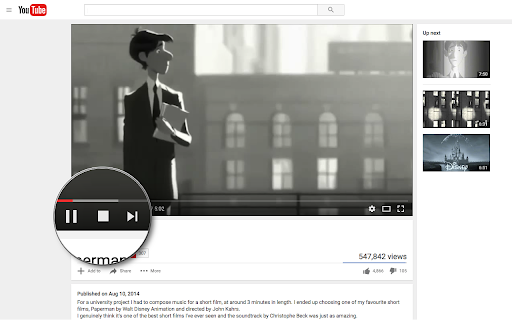
Adds a stop button to the player interface to unload the player and stop the video from buffering any time. This extension unloads the YouTube player without affecting the actual page. Removing the player eliminates any network requests to fetch or buffer the video. This is especially useful when you wish to watch the video later without YouTube preloading it and consuming your bandwidth. Key Features: 1. Disables automatic buffering 2. Halts player-related network activities 3. Unloads the player while keeping the page intact The extension introduces a new "Stop" button located next to the "Play" button. Click the "Stop" button whenever you want to unload the player. Additional Notes: 1. This extension exclusively supports the HTML5 player, offering no compatibility with Youtube's old Flash player. 2. Built on manifest v3, this extension adheres to the specified guidelines. 3. It only operates when the "Stop" button is triggered and remains in an idle state at all other times, ensuring no background activities are running.

YouTube™ on Hover Preview
Watch YouTube videos instantly by hovering your mouse over any YouTube link on a webpage. "YouTube™ on Hover" extension displays a floating panel player once your mouse is over a YouTube link. This is useful to preview YouTube links without the need to open them in separate tabs. To hide the floating player, just click somewhere inside the page. For your convenience there are some options: 1. You can either place the player at the center of the screen or just beneath the YouTube link with custom offset. 2. For the player to appear, keep hover over a link for 1 second. This option is useful to bypass YouTube links that are accidentally been hovered 3. Once a link is previewed, it will be stroked-through to be distinguished from other YouTube links that are still not visited. Note that the strike-though is not permanent. Reloading the page will remove all the decorations. 4. As of version 0.1.4, you can watch previews in "Turn of the Light" mode. Open options page to change this setting. For FAQs please visit: http://add0n.com/youtube-hover.html For reporting bugs please use: https://github.com/schomery/youtube-hover/issues Permissions: Storage: to store internal preferences. This permission allow the extension to have access to chrome.storage API which is used for saving user preferences. History: This one is used to mark previewed links as visited. This is useful to prevent multiple preview of a single link Tabs: to open FAQs page Change Logs: 0.1.8 1. It is now possible to close the preview with ESC key 2. Clicking outside player is now blocked (to prevent accidental link redirect) 0.1.9 1. Supports start time 2. Fixes the youtube player is not accepting fullscreen attribute 3. Preview panel can now be activated on youtube.com as well (disabled by default)

Highlights for YouTube
View highlights on the video player, that are generated from timestamps found in the description and top comments. ✨ UPDATE: Added controls for navigating between highlights. 🎬 See chapters or interesting moments without the need to scroll to the comment/description section. You can toggle the highlights directly from the video player options. ⚠️ Not all videos will have highlights on them since they are generated from timestamps. 🔗 Open Source: View code and report issues on GitHub: https://github.com/Ermag/yt-highlights-chrome 💭 Feedback is greatly appreciated!

Turn Off YouTube Autoplay Next & Annotations
Turn off YouTube autoplay next video and disable YouTube annotations on videos. Turn off YouTube autoplay next video and/or turn off YouTube annotations. Hides the toggle option when disabled. Compatible with desktop, mobile, and embedded YouTube videos. For more features including removing recommendations, comments, and more: https://chrome.google.com/webstore/detail/unhook-remove-youtube-rec/khncfooichmfjbepaaaebmommgaepoid

Controls for Youtube
Quickly seek Youtube video playback forwards and backwards by either 3 or 15 seconds. Quickly seek Youtube video playback forwards and backwards by either 3 or 15 seconds. ==================================== What This Extension Does ==================================== This tiny and efficient extension helps you easily seek forwards and backwards in Youtube™ videos. If you ever watch long videos and want to seek backwards a little bit so you can see something again, but get frustrated trying to drag that tiny slider just the right amount, this extension is for you! This extension will add keyboard shortcuts which let you quickly seek ahead or back by either 3 or 15 seconds (configurable). Additionally, it can also optionally add new buttons to the player which you can click to seek ahead or back. 1) Load any web page that contains a YT-video 2) Click the video to make it play 3) The extension will automatically detect the video and add the new seek buttons to it 4) To seek forwards or backwards, you can either click the buttons, or use the Keyboard Controls *Note - like many other extensions, any webpages you loaded before installing the extension must be reloaded before the extension will work. List of Keycombos http://rehfeld.us/browser-extensions/controls-for-youtube/keyboard-controls For example, it's really easy to hold your ctrl key and then press your left arrow key twice to quickly go back 6 seconds! You can configure how far ahead and back each key takes you via the extension config page. Also, if you don't like the buttons that get added to the player, you can disable some or all of them. To see the config page, click the extension icon on the top-right of your browser, then select "options", just like on any other extension. Alternatively, goto the chrome://extensions url, click the "Details" btn for this extension, then click "Extension Options". TIP: You can skip through some advertisements by just fast forwarding! Try using the "Seek forward to end" keycombo. You can also rewind the ad, if you like. TIP2: You can modify the seek duration when you click a seek button using the mouse: ctrl + click will be half the normal duration, shift + click will be double, and shift + ctrl + click will be 5x. Non-Obvious Feature: Note that the keyboard controls work properly even when you're on a non-youtube.com website which embeds the YT-video into their webpage. When using keycombos, you don't need to give the video "mouse focus" by clicking on it, which allows you to freely interact with the parent web page without worrying about losing mouse focus due to clicking something else. This can be handy, for example, if you've scrolled to the bottom of the page to read comments, and suddenly wish to rewind or pause the video without having to scroll back to the top - just use the keys. While native YT-videos do have their own keycombos to pause the video (the space bar), it only works on non-youtube.com pages when the video currently has mouse focus. This extension offers its own pause control (Ctrl + SpaceBar) which works without the video needing focus. The same goes for all the keycombos - they all work without needing the player to have focus! The browser tab does need focus, however. Limitation: -The GUI buttons can only be added to the player if there's enough width - small players may not be wide enough. If you maximize the player, they should show up, or you can always just use the keyboard controls. Youtube™ is a registered trademark. This extension was developed independently, by someone who is not related or affiliated with them, without any help or endorsement from them. http://rehfeld.us/browser-extensions/controls-for-youtube/privacy-policy http://rehfeld.us/browser-extensions/controls-for-youtube/changelog
