
aeghdejlekobjgfdpfniondeobklbgpl
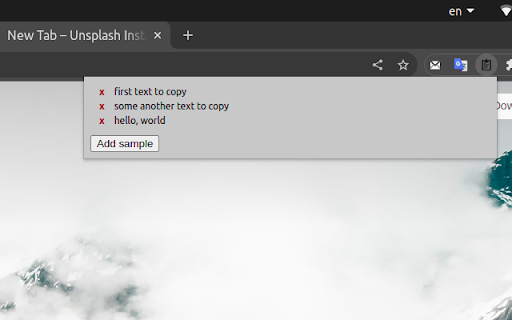
This extension will help you with keeping multiple text values to copy to clipboard With this extension you will be allow to paste multiple texts across the tabs to easily copypaste them. Imagine that your clipboard contains not the only one text, but multiple ones for easier selecting which text should be pasted on each tab

Context Lookups
This extension adds configurable lookup options for the context menu of selected text. Quickly search information as you browse. Just select the text you want to look up, bring up the right-click/long-press context menu, and select the configured lookup option that you want. Need to quickly check the definition of "bi-weekly" when someone emails you about a meeting? Curious about the literal meaning of "je ne sais quoi" when it comes up in an article? Want to know who exactly "Robert Walpole" is when someone mentions them in a comment? Context Lookups has you covered! Get up to speed or satisfy your curiosity in no time at all, then be on your merry way. You can set the results to appear as regular webpages, or make things extra convenient with simplified popup windows. This much can already be done with just the default lookups, but the possibilities go far beyond that. Copy the search query URL base of whatever website you want to use, and create a context menu item for it in the extension popup, it's that simple. Just remember to save your changes! Unit Conversion - Use "https://www.google.com/search?q=convert+" as the URL base. Synonyms/Antonyms - Use "https://www.thesaurus.com/browse/" as the URL base. Rhymes - Use "https://www.rhymezone.com/r/rhyme.cgi?typeofrhyme=perfect&Word=" as the URL base. Note that ampersand characters (&) in context menu labels are used to assign shortcut keys. To make a letter within the label the shortcut key for the option (while it's shown), simply put an ampersand in front of it. For example, set the label as "Rh&ymes" to make a context menu option "Rhymes" with the shortcut key 'y'. To put an ampersand in the actual label, simply include it twice, as in "Synonyms && Antonyms" to get a label of "Synonyms & Antonyms". This is my first extension, so any feedback is appreciated. NOTE: Due to browser limitations, results displayed in a popup are unfortunately restricted to the primary display. If using multiple displays, try to keep the browser window using the extension on the primary display. Alternatively, you can set the results to display as normal pages instead. Version 3: Updated to use Manifest version 3. Apologies for any resultant issues I might have missed. After a couple revisions, I think I've got it working with pre-existing saved data, but if you still encounter issues, I recommend saving your loaded configurations from the extension popup to update the saved data. Opening as a regular window popup is now supported, by simply selecting the center of the slider. Changed the default definition lookup to a simple Google search query, as this has better fallback behavior when a definition isn't found in the primary source. Version 4: New features and quality of life improvements: - Import and Export from/to a file (remember to save after importing!). - A much larger number of menu items are supported than before (working around browser limitations). - Internal scrolling, for retaining easy access to button controls. - Now indicates when you have unsaved changes. - Encountered errors now get displayed, though hopefully this won't be needed. :) Added a link to my portfolio site with my other projects. Version 5: - Now available for multiple browsers! - Various updates and improvements. - Better accessibility support. - Dark mode, applied in accordance with the browser theme. - Updated the default translation lookup to work with the latest Google Translate URL structure. - You can now do configurations in an options page rather than the extension popup.

Clipboard
Clipboard lets you add small text snippets, which can be easily copied to the clipboard whenever required. Clipboard is a simple chromium extension for copy-pasting and storing small text snippets. Clipboard lets you add small text snippets, which can be easily copied to the clipboard whenever required. This tool was mainly built to be used as a simple way to store snippets of text that need to be used several times while performing tasks such as coding or testing a website, filling forms and other such tasks.

Faro
Save pages with highlighted taglines - Bookmark manager ⨯ web highlighter Chaos in your bookmarks? Can't find what you want? They end up gathering dust? Or you don't even try and end up with 100s of open tabs? Faro is made to fix that! It's the simplest way to save & keep track of pages. With it, even thousands of saves don't get overwhelming. When saving, you highlight a sentence to act as a tagline. It helps you remember what the page is about and why you saved it. If unsure - just save whatever sentence you're reading. All saves appear on your dashboard. They come most-recent-first by default, so you don't forget what you recently saved. You can pick up your reading where you left off - no need for a separate reading list. You can also pin & archive to further arrange it. Organize them with tags. Since you're reminded what you saved and why, you can do it later. It makes your saves much easier to manage than bookmarks. Faro supports nested tags (eg: recipes/vegan), so combines the best of tags and folders. Clicking a save takes you right back to your highlight - especially useful for longer articles. Also: ➣ export to bookmarks to keep them if you uninstall Faro ➣ copy links to highlights and share them or paste into Notion, Obsidian, etc. ℹ️ About your data: When installing you can read: "it can read and change all your data on all websites" The only information that ever gets uploaded (when signed in) when you use it to save: ➣ Open page address ➣ Saved highlight/quote - what's visible in the sidebar ➣ Timestamp ➣ Debug info e.g. errors The extension also keeps track the currently open tab for each window - to update the sidebar as you navigate - but doesn't save or upload that data.

Copy & Paste Clipboard Manager
Save your shortcuts Clipboard Manager helps users manually save, organize, and manage text snippets for quick access and reuse. Never lose track of important text snippets again! The Clipboard Manager Chrome extension allows you to manually save and organize the content you copy in your browser. Whether you're collecting research notes, URLs, or other important text, this tool helps you keep everything in one place for quick and easy access. - Simple text input to save your important snippets - Just type or paste and click "Save" - Perfect for collecting research notes, quotes, and links - Mark important items as favorites - Protected deletion for starred items - Quick filter between All and Favorites view - Distraction-free design - Easy-to-read text display - Instant visual feedback for all actions - Secure local storage using IndexedDB - Your snippets stay available after browser restarts - No data sent to external servers - Click the extension icon in your toolbar - Type or paste your text into the input box - Click "Save" to store your snippet - Access your saved items anytime - Star important items to protect them - Copy any item with one click 💡 Why Choose Clipboard Manager? Perfect for: - Access your snippets from any device - Automatic sync across all your browsers - Never lose data when switching computers - Real-time updates across all connected devices - Unlimited cloud storage for your snippets Unlike automatic clipboard managers that save everything you copy, Clipboard Manager puts you in control. You decide what to save, keeping your clipboard history organized and relevant to your needs. Simple, secure, and efficient - Clipboard Manager is your perfect companion for text management! 📫 Feature Requests & Feedback We're constantly working to improve Clipboard Manager! Have an idea for a new feature or enhancement? Email us at mr.nodirbek77@gmail.com Your feedback helps make Clipboard Manager better for everyone!
