
aanpkkmackhljjnbcopdoidpdjngfooc


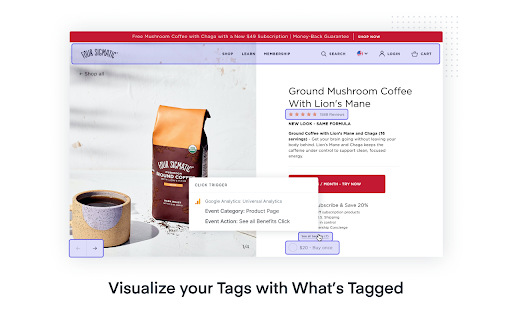
Browser extension for Google Tag Manager The fastest and easiest way to add GA4 custom event tags via Google Tag Manager. With Elevar's GTM Event Builder you can point-and-click your way to creating new GA4 tags and triggers inside of Google Tag Manager! This extension allows you to create the following events for Google Analytics: - Form Submissions - Click events - Visibility events - Pageview events - Automatically select the DOM element required for custom click triggers - Google Analytics event tags with associated triggers automatically assigned Once done tagging your site you can import these events in 1-click to GTM.

GTM Copy Paste
Copy your Tags, Triggers and Variables and Paste them into any other account Easily Copy and Paste your Tags, Triggers, and Variables from one Google Tag Manager account to the next. Simply add them to the extension and then paste them into your intended account. Your items will be uploaded through the GTM API. You can put together your own menu of Tags, Triggers and Variables that you want to copy to another account. No more Container exports and reimports through the GTM Admin interface. Notes: - The relationship between Tags and Triggers will remain intact as long as they are part of the same "paste". - If an asset (Tag, Trigger or Variables) under the same name already exists, the extension will upload the asset with "(#)" attached to the end of the name. - Completely re-written the extension (March 2025): - newly improved "copy" experience - new UI for the clipboard - dependency check feature to add all dependancy to the clipboard - the oauth scope now ask for less permissions - now supports templates, tag sequencing, built-in variables and dependency rewrites Known issues: - If you edit an item right before you copy it to the clipboard, it might not have the changes in the paste. That’s because the extension is working with a cached version of the container. - If you copy a tag connected to a template, the upload might fail because it can’t find the reference - If you delete a dependant item from the clipboard, the upload might fail as it doesn’t have the right items to connect back while pasting

Pinterest Tag Helper
A tool to help you build, troubleshoot and test your Pinterest Tags. For more details on how to use the extension, visit our Developer Center. https://developers.pinterest.com/docs/conversions/pinterest-tag-helper-chrome/ Release note for version 0.1.19: Display event type when POST requests are detected

Web Data Assistant
Web Data Assistant allows to control custom data from a Web page. Web Data Assistant helps to verify data implementations with automated check of a custom JavaScript dataset without diffusing information into everyone's browser console, and to share data valorization status with no effort to collaborators (developers, analytics teams, project managers, and any third party contributors). Create custom check rules to display data values and compare them with expected ones, you can also set them right from the extension to avoid deployment dependency. This helper works asynchronously and checks data list updates when data are added, modified or deleted. With some options, you can: • use different data set names, • create tag and datalayer check rules for particular domains, • insert custom code as inside a script tag, • export and import check rules, • activate wrong data values notification, • use icon as count checker for active rules, • or as counter of wrong data values, • watch data update in browser's console, • filter summary and console viewing of good and/or wrong data valorizations, • etc... All settings and rules are synced with your browser profile.

Adswerve - dataLayer Inspector+
DataLayer Tools for Digital Analysts The Adswerve dataLayer Inspector+ is a tool kit of utilities for a digital analyst. Inspect Google Analytics activity - Monitor the dataLayer in real time - See the Google Analytics hits in the console, as they happen - Evaluate common dataLayer pushes formats: events and ecommerce Insert additional resources in the page - Push a dataLayer message for setup - Add a GTM container to test it - Insert code into the page to monitor and modify How to use the dataLayer Inspector+: https://adswerve.com/resources/adswerve-data-layer-inspector-2 Update for v2024.11.1.1 Due to new restrictions on external script tags in Chrome extensions, the "Insert GTM Container" option has been removed from dataLayer Inspector+. Follow these steps to insert a GTM container into a web page with the "Inject Code" feature instead: Go to tagmanager.google.com. Under the Admin tab for your container, select "Install Google Tag Manager." As shown in the screenshot below, where it says "Paste this code as high in the of the page as possible," copy just the snippet code content. Note: Do not include , only the code between them. In the DataLayer Inspector popup, under "Add Functionality," check "Inject Code." Paste the code snippet from Tag Manager into the text box that appears. Click the button to "Save Settings & Reload." The GTM container will be inserted until the "Inject Code" box is unchecked and "Save Settings & Reload" is clicked again. Be sure to do this when you've finished testing.
