
aajlpbohkcfpmgeamipkmpllmgjmmmpa
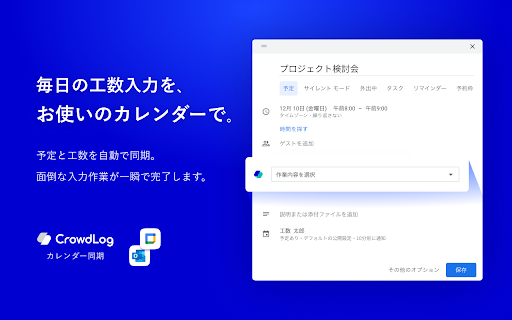
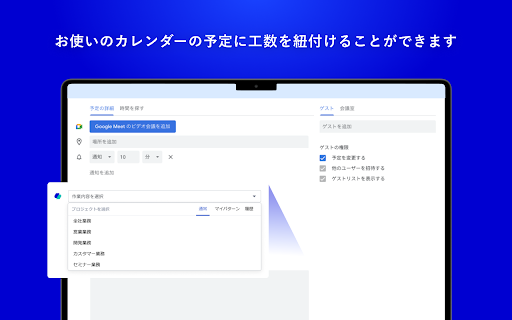
Register your daily man-hours on Google Calendar / Outlook Calendar. You can select the projects registered in CrowdLog on Google Calendar/Outlook Calendar and reduce the time you spend on daily man-hour entry. ■Terms of Use You need to have an account for CrowdLog, which is a project management tool. ▼If you don't have an account yet, go to the following page. https://www.crowdlog.jp/form/trial/ -Easily enter your work hours and man-hours You can enter work hours and man-hours with an intuitive drag-and-drop operation on the calendar. You can also input data from your smartphone and link it to Google Calendar and Outlook Calendar. -Visualize the work style of teams and individuals You can automatically visualize the time spent on which tasks in which projects from the input data. You will be able to understand the points that need to be streamlined in order to realize work style reform. -Visualize profit for each project You can manage the budget and actual results of sales, cost of sales, and expenses for each project

Google Calendar Event Checker
Mark events as completed or cancelled in Google Calendar with emojis or strikethroughs. Mark Google Calendar events as completed with checkmarks, emojis, or strikethrough and turn your calendar into a task tracker. It’s the perfect tool for professionals, students, and anyone who wants to mark events as done or canceled and boost productivity. 🆓 Free Version Features 🆓 Available immediately after installation - no sign-in or subscription required: ▸ Customizable completion marks: choose between emojis (✅ or ❌), unicode checkmark (✓), or strikethrough effect (title crossed off). ▸ Automatic timestamps: save completion date/time in event description for easy reference. ▸ Edit-page marking: mark events as done from the calendar event edit page. ▸ Minimal and Privacy-Oriented: the extension is designed to be minimalistic and don’t track any user data. ⭐ Premium Version Features ⭐ Unlock advanced productivity and simplicity features: ▸ Quick-mark from event dialog: complete events with one click from the event popup. ▸ Daily events dashboard: view all today's events in the extension popup with completion status. ▸ Mark from any tab: complete calendar events without opening Google Calendar. ▸ Custom checkmark slots: add up to 5 emojis or unicode symbols as completion markers. ▸ Still Minimal and Privacy-Oriented: we don't see or store any of your events and never share your data. How to use free version: ▸ Install the extension, no sign in needed ▸ Open any Google Calendar event for editing ▸ Click the completion mark button (✅) ▸ Save the event ▸ Go to the extension's options to configure the completion marks and a strike-through effect. How to use premium version: ▸ Pin extension and sign in with your Google account ▸ Start free trial (no credit card needed) ▸ Mark events as completed from an event dialog ▸ Mark events as completed from "Today events" view ▸ Configure custom checkmarks and a strike-through effect in ⚙️ User Settings page (available after sign in). ⚠️ Troubleshooting ⚠️ If something isn't working properly, here's what you can try: ▸ Make sure you can edit event title from an event edit page - some events are not editable at all - for example: working locations, contacts’ birthdays calendar, shared calendars if you don’t have proper permissions. ▸ Sign out and sign back to the extension (for premium users). ▸ Reinstall the extension. ▸ Report an issue to support@calcheckr.com, include screenshots if possible as it might help to resolve your case more quickly, make sure to mention what browser you’re using. ❓Frequently Asked Questions❓ Q: How do I mark Google Calendar events as completed? A: Install the extension, open any event, and use the completion button or choose your preferred visual mark (checkmark, emoji, or strikethrough). Q: Will other people see my completion marks? A: Yes! Since changes save directly to Google Calendar, anyone with calendar access sees the completion marks. Great for team collaboration. Q: Does this work with Google Workspace? A: Absolutely! Works with personal Google accounts and Google Workspace (formerly G Suite) accounts. Q: Does it work with recurring events? A: Yes! Mark individual instances or the entire series. Q: Can I use the free version forever? A: Yes! The free plan includes core features. Upgrade to Premium only if you want one-click marking, daily views, and custom checkmarks. Q: Is my calendar data secure? A: Absolutely! We use only Google infrastructure. Authentication tokens are encrypted, and we never see, store, or share your calendar events data. Q: How do I cancel Premium? A: Cancel anytime from the Stripe customer portal. Premium features remain active until your billing period ends, then you automatically return to the free plan. 📧 Contacts 📧 For any questions, comments and ideas please reach out to support@calcheckr.com 2.2.0 - 12/10/2025: - premium: strikethrough effect in popup view - premium: date picker for quick navigation 2.1.2 - 12/06/2025: - internal fixes: make completion detection to be based on the default + custom checkmarks only 2.1.1 - 12/03/2025: - internal fixes - options page UI refactoring 2.0.2 - 11/24/2025: - internal fixes - add support id in extension options 2.0.1 - 11/18/2025: - internal fixes - show onboarding page once - start introducing premium version 1.6.2 - 12/13/2022: - Fix issue with not showing button (input selector got updated) 1.6.0 - 10/09/2022: - Add error and usage reporting option 1.3.0 - 10/07/2021: - the strikethrough effect is now configurable in options 1.2.0 - 10/05/2021: - issue with search was fixed by saving origin event's title in the description area (configurable in options) - add date and time label when it was completed to the description textarea (configurable in options) 1.1.0 - 10/04/2020: - add check emoji in the beginning (configurable in options) - fix issue for event titles with emojis

Gather Meetings
Ready to make meetings more productive, immersive, and fun for your remote team? Host your team on Gather with a newly optimized meeting experience! In an all-new meeting experience with the Gather Meetings extension, you can: • Add a Gather meeting link on your Google Calendar invitation that automatically takes you to an open Private Area in your space • Automatically select a Private Area in your Gather Space with the right capacity for your meeting • Generate a one-click link that brings participants directly to the meeting when it starts In Gather, remote teams work naturally, build relationships, and collaborate side-by-side, even when they’re miles apart. Try Gather for free at https://app.gather.town/get-started Remember: If you’re a Space Admin or Builder, open the app's Mapmaker and give existing Private Areas a name and occupancy limit. You can also edit the Area names directly from the Participants Panel. If you don’t have any dedicated meeting areas yet, we recommend you build out a few for different sizes of meetings, or you can check out new Office Templates that come with some pre-existing options. By installing this extension, you agree to the Gather Terms of Service and Privacy Policy at https://www.gather.town/terms-of-service and https://www.gather.town/privacy-policy

Sundial: Google Calendar Reimagined for Enterprise Schedulers
Schedule meetings faster with tools built for enterprise teams — directly inside Google Calendar. After installing and signing up, Sundial appears in the left column of Google Calendar. 1️⃣ Add Multiple Timezones to Google Calendar Search for a place or timezone and Sundial adds that timezone to Google Calendar. Add as many as you need. Rename them as you'd like. Reorder them whenever. 2️⃣ Share Times From Time Blocks Turn "Share times" on in the sidebar. Then drag time blocks on your calendar. Sundial turns them into copyable text, and can adjust it to any timezone. No more timezone mistakes. Here's an example of the text: Need to adjust to another timezone? Search for a place or timezone in the Sundial, and your copyable text updates instantly. Here’s how it looks: 3️⃣ Bulk Create Calendar Holds Turn "Share times" on in the sidebar. Then drag the time blocks on your calendar where you want the holds to be placed and click "Create holds". Add your event details as normal and once ready, click "Save holds". Sundial will save the calendar holds for each selected time all at once. 4️⃣ Bulk Delete Calendar Holds Click on any existing event with the word "Hold" in the title. Then click "Select holds to delete." Sundial displays all holds with the matching title, allowing you to quickly select and delete the ones you want. 5️⃣ Reusable Workspaces Save your commonly used calendar setups (calendars, timezones, and layout) as reusable workspaces. Open them with one click. Name them to stay organized. 6️⃣ Highlight Events with Issues Instantly highlight calendar events for missing video links, rooms, guests not attending, etc. 7️⃣ Export Events to Google Sheet (Calendar Audit) Export events to a Google Sheet in a single click – formatted for a calendar audit and instantly ready for your customization and review. 8️⃣ See Proposed Times Overlaid on Your Calendar Give Sundial dates and times mentioned in text and it visually displays them on your calendar. No more remembering proposed times or timezone conversions. Thank you for trying Sundial. I hope you find it helpful! ➡️ Terms and Conditions We collect your email address after you sign up. There is no other personal information that we collect. We never share or sell your information. We also track which features you use and how often you use them, solely to improve the extension and enhance your experience. By installing the extension, you agree to and acknowledge: www.trysundial.ai/terms-of-service www.trysundial.ai/privacy The use of raw or derived user data received from Workspace APIs will adhere to the Google User Data Policy, including the Limited Use requirements.

Cal Merge for Google Calendar™
Chrome extension that visually merges the same event on multiple Google Calendars into one event. Visually merge the same event on multiple Google Calendars™ into one event. Do you view at the same time: - You work and personal calendar - Your team's shared calendar - A private calendar with loads of "Busy" blocks - Or some strange combination of events? These likely clutter up your calendar and if long titled are hard to read. This extension merges all those separate events into one event, and colours it with a user selected gradient style.
