
nmgegmkaijcgdgkfjhlbbaoabldoaehj


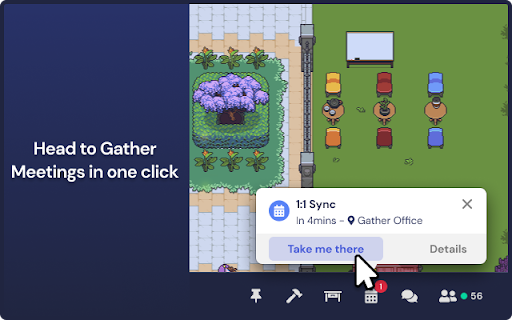

Ready to make meetings more productive, immersive, and fun for your remote team? Host your team on Gather with a newly optimized meeting experience! In an all-new meeting experience with the Gather Meetings extension, you can: • Add a Gather meeting link on your Google Calendar invitation that automatically takes you to an open Private Area in your space • Automatically select a Private Area in your Gather Space with the right capacity for your meeting • Generate a one-click link that brings participants directly to the meeting when it starts In Gather, remote teams work naturally, build relationships, and collaborate side-by-side, even when they’re miles apart. Try Gather for free at https://app.gather.town/get-started Remember: If you’re a Space Admin or Builder, open the app's Mapmaker and give existing Private Areas a name and occupancy limit. You can also edit the Area names directly from the Participants Panel. If you don’t have any dedicated meeting areas yet, we recommend you build out a few for different sizes of meetings, or you can check out new Office Templates that come with some pre-existing options. By installing this extension, you agree to the Gather Terms of Service and Privacy Policy at https://www.gather.town/terms-of-service and https://www.gather.town/privacy-policy

Api4Com - Extensão para Navegadores
Faça sua vida ficar ainda mais fácil com nossa extensão para navegadores A extensão para Google Chrome da Api4Com é uma ferramenta poderosa que o ajudará a tornar seus contatos mais fáceis e integrados ao seu CRM. Com ela você consegue fazer uma chamada selecionando qualquer número telefônico que esteja em seu navegador, basta clicar com o botão direito e discar, simples e rápido! Nossa integração com o Pipedrive permite inserir um botão para discar dentro do CRM, basta habilitar a integração no ramal desejado, a nossa extensão identificará e quando você estiver dentro do CRM, a mágica irá acontecer, além de facilitar a chamada com apenas um clique, também garante que a informação e gravação será inserida na proposta corretamente. Instale agora mesmo e aproveite todas essas facilidades para tornar o seu dia de trabalho mais produtivo.

CRM para Vendas por WhatsApp
As principais funcionalidades do RD Station CRM na tela seu WhatsApp Web Comece a usar já! CRM para Vendas por WhatsApp é uma extensão GRATUITA que permite usar as principais funcionalidades do RD Station CRM diretamente no aplicativo de mensagens preferido dos brasileiros. Agora você não precisa mais sair do WhatsApp para atualizar seu CRM. O CRM para Vendas por WhatsApp integra sua conta no RD Station CRM com o seu WhatsApp Web. Assim, você pode gerenciar suas oportunidades, abrir, atualizar e fechar negociações, além de deixar o processo comercial muito mais fluido. CRM para Vendas por WhatsApp, é ideal para quem precisa de: Agilidade - Crie e atualize os dados das suas oportunidades - Avance uma negociação de etapa do funil - Faça anotações e crie/agende tarefas para aquela oportunidade Produtividade - Utilize modelos prontos para enviar mensagens para seus contatos - Salve as conversas no CRM e tenha o histórico completo das negociações - Adicione contatos na sua conta do CRM com poucos cliques Vendedores com mais controle, sem perder nenhuma oportunidade. Veja como é simples instalar: Tenha uma conta no RD Station CRM Instale a extensão clicando no botão Usar no Chrome Abra seu WhatsApp Web e faça login pela barra lateral E pronto! É só começar a usar.

AdSparo - AdLibrary Ad Finder & Ad spy Tool
The Best Free Ad spy tool for Facebook Ads Library to find your Next winning product!, filter AdLibrary , Search, save trending ads… The Best Free Ad spy tool for Facebook Ads Library to find your Next winning product!, filter AdLibrary , Search, save trending ads automatically. ★ Spy on your competitors. ★ Shows Only Top ads, Provide a lot of value-adding features to AdLibrary. ★ Filter ads by total Adsets, By Page, by Date, Ad copy, website link ... ★ Save Ads ★ Find competitors’ ads quickly ** Keep scrolling, Searching in your AdLibrary Page to hunt more trending Ads** ** Enable Auto Load to load ads. Searching on Ad library is very time consuming, since it doesn’t offer enough filters, We used to scroll hours to find some winning ads, Fortunately, AdSparo provides a more convenient and time-saving function to Filter and directly finding Top competitors' Ads & Get inspired faster by your favorite brands, So all you need is to activate Adsparo Turbo Ad Finder to aggregate and add more ads to your collected ads list. Adsparo can collect ads you care about, Users of facebook Ad Library can only search and view the current information, but with Adsparo you can see the history data of all collected Ads. Our extension does NOT belong to or related to the official Facebook application/ website in any way. It is an unofficial extension that was developed and maintained independently. All the guidelines for Facebook's assets and branding use can be found here: We hope this extension is useful for marketers or anyone looking to learn more about Facebook Ads. We welcome any feedback and intend to improve the extension and add functionality over time.

ClickUp: Tasks, Screenshots, Email, Time
ClickUp is a productivity platform that makes your personal and work lives more productive, saving you time. ClickUp's revolutionary Chrome Extension replaces five separate apps, virtually allowing you to do anything! 1. Create Tasks & Save Websites as Tasks 2. Time Tracking: Easily attach time to ClickUp tasks 3. Screenshots: Capture, mark up, and edit screenshots 4. Email: Create tasks and attach emails to tasks 5. Notepad ClickUp is free forever for up to 100MB of files storage. Installing the Chrome Extension 1. Click ADD TO CHROME 2. Click Add extension in the next popup 3. Click the ClickUp extension icon at the top of your browser window. 4. Log in to your ClickUp Account 5. Select the Workspace(s) that should have access Creating a new task 1. Select the "New Task" tab 2. Write a title for your task 3. Add assignees and a due date 4. Write a description for your task. (Pro tip: Use Markdown Shortcuts in your description fast rich text editing) 5. Click Create New Task Bookmark a site as a task 1. Click on the Bookmark tab 2. This automatically sets the page title & URL as the task title 3. You can also add a description here 4. Then you'll also be given the option to attach a screenshot of the website to the task by clicking Include screenshot Set a Default List Save a default destination for tasks making this the fastest way to add new tasks! Simply locate a task in the extension and select it to begin tracking time. From the Time Spent window, you are able to view time logged on recent tasks and even remove time that was accidentally logged. Back in the ClickUp task, the time has been logged, and we can even start the extension's timer from within the task. Screenshots: capture, mark up, and edit screenshots Capture Capture your entire browser tab or select a certain area to add to a task or download to your computer Attach Attach the file to an existing task or create a new one Mark Up The extension grants you extremely detailed mark up functionality: Paintbrush - draw what you want on top of the screenshot - set a color and brush size Arrow, line, circle, square - quickly add shapes to highlight areas of the screenshot - set a color and brush size Text - add notes right onto a screenshot - set a color, size, and substrate (background) Blur - select an area of the screen you would like to remain hidden. Numbers - drop increasing numbered markers on your screenshot - dragging and dropping allows you to create a box with the number - perfect for sharing steps with a team member Pointer - select things you've already added to the screenshot and make adjustments Undo / Redo Attach to comments 1. Take a screenshot with the Chrome Extension 2. With the screenshot still in the extension, open a task in ClickUp 3. Open the comment editor 4. Click the "Chrome attachment" button Email: Create tasks and attach emails to tasks Capture an email Click the Add to ClickUp button in your email to generate a full HTML record of the email. Attach emails to tasks and create tasks from emails ClickUp will attach the email to a task or create a brand new one with the email attachment included so you can quickly view, jump back, or download the email! For more info, check out our doc on attaching emails to ClickUp! You can also access your ClickUp notes from any page. Open the extension to the Notepad tab, and all of your notes are available from ClickUp. Your notes will sync across all your devices. Use Markdown Shortcuts and Rich Text in any note. When hovering over a note, you will be able to rename the note, archive, delete, and convert the note to a task. While inside a note, at the bottom are the options to see earlier versions of the note, open the fullscreen editor, as well as the option to convert the note to a task. The ClickUp button gives you quick access to the Notepad, Bookmarks, Screenshots, Time Tracking, and creating a task from any webpage. To move the button, click and drag it to any spot on the page. To hide the button, hover over the x icon. You can choose to hide the button for the current session, always for the current website you're on, or turn them off all together.
