
aabkobajeambdejghgegicnhcndhcjpk
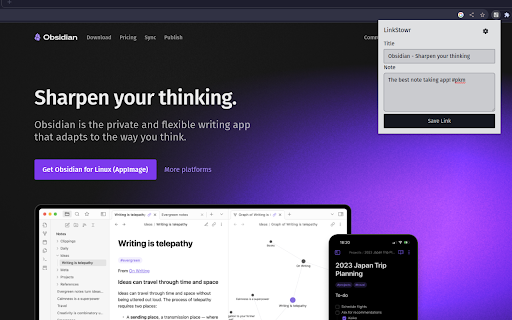

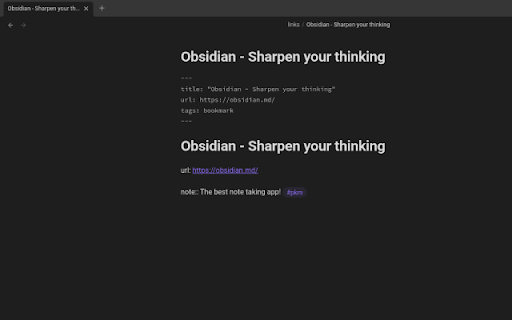
Save links and sync it to your Obsidian vault. LinkStowr is a free, open source and privacy-friendly set of tools designed to make it extremely easy to capture and store your valuable online resources in a structured and meaningful way. You can think of it like using Obsidian as your bookmark manager for all your web links. To get started: - Create an account at https://linkstowr.com/ and generate an Access Token. - Download this Chrome Extension and input your Access Token. - Start saving links using the Chrome Extension. - Install the LinkStowr Obsidian plugin and sync your saved links. Once the links have been synced to your Obsidian vault they will be deleted from the LinkStowr database ensuring your vault is the only long term home for your links.

Promnesia
Recall which pages you already visited, why and in which context Promnesia is a browser extension (Chrome/Firefox/Firefox mobile) which provides a sidebar which complements browser history with some enhanced features. TLDR: it lets you explore your browsing history in context: where you encountered it, in chat, on Twitter, on Reddit, or just in one of the text files on your computer. This is unlike most modern browsers, where you can only see when you visited the link. It allows you to answer different questions about the current web page: - have I been here before? When? - why have I bookmarked it? - how did I get on it? Which page has led to it? - who sent me this link? Can I just jump to the message? - which links on this page have I already explored? - which posts from this blog page have I already read? *NOTE*: to get the most benefits from the extension, you also need to set up a supplementary service. You can find the instructions here: https://github.com/karlicoss/promnesia#setup

Save to Obsidian
Early WIP Web Clipper intended for use with Obsidian.md An unnoficial chrome extension to precisely get data from webpages. created with the intent to use with Obsidian.md properties. Heavily inspired by Save to Notion This extension is **NOT** affiliated in any way with the Obsidian.md team

markClipper - obsidian web clipper
📢 markClipper saves clipped web contents directly to your obsidian vault without any config. Al summary. Open source. 📌 Why you should consider this: ✪ Save web contents directly to obsidian's vault ✪ Clip web contents into markdown format ✪ Al summary, Mindmap and Highlight powered by ChatGPT ✪ Capture screenshot and insert it into vault in two clicks. ✪ Insert image into your obsidian's vault ✪ Insert current tab or all tabs' articles ✪ Drag-n-drop images and selected text ✪ Highlighter and insert highlighted text into notes ✪ Zero config and no separate obsidian plugins are required ✪ No need to keep obsidian app open. ✪ No signup required ✪ Free and Open source:https://github.com/anilkumarum/mark-clipper ✪ You can also insert clipped contents into Joplin or Logseq ✪ Lightweight & 75KB only ✪ Themes ✪ no tracking, no Ads ✪ dark mode ...more keyboard shortcuts on extension's options page Note: This is unofficial markdown web clipper extension for Obsidian. ✅ Save content directly to Obsidian's vault Give file permission and your work is done. Extension convert web content into markdown format and directly insert formatted web contents into your vault ✅ Clip article in one click If you want summarize current webpage or create mindmap then change clip content type. keyboard shortcut: Alt +A (works when popup window open) Clip article from current tab or all open tabs in one click. you can add frontmatter and download articles' images into "images" folder. ✅ Persistent text Highlighter Highlight text and save highlighted text into selected notes. Highlighted text will be visible when you re-visit webpage For remove highlight, Select again highlighted text and press Ctrl + Shift + H. For disable highlight, Go to options page Fastest highlighter in Chrome web store. markClipper highlights text without creating new DOM elements. Read more: https://web.dev/dom-size-and-interactivity/ ✅ Save images with correct file path This extension insert image file into your vault and adds correct image path as markdown link in selected notes if you need to save images from clipped articles then you need to enable it from extension's options page. If you want to change download images folder location, config in options page ✅ Work with any local folder not only vault Give write permission in any local folder e.g “downloads/web-clipped” or “vault/web-clipped” You can use this extension for clip web contents into "Logseq" or "Joplin" ♻️ Permissions sidePanel:Show side panel activeTab:Required to read current tab's title and url scripting:Inject screenshot and markdown converter tools storage:Save extension configurations contextMenu:Add context menu on images ⌨️ Keyboard shortcuts Ctrl+Shift+X: Open extension's popup window Alt + S: Capture screenshot For config keyboard shortcuts, paste this url in address bar: chrome://extensions/shortcuts Alt+I ⇒ Insert frontmatter in open notes (focus require on notes or window) Alt + Z ⇒toggle word wrap in open notes (focus require on notes or window Alt+A ⇒ Clip article (work when popup window open) Alt+T ⇒ Open side panel (work when popup window open) Alt+M ⇒ Multi select text Ctrl + B , Ctrl + I ⇒ format bold, italic Delete ⇒ delete line in note in side panel For Brave browser File API is disabled by default. You need to enable this flag "brave://flags/#file-system-access-api" to work in brave browser. Edge browser I don't test this extension in Edge browser. Maybe work Opera browser I don't test this extension in Opera browser Arc browser I cann't test this extension in Arc browser because arc browser is not available on linux and arc browser doesn't provide extension developer docs ℹ️ Support Please report issues on github issues https://github.com/anilkumarum/mark-clipper/issues For detail guide, visit:https://markclipper.noterail.site/guide For contact, Please mail us on 📧 noterailhelp@gmail.com Join markClipper on google Groups: https://groups.google.com/g/markclipper You can change side panel position from settings -> appearance 🚀 Version 1.0.16 ⇒ FIXED: Can't summarize webpage when chatGPT logged in ⇒ FIXED: Cross-origin clip image ⇒ FIXED: Highlighted text don't show on page reload ⇒ FIXED: Note/Image don't save in user defined folder 🚀 Version 1.0.13 ⇒ FIXED: whitespace between texts ⇒ FIXED: metadata not show in obsidian bug fixed ⇒ IMPROVED: Rich bookmark with thumbnail & description ⇒ ADDED: Description added in frontmatter ⇒ ADDED: Frontmatter auto-added when clip article 1.0.11 ⇒ ADDED: ChatGPT AI summary, MindMap and Highlight added ⇒ ADDED: Now you can change Download images folder location ⇒ ADDED: Now you can change new note filename format ⇒ ADDED: Now you can change new note folder path ⇒ ADDED: Press Alt + C to copy current focused note 🚀 Version 1.0.2 ⇒ FIXED: Add note in note selectlist(maulti-select,screenshot,right click) when new note created ⇒ FIXED: Note selectlist is empty when extension updated ⇒ FIXED: Nested note now available in popup bookmark note list ⇒ FIXED: 2 layer Nested note path issue fixed in right click context menu ⇒ ADDED: notify via toast when clip images, multi select text ⇒ ADDED: cancel select button added in multi select text ⇒ ADDED: Insert pdf file button show when pdf file open in tab ⇒ markClipper now available in 16+ languages ✅ Added - Create new note option in screenshot, multi select text, context menu - show dialog when vault permission required - add permission manager page link in options and popup page ⌨️ Shift + Space for extend selection (when copy-listener active) ⌨️ Alt + H for highlight text (when copy-listener active) 🌈 Theme configuration added 🚀 0.0.8 🖍 Save highlighted text 📍Mutli select text 📝 Basic editing helper added e.g open enter open marker (*([_) then closing marker (*)]_) auto added 🎲 Undo(ctrl+z) & Redo (ctrl+Y) support on ctrl+c copy and drag-n-drop text Ctrl+Shift+X to open popup window ⌨️ Ctrl + C auto-copy into selected note when side panel open ⌨️ Alt + A keyboard shortcut to clip artice (open popup window open) ⌨️ Alt + M keyboard shortcut to enable multi select text (open popup window open) 🚀 0.0.5 release 🖍 Text Highlighter added 🌅 Saved imaged from clipped articles added 🐛 Medium.com bug fixed 🐛 Duplicate permission page issue fixed 📁 Images now saved in `images` folder ⚠️ Read all data from all sites permission removed

Obsidian Clipper
Obsidian Web Clipper Chrome Extension to save articles and pages from the web in Obsidian Effortlessly save web articles to your Obsidian vault with just one click. Perfect for researchers, students, and avid readers who want to organize and reference online content. - Uses Readability.js to extract clean, readable content - Captures essential metadata: domain, title, timestamp, excerpt, and word count - Simple one-click saving to your specified Obsidian vault - Customizable settings for organizing your saved articles - Install the extension - Set up your preferred Obsidian vault in the extension settings - Click the extension icon on any web page to save the article Compatibility: Currently tested and optimized for Google Chrome. Get started by configuring your Obsidian vault in the extension settings. Happy clipping!
