
kdmegllpofldcpaclldkopnnjjljoiio

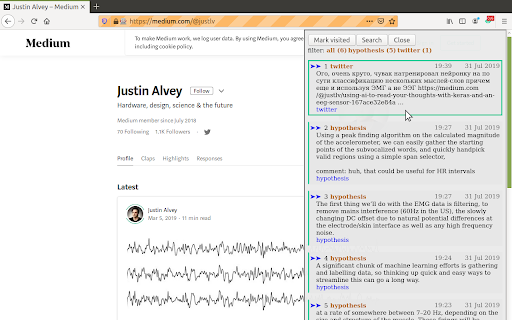
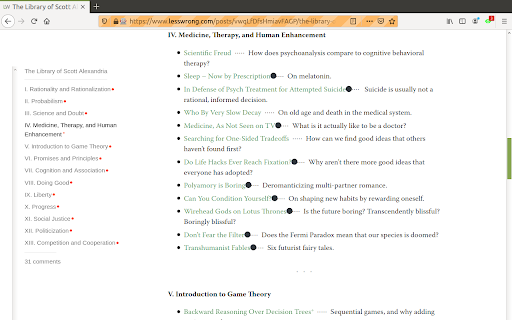

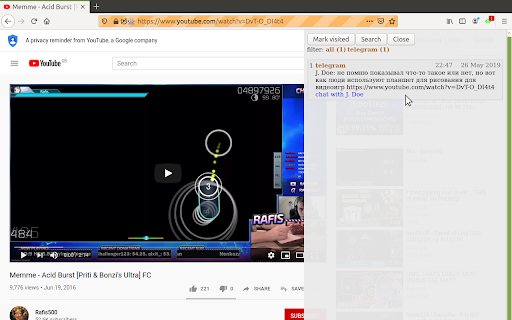
Recall which pages you already visited, why and in which context Promnesia is a browser extension (Chrome/Firefox/Firefox mobile) which provides a sidebar which complements browser history with some enhanced features. TLDR: it lets you explore your browsing history in context: where you encountered it, in chat, on Twitter, on Reddit, or just in one of the text files on your computer. This is unlike most modern browsers, where you can only see when you visited the link. It allows you to answer different questions about the current web page: - have I been here before? When? - why have I bookmarked it? - how did I get on it? Which page has led to it? - who sent me this link? Can I just jump to the message? - which links on this page have I already explored? - which posts from this blog page have I already read? *NOTE*: to get the most benefits from the extension, you also need to set up a supplementary service. You can find the instructions here: https://github.com/karlicoss/promnesia#setup

TabStacks: tab and history search
View and search through open tabs and browser history. TabStacks is a vertical tab menu that helps you find the content you were looking for. Filter the tabs you have open and TabStacks will list the open tabs that match. If TabStacks can't find an open tab, it searches through your history to see if you had a tab open previously! TabStacks is designed to be keyboard and screen reader accessible. Press [CTRL]+[SHIFT]+[K] to open the menu, start typing to filter your tabs, and use the [DOWN] arrow key to navigate to the tab you want, and [ENTER] to open that tab. You can always use your mouse as well. You can search through your history during a tab search by pressing [CTRL+SHIFT+S]. You can close a tab by highlighting it in the list using the arrow keys or right-click and pressing [DELETE] or by clicking the close button on the tab. TabStacks is a high performance and secure extension for Chrome. TabStacks doesn't download external files, doesn't store any information about your activity. *** UPDATES *** Version 2.0.2 * Fixed bug where the popup doesn't close on tab change * Added a settings item to allow the option to hold the popup open Version 2.0.1 * The default keyboard shortcut for toggling the search is now CTRL+SHIFT+S due to the browser using nearly all possible combinations of CTRL+ a single key. * The keyboard shortcut key is now configurable, you can modify it in the settings page. Click the gear icon at upper right of the popup to access settings. * Minor cosmetic updates to the settings page. Version 2.0 * Tabs shown in the popup are synchronized with the state of the tabs in the browser: * Title updates are reflected in real-time. * New or deleted tabs are reflected in the tab list. * Close tabs using a button on the tab. Close buttons show on hover or focus. * Tabs display an audio icon if playing audio. * For audible tabs, clicking the icon will mute and unmute the tab. * Settings page has been added, click the gear icon top-right to access settings. Version 1.0.8 * Added lazy loading for site icons to speed up rendering * Reduced requested browser permissions Version 1.0.7 * Linux support for launching TabStacks from keyboard with [CTRL+SHIFT+K]. * PopupMenu now has a max-height instead of fixed height. * Fixed bug on Windows where the scroll bar was rendered even if the tabs would not scroll. Version 1.0.6 * Improved search algorithm for both tabs and history. * Searches much longer history time period. * Tabs in the current window always appear at top when popup is opened (User suggestion). * URLs for tabs appear on focus or mouseover (User suggestion). * Engineering improvements under the hood to use Web Components for rendering.

Roam Highlighter
Web highlighter for Roam Research 📢 Update: I'm working on a new and improved version of this web highlighter called Markway. To learn more and get notified about the release, go to https://markway.io 🙂 DESCRIPTION: This extension offers an easy way to highlight text on a web page and import it to note-taking apps like Roam Research, Obsidian, Logseq or Notion in the format that best suits your workflow. This is especially helpful of you are doing research, want to build your own knowledge-base or just want to save your favorite blog articles. FEATURES: Easily highlight any text on a web page → Add tags to bring your highlights into context → Customise the format of your copied highlights with placeholders → Jump to the next open Roam Research tab, to quickly insert your highlight HOW TO GET THE MOST OUT THE EXTENSION? The quickest way to launch the extension is with a hotkey (e.g CMD + SHIFT + R). You can set a hotkey in the Chrome Settings for Extensions. Next you can create your own format for the highlights, by going into the widget settings. Play around with the placeholders and use spaces to indent content. QUESTIONS / FEEDBACK: Do you have questions or feedback? The best approach is to write me directly on x.com/wirtzdan PERMISSIONS: Roam Highlighter needs to modify the websites you visit to display the widget. That's why it needs the requested permissions to function properly. However, the exact phrase ("Read and change all your data on the website you visit") make it sound more invasive than it actually is. Currently, the extension runs completely on your local machine and the only thing that is saved, are the settings you make.

Research Notes
Bookmark, tag or add notes to pages, highlight and save quotes or images, save selected Google searches, filter out search results. KEEP NOTES AND ORGANIZE PAGES Bookmark, tag or add notes to pages. SAVE & HIGHLIGHT QUOTES Save quotes or other text snippets from pages (or PDFs), highlight quotes on the page. SAVE IMAGES Save images with pages - either pictures directly from the page or copy-pasted screenshots via a tool like Snipping Tool or Paint. TAGS WITH VALUE Advanced tagging: you can add values to the tags. For example, to record a page’s author, add a tag like “Author: ”. Or, when searching for products and comparing good websites with alternative offerings, add tags to pages such as “Product: ” or “Price: ”. You can group and sort by tags and values separately on the all notes -page. RESEARCH UNDER SEPARATE TOPICS All your pages and searches will be saved under topics that you define. This helps keep your different research topics - be it work, school or hobbies - separated from each other. SAVE YOUR GOOGLE OR GOOGLE SCHOLAR SEARCHES When studying a topic in-depth, save searches to remember what search terms you’ve used, which ones got great results and how far into the results you have looked. By default, search saving is turned off, it can be activated for each Google search tab separately. HELPFUL SEARCHING OPTIONS Cross out and hide search results that are not useful. Instantly add notes and tags to results straight in your Google search. OVERVIEW OF SAVED RESEARCH A special all notes -page gives a comprehensive overview of your topics, pages and searches. See your researched pages either in list or table format. Filter pages by text, tags, notes or bookmarks. PRIVATE The information that you create while working with the extension - addresses, searches, notes, tags, etc - is stored exclusively in your own browser and is not shared with anyone. We only collect anonymous analytics information about this products usage to get an overview of what features are used. DO YOU HAVE QUESTIONS OR RECOMMENDATIONS? We are open to feedback about this product, about existing features or new ideas - just send as an e-mail (feedback@onlineresearchnotes.com) or drop by in our Discord server (https://discord.gg/pE9BMg2m). And please do inform us also about any possible bugs that may be lurking. FREE This extension is free to use.

Finder Bookmarks
This extension will replace Chrome's default bookmarks manager. It's very useful if you have lots of bookmarks. Similar to Mac Finder in columns view, you can manage and navigate bookmarks by mouse or keyboard shortcuts, for example: • Navigate all bookmarks using mouse or arrow keys. • Open a bookmark by double click or enter key. • Open all bookmarks in a folder by context menu. • Drag and Drop a bookmark to a new location. • Create, edit or delete bookmark or folder by context menu. • Select multi bookmarks to move, delete or open. • Copy/cut/paste bookmarks(except folders) by shortcuts. • Sort bookmarks by name. • Support many keyboard shortcuts. How to use: • Click this extension's icon • Click menu item at Chrome -> Bookmarks -> Bookmark Manager • Use Chrome keyboard shortcuts, Windows/Linux is Ctrl + Shift + o, Mac is ⌘ + Option + b This extension is a part of another extension "Re-newtab" that contains this bookmarks manager in Chrome newtab.
