
hkfbbbooclabgjedfpeihhjjlgeclgnf
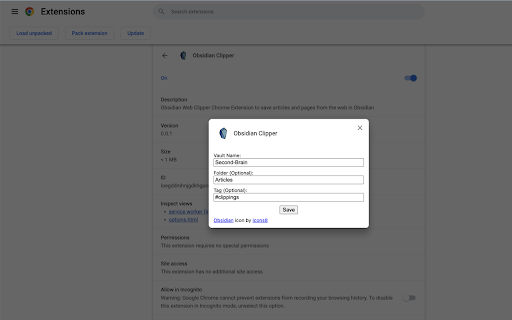

Obsidian Web Clipper Chrome Extension to save articles and pages from the web in Obsidian Effortlessly save web articles to your Obsidian vault with just one click. Perfect for researchers, students, and avid readers who want to organize and reference online content. - Uses Readability.js to extract clean, readable content - Captures essential metadata: domain, title, timestamp, excerpt, and word count - Simple one-click saving to your specified Obsidian vault - Customizable settings for organizing your saved articles - Install the extension - Set up your preferred Obsidian vault in the extension settings - Click the extension icon on any web page to save the article Compatibility: Currently tested and optimized for Google Chrome. Get started by configuring your Obsidian vault in the extension settings. Happy clipping!

Obsidian Web Clipper
Save and highlight web pages in a private and durable format that you can access offline. The official extension for Obsidian. Bring the web to your personal knowledge base. Save content to your Obsidian vault so you always have access to it, even offline. Obsidian is secure, private, and designed around durable open formats that allows you to preserve your data for the long term. Obsidian Web Clipper is the best way to save, highlight, and interpret the web: - Save anything: From news articles and blog posts to recipes, product pages, and research papers — if it's on the web, you can save it. - Highlight: Easily highlight important passages, and save highlights to Obsidian. When you return to a page, your highlights are visible. - Interpret: Use natural language to extract and modify data from pages. Compatible with any model provider including local model options. - Save entire pages, selected text, or just the main content. - Templates let you automatically extract structured metadata from web pages. - Rules let you apply a specific template based on the website you're on. - Advanced templating variables let you extract data from OpenGraph, Schema.org, CSS selectors, and more. - Filters let you format and transform data before saving it. - Hotkeys let you save pages with a single keystroke. As with everything Obsidian, Web Clipper is designed to protect your privacy, and give you control over your data. - No lock-in: Your data is saved in durable, portable Markdown files. No proprietary formats. - Offline access: Your data is stored locally, and available later even without an internet connection. - 100% private: Obsidian doesn't gather or store any data about your requests. Obsidian helps you create connections and links between your notes so you can organize your thoughts. You can create links between everything — ideas, articles, lists, locations, books — anything you can put in a note, you can link to other notes. Obsidian Web Clipper is open source. You can help us improve it by submitting issues and feature requests on GitHub: https://github.com/obsidianmd/obsidian-clipper

markClipper - obsidian web clipper
📢 markClipper saves clipped web contents directly to your obsidian vault without any config. Al summary. Open source. 📌 Why you should consider this: ✪ Save web contents directly to obsidian's vault ✪ Clip web contents into markdown format ✪ Al summary, Mindmap and Highlight powered by ChatGPT ✪ Capture screenshot and insert it into vault in two clicks. ✪ Insert image into your obsidian's vault ✪ Insert current tab or all tabs' articles ✪ Drag-n-drop images and selected text ✪ Highlighter and insert highlighted text into notes ✪ Zero config and no separate obsidian plugins are required ✪ No need to keep obsidian app open. ✪ No signup required ✪ Free and Open source:https://github.com/anilkumarum/mark-clipper ✪ You can also insert clipped contents into Joplin or Logseq ✪ Lightweight & 75KB only ✪ Themes ✪ no tracking, no Ads ✪ dark mode ...more keyboard shortcuts on extension's options page Note: This is unofficial markdown web clipper extension for Obsidian. ✅ Save content directly to Obsidian's vault Give file permission and your work is done. Extension convert web content into markdown format and directly insert formatted web contents into your vault ✅ Clip article in one click If you want summarize current webpage or create mindmap then change clip content type. keyboard shortcut: Alt +A (works when popup window open) Clip article from current tab or all open tabs in one click. you can add frontmatter and download articles' images into "images" folder. ✅ Persistent text Highlighter Highlight text and save highlighted text into selected notes. Highlighted text will be visible when you re-visit webpage For remove highlight, Select again highlighted text and press Ctrl + Shift + H. For disable highlight, Go to options page Fastest highlighter in Chrome web store. markClipper highlights text without creating new DOM elements. Read more: https://web.dev/dom-size-and-interactivity/ ✅ Save images with correct file path This extension insert image file into your vault and adds correct image path as markdown link in selected notes if you need to save images from clipped articles then you need to enable it from extension's options page. If you want to change download images folder location, config in options page ✅ Work with any local folder not only vault Give write permission in any local folder e.g “downloads/web-clipped” or “vault/web-clipped” You can use this extension for clip web contents into "Logseq" or "Joplin" ♻️ Permissions sidePanel:Show side panel activeTab:Required to read current tab's title and url scripting:Inject screenshot and markdown converter tools storage:Save extension configurations contextMenu:Add context menu on images ⌨️ Keyboard shortcuts Ctrl+Shift+X: Open extension's popup window Alt + S: Capture screenshot For config keyboard shortcuts, paste this url in address bar: chrome://extensions/shortcuts Alt+I ⇒ Insert frontmatter in open notes (focus require on notes or window) Alt + Z ⇒toggle word wrap in open notes (focus require on notes or window Alt+A ⇒ Clip article (work when popup window open) Alt+T ⇒ Open side panel (work when popup window open) Alt+M ⇒ Multi select text Ctrl + B , Ctrl + I ⇒ format bold, italic Delete ⇒ delete line in note in side panel For Brave browser File API is disabled by default. You need to enable this flag "brave://flags/#file-system-access-api" to work in brave browser. Edge browser I don't test this extension in Edge browser. Maybe work Opera browser I don't test this extension in Opera browser Arc browser I cann't test this extension in Arc browser because arc browser is not available on linux and arc browser doesn't provide extension developer docs ℹ️ Support Please report issues on github issues https://github.com/anilkumarum/mark-clipper/issues For detail guide, visit:https://markclipper.noterail.site/guide For contact, Please mail us on 📧 noterailhelp@gmail.com Join markClipper on google Groups: https://groups.google.com/g/markclipper You can change side panel position from settings -> appearance 🚀 Version 1.0.16 ⇒ FIXED: Can't summarize webpage when chatGPT logged in ⇒ FIXED: Cross-origin clip image ⇒ FIXED: Highlighted text don't show on page reload ⇒ FIXED: Note/Image don't save in user defined folder 🚀 Version 1.0.13 ⇒ FIXED: whitespace between texts ⇒ FIXED: metadata not show in obsidian bug fixed ⇒ IMPROVED: Rich bookmark with thumbnail & description ⇒ ADDED: Description added in frontmatter ⇒ ADDED: Frontmatter auto-added when clip article 1.0.11 ⇒ ADDED: ChatGPT AI summary, MindMap and Highlight added ⇒ ADDED: Now you can change Download images folder location ⇒ ADDED: Now you can change new note filename format ⇒ ADDED: Now you can change new note folder path ⇒ ADDED: Press Alt + C to copy current focused note 🚀 Version 1.0.2 ⇒ FIXED: Add note in note selectlist(maulti-select,screenshot,right click) when new note created ⇒ FIXED: Note selectlist is empty when extension updated ⇒ FIXED: Nested note now available in popup bookmark note list ⇒ FIXED: 2 layer Nested note path issue fixed in right click context menu ⇒ ADDED: notify via toast when clip images, multi select text ⇒ ADDED: cancel select button added in multi select text ⇒ ADDED: Insert pdf file button show when pdf file open in tab ⇒ markClipper now available in 16+ languages ✅ Added - Create new note option in screenshot, multi select text, context menu - show dialog when vault permission required - add permission manager page link in options and popup page ⌨️ Shift + Space for extend selection (when copy-listener active) ⌨️ Alt + H for highlight text (when copy-listener active) 🌈 Theme configuration added 🚀 0.0.8 🖍 Save highlighted text 📍Mutli select text 📝 Basic editing helper added e.g open enter open marker (*([_) then closing marker (*)]_) auto added 🎲 Undo(ctrl+z) & Redo (ctrl+Y) support on ctrl+c copy and drag-n-drop text Ctrl+Shift+X to open popup window ⌨️ Ctrl + C auto-copy into selected note when side panel open ⌨️ Alt + A keyboard shortcut to clip artice (open popup window open) ⌨️ Alt + M keyboard shortcut to enable multi select text (open popup window open) 🚀 0.0.5 release 🖍 Text Highlighter added 🌅 Saved imaged from clipped articles added 🐛 Medium.com bug fixed 🐛 Duplicate permission page issue fixed 📁 Images now saved in `images` folder ⚠️ Read all data from all sites permission removed

Notebook Web Clipper – Sticky Notes & Save Articles
Clear the clutter. Clip the web. Save to Notebook. Introducing 'Meeting Notes'. Taking notes during an online meeting is now a breeze with Notebook extension on Chrome. When you're on an online meeting using Zoom, Cisco Webex , Zoho Meeting, and Zoho Showtime, you can see a a popped out Notebook icon which helps you to take quick notes. If you have not logged into your Zoho account in the browser, you can export your meeting notes as a .txt file. You can choose a notebook and associate tags before you save your meeting notes to Zoho Notebook. Notebook Web Clipper Clip content from the web to your Notebook with Web Clipper. Clipped content, saved as Note Cards, are immediately synced across your devices. Please download Notebook apps from Google PlayStore(https://play.google.com/store/apps/details?id=com.zoho.notebook) or Apple AppStore(https://itunes.apple.com/us/app/notebook-take-notes-sync-across-devices/id973801089?ls=1&mt=8). You can also view your notes from https://notebook.zoho.com. What can you clip? * Be it a new recipe you want to try or the next place you want to visit, clip text, images, or links into a note card, and save to a specific notebook. * Want to save an article for future reference? With Clean View, you can save the entire article as a note card, minus the ads. * Need to quickly grab a screenshot of a web page? The 'Screenshot’ option quickly saves the screenshot as a Photo Card. * Convert any link to Smart Cards. Refer https://www.zoho.com/notebook/smart-card.html for more details on Smart Cards. * Annotate images / screenshots before you add those in Notebook. We've added a complete annotation tool to edit your images. * Use Meeting Notes to take quick notes on an online meeting using Zoom, Cisco Webex, Zoho Meeting and Zoho Showtime. Web Clipper can also be used to create note cards. Have a quick thought you want to note without leaving your browser? Create a quick note from scratch right from your browser. You can also add photos directly from your computer to Web Clipper. Write your feedback to support@zohonotebook.com zoho.com/notebook

Zip Extractor
Use the Zip Extractor Chrome Extension to extract ZIP files. Unzip archives quickly and reliably with this zip extractor online. Unlock the power of our zip extractor Chrome extension, your ultimate tool for managing compressed files. Seamlessly integrated with Google Chrome, this ZIP extractor simplifies handling archives directly in your browser. 🚀Say goodbye to bulky software and embrace a fast, efficient way to unzip files online. It’s designed for users who value speed and simplicity: The extractor lets you open zip files without heavy programs. Extract zip files in seconds with a few clicks, saving time and storage. This tool supports multiple formats, making it perfect for both casual users and professionals: Our extension for Google Drive is a game-changer for cloud users. Extract zip files directly from Google Drive without downloading them first. This extractor feature streamlines your workflow, making archive management effortless: The extractor online unpacks in moments. It handles complex archives, including nested folders, with ease. This file unzipper automates the process, eliminating manual extraction hassles. It’s ideal for Chrome users: 📂 Supports nested folders 📂 Drag-and-drop functionality 📂 No size restrictions Unlike tools requiring an extractor download, our unpacker is lightweight and ready to use post-installation. It keeps your browser fast and uncluttered. Manage zip files effortlessly without slowing down your system: The extractor prioritizes your privacy. All extractions happen locally in Chrome, ensuring your data stays secure. Whether using the unpacker for personal or work tasks, your files are safe. 🛡️ 📲 Whether you're at home, in the office, or on the go, our online zip extractor is accessible from anywhere with an internet connection. Our zip file extractor supports multiple formats, including 7z file opener capabilities. Open the zip file quickly, making it a versatile tool for any user. No need for multiple apps—this is your all-in-one solution: 📄 Compatible with 7z 📄 Quick content access 📄 Easy archive navigation Unzip online with our extension for a seamless experience. The unzip online feature provides fast access to contents. 🌐 Fast online unpacking 🌐 Works with any archive 🌐 User-friendly interface 🔑The extension boasts a clean and intuitive interface, making it easy for users of all levels to navigate and use the tool effectively. The download extractor feature simplifies file access. No complex setups—just install and extract zip online instantly. It’s built for users who prioritize efficiency and ease of use: The extension offers unmatched flexibility. Extract files from email attachments or cloud services effortlessly. This tool lets you work from anywhere, anytime, with ease: 📌Our extractor is a productivity powerhouse. With support for various archive types, it handles compressed files with ease. This zip extractor is perfect for students, professionals, or anyone managing archives regularly. 🌟Our tool is designed with the user in mind. The intuitive interface and robust features ensure a satisfying user experience, making extraction a pleasant task. 💼 Multi-format support 💼 Fast archive handling 💼 Ideal for all users Experience the zip extractor’s seamless Chrome integration. No need to switch apps or download software. This tool brings everything to your browser, making it the ultimate tool for modern users: 🔗 Browser-based extraction 🔗 Handles large archives 🔗 Free to use with Chrome Get started with our zip extractor today. Whether you need to unzip or manage complex archives, this extension delivers. Install it now for the easiest way to handle zip files in Chrome. Enjoy a smarter workflow!
