
ppinmodbpljedinjhhpabjcbgkfmkmak

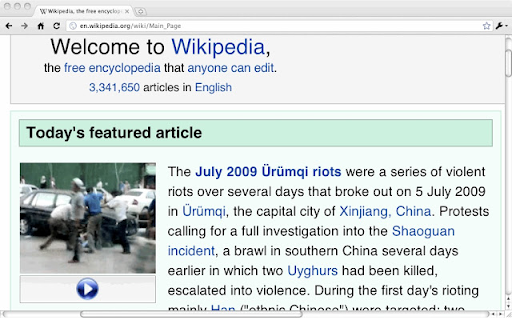
Right-click a column of text so zoom, or tap Shift and click, then press +/-/0 to adjust the font size. Esc unzooms. Right-click a column of text and pick "Zoom" to make it take up the whole width of the screen just like double tap zooming of the mobile Safari. Esc unzooms. Or you can tap Shift then click a column of text to zoom in on it, and/or press +/-/0 to adjust the font size. If you tap Shift accidentally, cancel zooming by tapping it again (or pressing any other key). This extension works best for text-heavy sites: news, blogs, and so forth. It won't zoom all content correctly, and it's disabled for some sites like GMail and Hotmail where it doesn't work. Like all extensions, it's disabled on this site, too. And it's experimental: it could cause you problems. If the keyboard shortcuts interfere with a webpage, you can disable them on a page by pressing ` (the backquote key, underneath Escape on some keyboards). Note: This extension was originally developed by another author. I loved this extension but it was not maintained any more and it was not worked on recent version of chrome. So I decided to fix it for latest chrome. I really appreciate original authors' efforts.

Chrome Web Store
Add new features to your browser and personalize your browsing experience.

Easily Custom Page Zoom
Each website (or all websites) may be set with a unique zoom level easily. "Easily Custom Page Zoom" provides you with the option to establish various zoom levels for each website. Furthermore, you can change the X and Y position of each page. - The toolbar popup window can be used to set custom zoom levels for each website. - You can set each page's position using the X and Y positions, and save the settings for individual pages using the save button. - You can also delete each setting by clicking on the close (x) button. - To turn the Addon ON or OFF, you can use two separate buttons at the popup UI. - A "*" can also be used to set a specific level of zoom for all websites.

Zoom Page WE
Zoom web pages (either per-site or per-tab) using full-page zoom, text-only zoom, automatic fit-to-width and minimum font size. Zoom Page WE provides facilities to make the contents of a web page larger or smaller (either per-site or per-tab) using full-page or text-only zoom and minimum font size. AutoFit (fit-to-width) can be applied manually or automatically. Small images can be scaled to fit the browser window. After installation, there will be a new blue 'floppy-disk' icon on the main toolbar with a blue badge showing the current zoom level. To change the zoom level for a page, click on the toolbar button to show the popup panel, then click on one of the six buttons on the right side of the popup panel: • Type - toggles the type between Full and Text. • Level (%) - shows a drop-down menu from which a specific level can be selected. • In (+) - increases the level to the next defined level or by a fixed step. • Out (-) - reduces the level to the next defined level or by a fixed step. • Autofit - adjusts the level so the page contents fit the width of the browser window. • Reset - applies the defined default full/text level depending on the current type. To change the minimum font size for a page, click on the toolbar button to show the popup panel, then click on one of the two buttons on the left side of the popup panel: • Minimum Size (px) - shows a drop-down from which a specific minimum font size can be selected. • Reset - applies the defined default minimum font size. Distributed under the GNU General Public License version 2. See LICENCE.txt file and http://www.gnu.org/licenses/

SmoothZoom – Quick Page Zoom
Pinch-to-zoom convenience, now on your desktop. Hold right-click and spin the mouse wheel to zoom toward the cursor. Enjoy the convenience of pinch-to-zoom functionality from touch screens, now available on your desktop. Many touchpads support pinch-to-zoom in a way that they trigger the built-in page zoom. You can intercept this action by changing the zoom activation key from "RClick" to "Ctrl". This way, you don't need a mouse wheel to use SmoothZoom!
