
pldkddbkbcedophgedaeofceedjcaehl
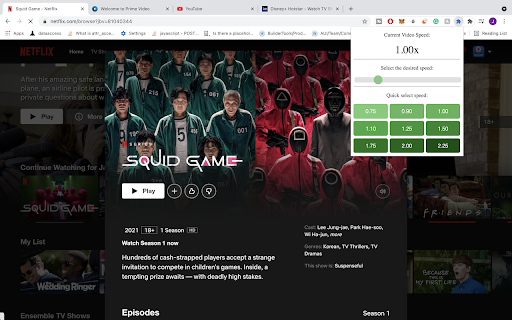
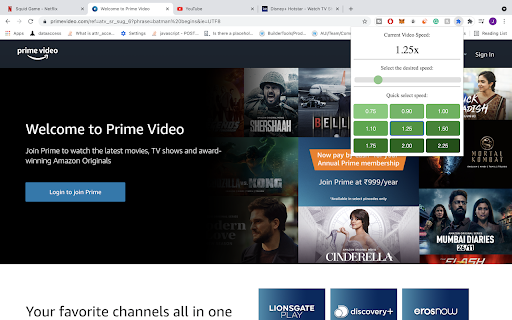

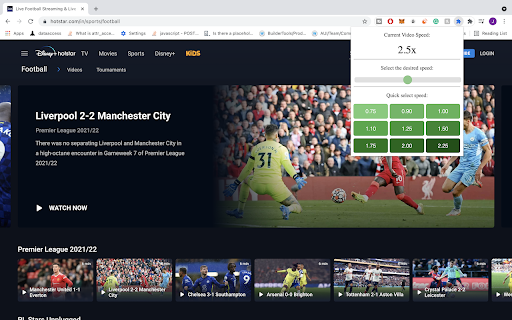
Controls the speed for online streaming for Netflix, Amazon Prime, Youtube, Twitch, Reddit and ALL others. Overview: Speed up or slow down any of your HTML5 videos on ALL websites: Netflix, Amazon Prime, Youtube, Facebook, Reddit, etc. It is a waste of time when various video streaming websites don't support video speed modifications. This extension helps you optimize your time utility by controlling the speed of videos on ALL websites. Use the simple User Interface provided by SpeedUp to set the desired video speed which reflects automatically in all tabs. It is simple, easy and convenient for everyone looking to an improved video streaming experience.

Prime Video Speeder: adjust playback speed [QVI]
Extension allows to adjust the playback speed on Prime Video according to preference Get your skates on and be in control of the playback speed on Amazon Prime Video. This extension will allow you to either speed up or slow down shows and movies to enjoy watching your favorite content at your own pace. Didn't catch that fast-talking dialogue? Want to experience your favorite scenes in slow-motion? Or maybe you'd like to fast forward the less interesting part to enjoy the series finale? You're in the right place! Here's the solution for changing the video speed. All you need to do is to add the extension to your browser and run the control panel which enables you to choose from 0.25x up to 16x speed rates. You can also use hotkeys on your keyboard to control it. It is as simple as that! How to find Speeder's control panel: 1. After installation, click the small puzzle piece icon next to your Chrome profile avatar (top right corner of the browser window) 2. You'll see all your installed and enabled extensions. 3. You can pin Speeder to have it always on top in your browser. 4. Click the Speeder icon and try different speed settings. This extension is part of the Quality Viewership Initiative, a collaborative effort to enhance the understanding of audience engagement. It collects anonymous, aggregated viewing insights to support creators and studios in improving the quality of their content. You can stop sharing your information at any time by switching the toggle on the options page. Disclaimer : Prime Video is a trademark of Amazon.com, Inc.. This website & extension hold no association or affiliation with Amazon Prime Video or any third-party companies.

Youtube Playback Speed Control
Control speed of the youtube playback using keyboard. Press '+' to increase and '-' to decrease the playback speed. [ Added functionality for the extension to work with all html5 videos. If you are having issue with videos other than youtube, feel free to disable it from settings] ***Note: The extension auto loads for html5 videos. So please don't confuse that you have to click the extension button to load it. Lots of people were confused about how to use this extension.*** Youtube playback speed increase or decrease is just a mouse click or keyboard button away. Get more out of Youtube and control speed of youtube video easily either by clicking the speed overlay button on the top right hand corner or just keyboard button '+' and '-'. Keyboard button are configurable and if you want to use different key, you can change this default keys from settings tab. With HTML5 Video playback on YouTube, you can speed up and slow down the currently watching videos. I loved this feature. But still it was too many mouse clicks for me. So, this extension was created to control the playback speed using keyboard. Press '+' to increase the playback speed and '-' to decrease the playback speed. If '+' and '-' keys are already used by other extension or you want to use different key, you can change this default keys from settings tab. This extension even works for the HTML5 YouTube player embedded in other website. Make sure that the player is in focus. A website can embed multiple YouTube player and the keyboard shortcuts will effect the currently playing one. Everything works no change needed. Please check extension options for more setting options. You can change playback rate increment from default 0.25 to any desired increment. Note: - The control may not appear the first time the extension is installed or updated. Refreshing the page should make it work. - Close the setting page after making changes for the extension to function properly. ★ YPSC - Version 0.0.15 - Fixed an issue reported by users after chrome update Version 127. Version 0.0.14 didn't fix the issue. ★ YPSC - Version 0.0.14 - Fixed an issue reported by users after chrome update Version 127. Wasn't fully able to replicate the issue but fixed the error that appeared on the console. ★ YPSC - Version 0.0.13 - Allow the extension to work with all html5 video. Added option to disable it if needed. - Updated Bootstrap & Jquery ★ YPSC - Version 0.0.12 - Fixed a issue with playback button remaining on full screen even with FadeInFadeOut option. ★ YPSC - Version 0.0.11 - Fixed a bug that breaks the playback button display when switching full screen and back. ★ YPSC - Version 0.0.9 - Updated to Manifest v3 required by Extension development ★ YPSC - Version 0.0.7 - Removed webRequest, activeTab permission. - Easy access to setting page. - Changes to comply with chrome web store. ★ YPSC - Version 0.0.6 - Removed the need to access to full browser history. - Fixed the shortcut assigned for speed up and down are not taken into account and reset to "0" issue. - Added more control over position of playback rate increase/decrease button. Added TopLeft, TopMiddle, TopRight, BottomLeft, BottomMiddle, BottomRight option for position. - Fixed the extension overlay from preventing "press x to close" when in miniplayer mode. - Fixed hotkeys triggering when typing in comments. - Added option to view time saved using this extension in option page. ★ YPSC - Version 0.0.5 - Added an option to disable Shift+MouseScroll combination. - Shows the speed control for 300 millisecond when the speed is changed. ★ YPSC - Version 0.0.4 - Added a reset playback speed to 1x feature. By default it's '*', but user can change. Clicking the playback rate display also reset to 1x. - Added increase or decrease of playback speed using Shift+MouseScroll combination. - Added 'Up Arrow' and 'Down Arrow' to key options (Request from user). ★ YPSC - Version 0.0.3 - Made extension more stable. The extension successfully loads every time now (unlike its predecessor where CTRL+F5 was needed sometime) - Fixed the bug with playlist not advancing to next video. - Fixed the bug of comments not loading sometime. - Made the extension work with embedded videos almost all the time. - Supports user defined playback rate increment that user can set from settings. - Added more speed options. Supports higher playback rate. Note: Sound will not work for higher than 4x. ★ YPSC - Version 0.0.2 - Updated to a user friendly display of the playback rate and added increase/decrease button. - Fixed the bug of '+' and '-' buttons located next to backspace not working. Only the '+' and '-' buttons of Numeric keypad was working. - Added various mode of playback rate display (Always, Hide/Show, Simple and None).

HBO Max Speeder: adjust playback speed [QVI]
Extension allows to adjust the playback speed on HBO Max according to your preferences Get your skates on and be in control of the playback speed on HBO Max. This extension will allow you to either speed up or slow down shows and movies to enjoy watching your favorite content at your own pace. Didn't catch that fast-talking dialogue? Want to experience your favorite scenes in slow-motion? Or maybe you'd like to fast forward the less interesting part to enjoy the series finale? You're in the right place! Here's the solution for changing the video speed. All you need to do is to add the extension to your browser and run the control panel which enables you to choose from 0.25x up to 16x speed rates. You can also use hotkeys on your keyboard to control it. It is as simple as that! How to find Speeder's control panel: 1. After installation, click the small puzzle piece icon next to your Chrome profile avatar (top right corner of the browser window) 2. You'll see all your installed and enabled extensions. 3. You can pin Speeder to have it always on top in your browser. 4. Click the Speeder icon and try different speed settings. This extension is part of the Quality Viewership Initiative, a collaborative effort to enhance the understanding of audience engagement. It collects anonymous, aggregated viewing insights to support creators and studios in improving the quality of their content. You can stop sharing your information at any time by switching the toggle on the options page. Disclaimer : HBO is a trademark of Home Box Office, Inc.. This website & extension hold no association or affiliation with HBO Max or any third-party companies.

Video Speed Up
Accelerates video playback with a single click on the extension button. Works with HTML5 videos and audio elements. The extension's function is to accelerate video playback and slow it down below normal speed. It works with video and audio elements on websites that support it. To activate the extension, simply left-click on its icon. Right-clicking on the extension's icon reveals a menu with additional options that may be useful in certain situations. - On some webpages, it is not possible to adjust the speed of the played elements. This is due to how the specific page is designed. If you find this extension useful, you may consider supporting the author with a donation of any amount.
