
plbkipfnejekdmbblkeaphikigeemgia
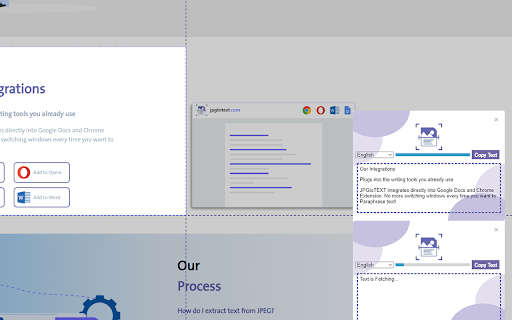
It is an online tool, using the OCR we make it possible to extract jpg to text. It is an online tool that converts jpg image text into editable text format. Developed with OCR (Optical Character Recognition), a technology that obtains information from pictures and transforms it into soft copy. It convert active tab into a jpg and then using OCR to read all text on it.

OCR Image to text - Image Reader
A powerful optical character recognition (OCR) extension to capture and convert images to text A powerful optical character recognition (OCR) extension to capture and convert images to text This extension adds a toolbar button to your browser to perform OCR. When this action button is pressed, it allows the user to select a region in the currently active window. The extension captures the area and tries to recognize text inside this region using the internal powerful OCR engine (Tesseract engine). This extension uses the "tesseract.js" library that supports more than 100 languages, automatic text orientation, and script detection. This extension loads the JS library on the page and removes it when you are done. This way, there is no long-term resource usage. Notes: 1. On the first run, the extension might take a few minutes to fetch the training data from the internet. Since this resource is cached, all subsequent calls are going to be fast. 2. Optical character recognition (OCR) is slow, so this extension displays a progress bar for each detection module. 3. This extension does the OCR process offline. There is no server-side interaction. It only fetches the language training database once. 4. This tool can be used to extract the text content out of images, PDF documents, Powerpoint slides, or extract the content of a web page when user-section is forbidden. 5. If the text extraction confidence is low, the extension inverts the image and retries (particularly useful on the dark theme) 6. If the text extraction is not accurate, you can modify the image and drop it into the interface to retry.

Documate OCR
Documate includes optical character recognition (OCR) functionality to directly extract editable text from scans (JPG, PNG) made with your INSWAN document camera. 1. Connect your INSWAN document camera to your Chromebook using the USB cable. 2. Open the “Documate” software. 3. Capture document images. 4. Go to “Gallery mode” and double click the thumbnail of the captured image. 5. When the thumbnail image is expanded to full screen, click the “Keystone correction” tool to select the area to be scanned and start to correct image distortion. 6. Click on “Save to gallery ” to confirm and save the scanned file as PDF, JPG, PNG, of TIFF. 7. Click the “OCR” icon to extract editable text from the scan. 8. Click on “Return to gallery mode” to return to the thumbnail preview mode to review all captured images. 1. Capture the image and enter gallery mode (Steps 1-6 above.) 2. Click on the “OCR” icon to activate optical character recognition. 3. Select the primary language of the target document. If the document has two languages, select both the primary and secondary languages. 4. Click “Run” to extract text. Extraction may take 2 to 3 minutes, depending on the amount of text. 5. Click “Save” to confirm and save the extracted text file or click on “Exit” to cancel extraction. 1. Go to gallery mode and click on “Import image file” to import a JPG or PNG file to the gallery. 2. Click on the “OCR” icon to activate optical character recognition. 3. Select the primary language of the target document. If the document has two languages, select both the primary and secondary languages. 4. Click “Run” to extract text. Extraction may take 2 to 3 minutes, depending on the amount of text. 5. Click “Save” to confirm and save the extracted text file or click on “Exit” to cancel extraction.

Image to text with integration of AI (Free)
Use OCR technology to transform images into text, facilitating seamless integration with chatbots for dynamic interactions. Experience the power of efficient text conversion with the "Image to text with integration of AI", a Chrome extension designed for users who require quick and accurate textual content from the captured image from User. This extension is crafted to improve productivity for students, researchers, professionals, and anyone in need of extracting text from visuals. Enhance your browser experience with our "Image to text with integration of AI"! Seamlessly convert images to text, and directly interact with multiple language models like ChatGPT, Copilot, and more for instant analysis and translation. Ideal for students, researchers, and professionals who need to extract and utilize information from visuals efficiently. Utilizes the renowned Tesseract library locally on your machine, ensuring that your data never leaves your device for processing. This enhances security and performance, as no external APIs are involved. Automatically convert your scanned texts into audible speech with customizable voices and different accents, perfect for auditory learning and accessibility. Install now to transform the way you interact with digital content! Unlock the full potential of your digital content with our "Image to text with integration of AI" Chrome extension! This tool is designed to empower users by transforming images into editable text with high accuracy. Whether you're a student needing quick quotes from study materials, a professional extracting data for reports, or a developer integrating OCR capabilities into your projects, this extension is built for you.

Capios - OCR, Screenshot & Video Capture Tool
Capios - Your perfect OCR, Screenshot & Screen Recording tool, makes it easy & fun to extract Text, Capture or Record screen, edit, annotate and share. You can access dashboard to access your captured images and videos on cloud and save OCR snippets. Keyboard shortcut to activate extension - Alt + Shift + X A fuss-free Text extracting, Screen Capture Tool to capture all your important web pages as Images or Videos (even offline apps & screens). It lets you capture your working screen, record it and share it with others as needed. 1️⃣ OCR CAPTURE MODES: The tool allows users to extract text in various modes: 1. Full Page: Users can capture the text entire screen with a single click. This mode is useful when the user wants to extract everything that is displayed on the screen. 2. Select Area: Users can extract text only by selecting the area of the current tab. This mode is useful when the user wants to extract text only a specific part of the screen that is currently visible. 3. Upload File: Users can upload a file (JPG, PNG or PDF) to extract text. This mode is useful when the user wants to extract text from images and documents. OCR Editor: Users can extract the text by uploading their files and edit it. Editing Tools: The editing tools include Font, highlight, keyword search, Text to Speech (coming soon). It also provide summary of the extracted text using AI (coming soon). 2️⃣ SCREENSHOT CAPTURE MODES: The capture tool allows users to take screenshots in various modes: 1. Full Screen: Users can capture the entire screen with a single click. This mode is useful when the user wants to capture everything that is displayed on the screen. 2. Visible Area: Users can capture only the visible area of the current tab. This mode is useful when the user wants to capture only a specific part of the screen that is currently visible. 3. Select Area: Users can select a specific area of the screen to capture. This mode is useful when the user wants to capture a specific part of the screen that is not currently visible. Open Image Editor: Users can upload an image from their local storage and edit it. Editing Tools: The editing tools include annotations, image upload, and sharing as a link, email attachment, or download. 1. Annotations: Users can annotate their captures with various tools such as text, arrows, shapes, and freehand drawing. This feature is useful when the user wants to highlight specific areas of the capture or add additional information. 2. Image Upload: Users can upload an image to edit or annotate. This feature is useful when the user wants to edit an existing image or add annotations to an image that was not captured using the extension. 3. Edit Image: Users can rotate, Flip, add different shapes, highlight and add Emojis. Users can also add padding, adjust borders, and add different pre-defined gradients to the Image. Also users can also add watermark, Add Tags, Generate QR code for the Image. 4. Sharing: Users can share their captures as a link, email attachment, or download. This feature is useful when the user wants to share their captures with others or download them for future use. User can also share Images to platform like Twitter, Instagram, YouTube, Facebook and LinkedIn. 3️⃣ VIDEO RECORDING: The video recording feature enables users to capture: 1. Entire Screen: Users can record their entire screen, including multiple tabs and applications. This mode is useful when the user wants to create a tutorial or record a presentation. 2. This Tab: Users can record only the current tab. This mode is useful when the user wants to create a video of a specific website or application. 3. Camera Only: Users can record only the webcam feed. This mode is useful when the user wants to create a video of themselves. 4. Select Area: Users can select a specific area of the current tab to record. This mode is useful when the user wants to create a video of a specific part of the screen. 5. Open Video Editor: Users can upload a video from their local storage and edit it. 6. Sharing: User can also share Videos to platform like Twitter, Instagram, YouTube, Facebook and LinkedIn. Dashboard Integration & Sign-in/Sign-up: ▸ Upload captures to cloud storage for easy access, organizing and sharing ▸ Dashboard integration for organizing and accessing captures ▸ Local captures can be manually uploaded to the dashboard ▸ No sign-in required for local downloads ▸ Cloud storage and dashboard access require Gmail login (social logins coming soon!) ▸ Edit Video: User can Add text, trim the video, Insert Images while editing, Add video clips, Create GIF’s from the videos, also insert music and add voiceover to the video. ▸ More features like add effects to the video, convert speech to text and text to speech, Transcription of the video, Remove Noise, and Filler Words and Initial cloud storage limit mentioned in application upgrade section and a lot of Upcoming features lined up in the future roadmap… 🏆 Intuitive, Addictive & Creative user experience. 💨 Quick & Smooth in Capturing and Processing Screen Annotations. ⚡ Instant sharing via Email or Share as a Link with anyone. 🚨 Immediate Customer support. 🐞 Bugs fixed & major feedback implemented 📢 We value user feedback; and retain the flexibility of adding the best features for our users. This is the Beta version of the Capios Application. For this Beta version we would not retain unused data (Images & Videos) from users of Capios after a period of 180 days (about 6 months). We will soon be adding paid feature for unlimited duration of data retention & storage. ▸ Premium upgrade plan How to take screenshots with your device? Capios tool lets you take screenshots on your windows laptop, and you can also take screenshots on your mac. Connect with us for feedback at support@capios.ai. Use it as your chance to advise us to make Capios better by suggesting features you want to see in our next updates. Quixy is a cloud-based digital transformation platform that helps business users with no coding skills to build unlimited enterprise-grade applications. That too, with simple drag-and-drop dynamics, which is ten times faster than the traditional software development method.
