
pindpfknjjhmjdpgpfdempcnheecfkah
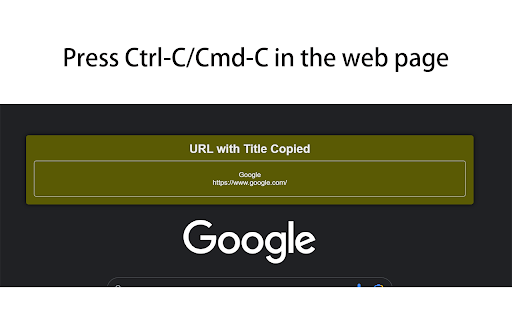

Copy hyperlink as Edge does, just press Ctrl-C/Cmd-C in the web page. Shortcut is configurable. A Chrome extension that mimics Microsoft Edge's built-in "copy page as link" feature — available on any webpage. Press **Cmd+C** (macOS) or **Ctrl+C** (Windows/Linux) on any webpage **without selecting any text**. Instead of copying nothing, the extension automatically copies the page title and URL as a rich-text hyperlink (an anchor element `Title`). If you have text selected, the shortcut behaves normally and copies the selected text. A small toast notification confirms the copy action. Paste the copied hyperlink into any rich-text editor that understands HTML or JavaScript DOM objects, for example: - Rich-text input fields in web apps (Gmail, Notion, etc.) - [Obsidian](https://obsidian.md/) and other Markdown editors that accept pasted hyperlinks - Word processors that preserve hyperlink formatting on paste Open `chrome://extensions` → find **Copy hyperlink as Edge does** → **Details** → **Extension options** to customize the shortcut. Click **Record**, press the desired combination (e.g. `Ctrl+Shift+L`), then **Save**. - Runs on all `http://` and `https://` pages as a content script - `storage` — to remember your custom shortcut (synced via your Chrome account) - No background service worker; no data is collected or transmitted

Copy As Hyperlink
Copy page title or selected text as a pasteable hyperlink The purpose of this extension is to facilitate copying and pasting of text from a webpage such that the copied data includes a hyperlink to the page on which the text appears. To use this extension: 1. On the web page for which you're creating a link, select the text that you want to appear in the destination document. For a news article, this might be the article headline. If no text is selected, the page title will be used. 2. Click on the icon for this extension. A small window that says "Link copied" will pop up temporarily next to the icon. 3. Paste the text into the destination document. It should appear as a hyperlink to the webpage from which the text was copied. 4. You can also use a hot key to invoke the extension. The default is Alt-Shift-L.

Copy Rich Link
Copy the page title and URL as rich text. Copy the page title and URL as rich text. Useful for pasting links to Slack, Google Docs, etc. Click the extension icon or execute the keyboard shortcut to copy the link to the page as rich text. The default keyboard shortcut is Ctrl + Shift + L, and Command + Shift + L on Mac. This can be changed from the browser's extension settings. As a fallback, we also copy in plain text format in the form `"{title}" {url}`, so that if you paste where rich text is not available or paste explicitly as plain text (Ctrl + Shift + V on Windows), this plain text format will be pasted.

Copy URL with Title (plain text/markdown)
Copy the title and URL in plain text/markdown format by keyboard shortcuts: Ctrl+C/Cmd+C for plain text, Alt+C/Opt+C for markdown. Ver 1.1.1.0: ADD: Duration settings for notification Ver 1.1.0.6: FIX: Workaround for non-https pages Ver 1.1.0.5: FIX: Correction of the phenomenon that text is not copied to the clipboard ADD: Option menu ADD: New customizable toast UI -------------------------------------------------------------------------------- FEATURES -------------------------------------------------------------------------------- 1. Copy title and URL in text format Control+C(Win/Linux) / Command+C(Mac) 4.Settings Right click the extension icon -> Options --------------------------------------------------------------------------------

Copy Tab URL for Slack, Teams, Email
Copies the current tab URL and title to the clipboard for sharing in Slack, Teams, and Email. Boost your productivity and streamline your workflow with the "Copy Tab URL for Slack" extension! This powerful yet easy-to-use tool allows you to effortlessly copy the current tab's URL and title in a format that's perfect for sharing on Slack, Teams, or Email. Whether you're collaborating with colleagues, sharing important links, or just need a quick way to send URLs, this extension has you covered. - Instant Copy: [control]+[shift]+[c] copies the URL and title of your current tab to the clipboard as a clickable anchor link formatted for Slack, Teams, or Email. - Seamless Integration: Designed to work flawlessly with your Slack, Teams, or Email communications, making it easier than ever to share links. - No Clicks Required: Runs automatically with [control]+[shift]+[c] or any key combination you prefer without any need for buttons or extra clicks, saving you time and effort. Why Choose Copy Tab URL for Slack? - Enhanced Collaboration: Quickly share relevant links with your team, enhancing communication and collaboration. - Time-Saving: Eliminates the need for manual copying and pasting, allowing you to focus on more important tasks. - User-Friendly: Intuitive design and automatic functionality make it accessible for users of all levels. - Install the "Copy Tab URL for Slack" extension from the Microsoft Edge Add-ons store. Open the tab you wish to share. - Press [control]+[shift]+[c] or click on the extension icon to copy the tab's URL and title in a Slack, Teams, or Email friendly format. - Paste the link into Slack, Teams, or Email.
