
bpcogbhmkdjaohcmlghhkiohmldpnkoh


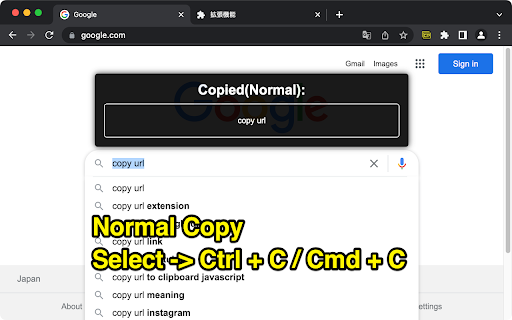
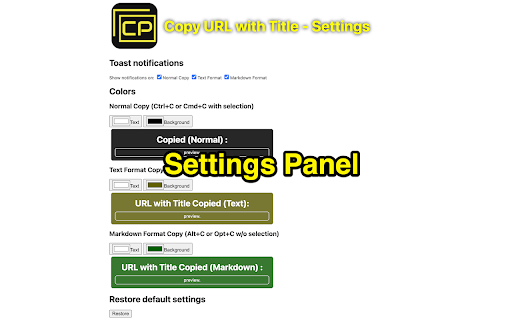
Copy the title and URL in plain text/markdown format by keyboard shortcuts: Ctrl+C/Cmd+C for plain text, Alt+C/Opt+C for markdown. Ver 1.1.1.0: ADD: Duration settings for notification Ver 1.1.0.6: FIX: Workaround for non-https pages Ver 1.1.0.5: FIX: Correction of the phenomenon that text is not copied to the clipboard ADD: Option menu ADD: New customizable toast UI -------------------------------------------------------------------------------- FEATURES -------------------------------------------------------------------------------- 1. Copy title and URL in text format Control+C(Win/Linux) / Command+C(Mac) 4.Settings Right click the extension icon -> Options --------------------------------------------------------------------------------

Copy URL To Clipboard
* When copying the URL of the page, right-click anywhere on the page and open the context menu, then select the format to copy. * When you right-click on a link (an anchor element), you can copy the URL of that link. * If you select some text before right-click, that selected text will be used for the content of the link. * You can edit content text when copying. * Copy to clipboard can be executed from the context menu, the tool button, or keyboard shortcut.

Rich URL
Copy, save and share information in a convenient format. Rich URL is an extension, which will help you to copy, share or save information from viewed pages in one or two clicks. Why use the extension for copying if there is a standard shortcut of Ctrl+C/Cmd+C for this purpose, ask you? With the extension, it will be a little faster and more comfortable. Find out more on the website https://richurl.madewithlove.in.ua/en/ Available options: ● Copying (formatted and plain) ▸ The current tab ▸ All tabs of the current window ▸ Tabs of all open windows ● Sending by e-mail ● Share on social media ● Making service API requests for, for example ▸ turning the URL of the current page into a QR code ▸ search in various services For coping and sharing such elements are available: ● Page URL ▸ convert Unicode characters ▸ clearing marketing and other service marks ▸ add to URL your own parameters (affiliate programs) ▸ URL shortening (bit.ly, is.gd, cutt.ly, t.ly) ● Page title ● Selected text on the page ● All page text

Format Link
Format a link and copy it to the clipboard. ## Why do I need it? To format the link of the active tab instantly to use in Markdown, reST, HTML, Text, Textile or other formats. ## How to use You can use keyboard shortcuts, context menus, or the toolbar button of Format Link extension to copy a link in the specified format. Before doing that, you can optionally select some text which may or may not contain a link. ### keyboard shortcut The keyboard shortcut for "Copy a link in the default format" is shortcut for clicking the toolbar button. The link is copied in the default format and the popup is shown under the toolbar button. Also there are shortcuts for copying in the link in the corresponding format regardless of the default format. You can change shortcuts at chrome://extensions/shortcuts ### context menu Open the context menu and select the "Format Link as XXX" menu item. "XXX" in the menu item label changes as you change the default format by clicking the "Set as default" button in the popup page for the toolbar button. If you check the "Create submenus" in the options page and save the options, submenus for each format are created under the "Format Link" context menu group. ### toolbar button When you press the toolbar button of "Format Link", the link is copied in the default format, the popup page becomes open, and the formatted text is shown in the text area. If you want to copy the link in different format, you can press one of the radio buttons. Also if you want to change the default format, you can press the "Set as default" button. ## Flexible settings You can modify formats in [Tools] -> [Extensions] -> Clik "Options" link in "Format Link" Extension. In format settings, you can use the mini template language. * {{variable}} * variable = title / url / pageUrl / text * The value of variable `title` is the HTML page title. * The value of variable `text` is the selected text if some text is selected, the link text if you open the context menu over a link (see KNOWN LIMITATION below for link text), or the page URL if no text is selected and you open the context menu not over a link. * The value of variable `selectedText` is * the selected text if some text is selected, * empty string if no text is selected. * The value of the variable `url` is the link if you open the context menu over a link, the first link if selection contains a link, or the HTML page URL otherwise. * The value of the variable `pageUrl` is always the page URL. * No spaces are allowed between variable name and braces. * {{variable.s("foo","bar")}} * Which means `variable.replace(new RegExp("foo", 'g'), "bar")` * You can use escape character \ in strings. * You must escape the first argument for string and regexp. For example, `.s("\\[","\\[")` means replacing `\[` with `\\[` * You can chain multiple .s("foo","bar") * {{variable.urlencode()}} * Which means `encodeURIComponent(variable)` * You can use the escape character \ in strings. For example, you need to escape `\` with `\` like `\\`, and also you need to escape `{` with `\` like `\{`. See the LaTeX example below. * Other characters are treated as literal strings. * HTML with selected text ## Permissions required by this extension * To use this extension, the following two permissions are required: * "Read and change all your data on all websites" * This permission is needed for this extension to run the ["content script"](https://developer.chrome.com/docs/extensions/develop/concepts/content-scripts?hl=en) into the content of pages you visit in order to get the page title, the selected text, the page URL, or the link URL. * "Modify data you copy and paste" * This permission is needed to copy a URL and a text to the clipboard. For technical details, see the following pages: * [Declare permissions](https://developer.chrome.com/docs/extensions/develop/concepts/declare-permissions?hl=en) * ["content_scripts.matches"](https://developer.chrome.com/docs/extensions/develop/concepts/match-patterns?hl=en) * This extension uses `""`. * [Permissions](https://developer.chrome.com/docs/extensions/reference/permissions-list?hl=en) * This extension requires the following permissions: * "activeTab" * "clipboardWrite" * "contextMenus" * "storage" * Due to security reason, you cannot copy the URL on some pages like the Chrome Extension Gallary. * Chrome allow each extension to have at most 4 keyboard shortcuts. One shortcut is used for copying a link with the default format, and the rest of three are used for copying a link with the corresponding format 1 to format 3. So format 4 to format 9 does not have keyboard shortcut.

Just Copy URL
閲覧中のページのtitleとURLを即座にクリップボードにコピーする。ただそれだけのエクステンション。 アイコンを押せばすぐに見ているページのURLをクリップボードにコピーできます。「たくさんメニューがあると条件選択が煩わしい」という方に。「title(改行)URL」の形でコピーするので、メール・ブログ・資料作成などに便利かと思います。 【利用方法】 エクステンションをインストールし、有効にする アイコンをクリックすると即座にクリップボードにコピーされるので、必要な場所にペーストする 【更新履歴】 v1.0.4: 選択中のページがアクティブでない場合にコピーが失敗する問題を修正し、以前と同様に拡張ボタンを押すだけでタイトルとURLがコピーされるよう改善しました v1.0.3: Manifest V3移行に伴い、CSPの修正と外部スクリプト(Google Analytics)の削除を行いました 拡張機能の機能はこれまで通り「1クリックでタイトルとURLをコピーする」だけです
