
pillfigpnfnjpoadcklbhimicogneenp
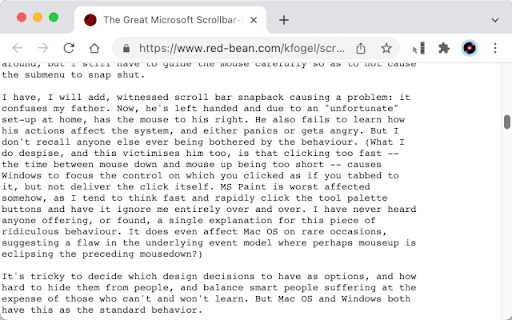
Restores the last scrollbar position when dragging the scrollbar when your mouse leaves the scrollbar's buffer zone. How many times have you scrolled the webpage a certain distance and suddenly want to "peek" at sometime at the top or bottom of the webpage without losing your current scroll position? If I scroll back to the top (or bottom) of the page to review part of the webpage, there is no guaranteed way to return to where I was. On Windows systems, this is easy because when dragging the scrollbar using the mouse, if you keep the mouse button held down, and move the pointer sideways for about 100 pixels, the scrollbar goes back to its location before being dragged, and the webpage with it. Mac systems have not implemented this super useful behavior, but with this extension you can now have a similar feature too. To quickly scroll to another part of the webpage and easily jump back to the current position, simply drag the scrollbar to the desired part of the webpage, and without releasing he mouse button, drag the pointer away from the scrollbar at least 100 pixels away and then release the mouse button. Limitation: For performance reasons, only the top level scrollbar is supported. For scrollbars inside subsections of the webpage, it isn't supported. For a discussion on this behavior, please see this thread: https://www.red-bean.com/kfogel/scrollbar-redux.html

ScrollDock – Smart Scroll Saver
Automatically remembers your scroll position on websites. Return later and pick up reading right where you left off. Never lose your scroll position again. ScrollDock is a smart Chrome extension that automatically saves your scroll position on any webpage and restores it when you return — even after closing the tab, refreshing, or coming back days later. Perfect for readers, researchers, and multitaskers. 💡 Whether you're reading long articles, researching, or browsing threads, ScrollDock ensures you always resume right where you left off. 🔹 Key Features: ✅ Automatically remembers your scroll position on websites. ✅ Instantly restores your scroll spot when you revisit. ✅ Works seamlessly across most websites and platforms. ✅ Lightweight, fast, and 100% privacy-friendly — no data collection. ✅ Boosts productivity and reading continuity. 📌 Perfect for: Blog readers, students, researchers, content creators, and anyone who hates losing their place while browsing. Install ScrollDock now and enjoy smooth, uninterrupted browsing — every scroll, every time.

Scroll-Anywhere
Scroll the webpage as if the scrollbar is right under your pointer by holding down the middle mouse button anywhere on the webpage. Allows you to scroll the webpage no matter where the pointer is, as if the pointer was currently over the scrollbar. Simply hold down the middle button anywhere on the webpage and move the mouse in any direction. You can also go into the extension's settings page and change the direction of the scroll so that it behaves like touch devices. As an optimization, if you hold down the middle button, move the mouse a little and then very quickly release the button, you can continue to scroll the webpage without needing to keep the mouse button pressed. This extension is open source: https://github.com/em-te/webextension-scrollbar-anywhere Caveat: This extension cannot work on the Extensions Gallery (this website).

Scroll marker
Create a scroll mark on a page and scroll down to the marker This extension is used to mark a scrolling point and scroll down to that point. To use, first pin the extension after install. After that, in the website that you want to scroll-mark, click the extension icon, then click a point in the website. A marker should show up. You can now refresh the page, and it will auto scroll to that point. Note: - If you want to delete a marker, right click at the marker icon --> options --> then delete the marker manually

PageMark Navigator
Mark your position on the page and jump between marks using F2 key Say goodbye to repetitive scrolling and welcome effortless navigation within your web pages. You can effortlessly move between important positions, saving time and effort. Mark by pressing ctrl + F2 and then jump between marked positions by pressing F2, you can also add new markers and navigate between them from the extension menu. This extension is designed in a way that you won't have to do any extra step to save and navigate between markers. Saved positions are marked by a little flag icon close to the scrollbar and can be removed at any time from the extension menu. You can see all the markers for a specific page by opening the extension menu on that page. Here are some examples of how you can use the extension: Bookmark Your Position: Mark your current position on a page before scrolling down. This way, you can easily return to the marked position later without forgetting where you were. Compare Multiple Regions: Easily compare different regions on a page by marking their positions. This allows you to jump between the marked points and analyze the content or data efficiently. Test Dynamic Elements: Efficiently test multiple dynamic elements interacting with each other. Mark their positions to quickly navigate and interact with each element during testing and experimentation. Create Shortcuts for Frequently Visited Positions: Set up shortcuts to instantly scroll to specific positions you frequently visit on a particular page. Save time by avoiding manual scrolling to essential sections whenever you open that page. Keyboard Shortcuts: - CTRL + F2: put a marker on the current position - F2: jump to the next marker Upcoming Features: - settings page - ability to jump between tabs - ability to hide/show marker icons - ability to name markers - ability to remove marker using keyboard shortcut - ability to resize markers - ability to change the keyboard shortcuts - separate markers page Don't hesitate to let me know if you have any suggestions.
