
phcoghlioejnfhpjkfaogpfacpbhmjfm
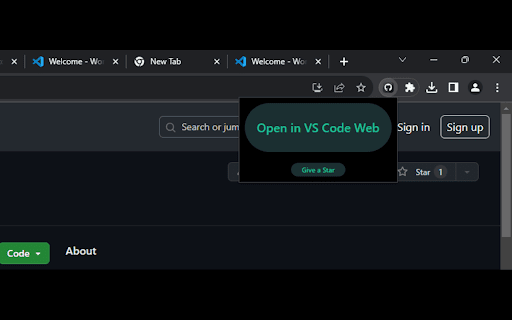

An extension to open a GitHub repo in VS Code Web A simple tool to quickly open your GitHub project in Visual Studio Code Online

Vs Code github
Extention chrome for adding vscode button in github The GitHub Open Button for Chrome extension revolutionizes your workflow by seamlessly integrating Visual Studio Code Web (VS Code Web) with GitHub. This Chrome extension places an "Web Vs Code" button right on GitHub repositories, transforming your browsing experience into a coding journey. Streamlined Workflow: Access your GitHub repositories in VS Code Web with a single click, eliminating the need for manual URL copying and pasting. Productivity at Its Best: Stay within your coding environment to boost productivity and minimize distractions. Open Source: This extension is open-source, empowering you to contribute to its development and tailor it to your unique needs. Install the "Vs Code github for Chrome" extension from the Chrome Web Store. Sign in to your GitHub account if prompted. Visit any GitHub repository in your Chrome browser. Look for the "Web Vs Code" button on the repository page. Click the button to open the repository directly in Visual Studio Code Web. Start coding immediately in a familiar and focused environment. Stay Connected: Elevate Your VS Code Web Experience: With the Vs Code github for Chrome extension, simplify your interactions with GitHub and elevate your coding experience in the browser.

github-vscode-icons-updated
[UPDATED] This extension shows a VS Code icons in GitHub Repositories This is an updated extension that shows a VS Code icons in GitHub Repositories Displays vscode-icons in GitHub repo with new UI, nearly 1200 file/folder icons Additional support for bitbucket, gitlab, sourceforge and more

Open GitHub repository in VS Code
App button on GitHub repository page in order to open any GitHub repository in VS Code instance on github1s.

Open in VSCode
Open Github and Gitlab links in VSCode Just right click on any link to a file and select "Open in VSCode". You can also click on line links to open the file to the specific file. Once you have installed, make sure to configure the extension in the options page. You can do this by right clicking on the "Open in VSCode" icon in the extensions bar on chrome, and then selecting "Options". The extension expects the repository you are browsing to already be cloned into the folder in the options page. Tested with the following websites: It might work on some other websites as well (no guarantee), if you do discover that it works on other websites please let me know so I can add it to the list! All I see is a blank page! -------------------------- This could be happening for numerous reasons. Make sure you have set the options correctly in the options page. If you want, you can check what URL the extension is trying to open by enabling the debug mode in the options. You might want to check out how VSCode handles links: https://code.visualstudio.com/docs/editor/command-line#_opening-vs-code-with-urls If you are having any issues, or would like to request a new feature, don't hesitate to open an issue on github: https://github.com/aberonni/open-in-vscode/issues
