
pdlopbmgodpapaoeiagfcdcgdhmdpgpk
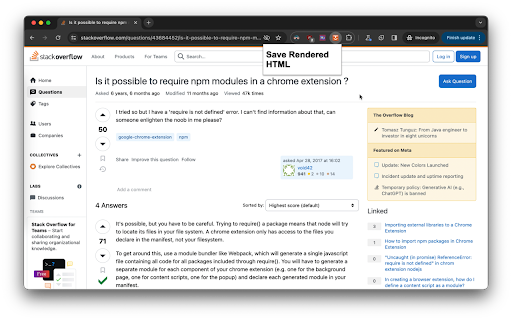
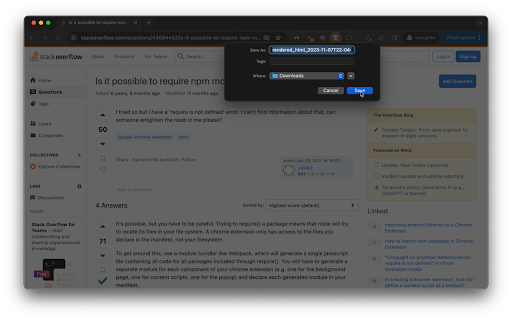
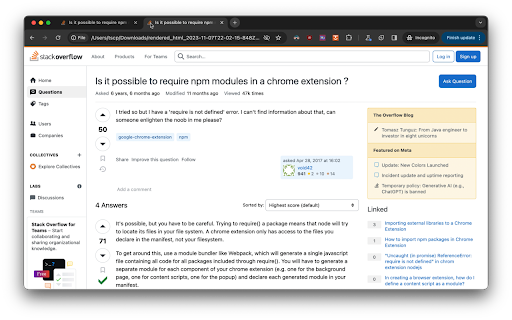
A Chrome extension that saves the fully rendered HTML of the current tab. Save Rendered HTML Chrome Extension =================================== This Chrome extension allows you to save the fully rendered HTML of the current tab by clicking a button in the extension's popup. * Save the fully rendered HTML of the current tab as a file * Automatically generates a timestamped file name for the saved HTML 1. Visit a web page in Google Chrome. 2. Click the extension's icon to open the popup. 3. Click the "Save HTML" button to download the fully rendered HTML of the current tab as a file. The file will be named `rendered_html_.html`, where `` is the current date and time in ISO 8601 format.

SingleFile
Save a complete page into a single HTML file SingleFile is an extension that helps you to save a complete page (with CSS, images, fonts, frames, etc.) as a single HTML file. Getting started - Wait until the page is fully loaded. - Click on the SingleFile button in the extension toolbar to process and save the page. - You can click again on the button to cancel the action when processing a page. Additional notes - Open the context menu by right-clicking the SingleFile button in the extension toolbar or on the webpage. It allows you to save: - the current tab, - the selected content, - the selected frame, - the selected link(s). - Select "Annotate and save the page..." in the context menu to: - Highlight text, - add notes, - remove content. - You can also process multiple tabs in one click and save: - the selected tabs, - the unpinned tabs, - all the tabs. - The context menu also allows you to activate the auto-save (after pages are being loaded) of: - the current tab, - the unpinned tabs, - all the tabs. - Right-click on the SingleFile button and select "Manage extension" to open the options page. - Upload pages to Google Drive/Dropbox/GitHub/WebDAV via the Destination section in the options page. - Enable the option "Misc. > add proof of existence" to prove the existence of saved pages by linking the SHA256 of the pages into the blockchain. - You can use the customizable shortcut Ctrl+Shift+Y to save the current tab or selected tabs. - And more! See the extension help in the options page for more detailed information about the options. Project on GitHub: https://github.com/gildas-lormeau/SingleFile

FullDownload
Full download JS/CSS/HTML A simple tool to download IMG/JS/CSS/HTML. 一个可以下载页面引用的JS/CSS/HTML的小工具.

HTML Tag Elements Attribute CSV Exporter
HTML Tag Elements Attribute CSV Exporter This chrome extension allows you to export the attribute values (or outer HTML) of selected HTML elements on any web page as a CSV file. You can use this extension to extract data from web pages for analysis, research, or backup purposes. How to use this extension: To use this extension, follow these steps: 1. Install the extension from the Chrome Web Store. 2. Go to any web page that you want to extract data from. 3. Click on the extension icon in the toolbar. A popup will appear with two text boxes: one for selector html query and another for attribute name. 4. In the selector html query text box, enter a valid CSS selector that matches the HTML elements you want to export. For example, if you want to export all the links on the page, you can enter a as the selector. If you want to export only the links with a specific class name, you can enter a.className as the selector. You can use any CSS selector syntax supported by Chrome. For more information on CSS selectors search on google. 5. In the attribute name text box, enter the name of the attribute that you want to export for each element. For example, if you want to export the href attribute of each link, you can enter href as the attribute name. If you want to export the outer HTML of each element, you can leave this text box empty. 6. Click on the Download CSV button. A CSV file will be downloaded to your default download location. The file will contain one row for each element that matches your selector, and one column for the attribute value (or outer HTML) of each element. Feedback and support: If you have any questions, suggestions, or issues with this extension, please contact me by Telegram at (https://miladashrafi.t.me). I appreciate your feedback and support. Thank you for using HTML Tag Elements Attribute CSV Exporter!

Save Page as MHTML
Save a page's content and combine all of the resources into one file! A straightforward add-on called Save Page as MHTML allows you to save any webpage as a single MHTML file. A new file format called MHTML document was created to consolidate all of a website's contents into a single file. Only the Google Chrome browser currently supports this abbreviation for MIME HTML. An MHTML file is a local file that renders exactly like the original web page when opened in a browser. Due to the relative youth of this technology, there may be glitches or problems when saving online material. The Save Page as MHTML addon has a number of significant features, some of which are listed below. An overview of this addon follows this. A few words are used in this overview to describe the add-purpose on's and characteristics. The FAQ section follows, which is helpful for learning more about how this add-on functions in your browser. If you couldn't find the solution you were looking for, please fill out the contact form on the homepage or the bug report form on this page to let us know. The form for bug reports is located after the FAQ. It is intended to gather user comments and bugs regarding this add-on. Through this form, users can also request changes or new features.
