
mpiodijhokgodhhofbcjdecpffjipkle

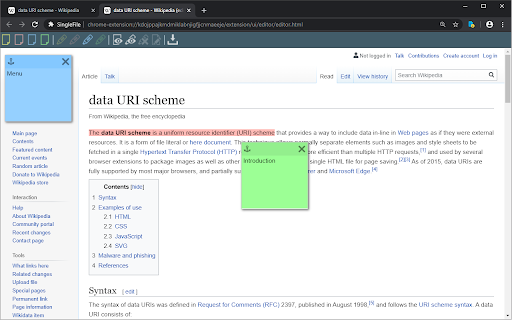
Save a complete page into a single HTML file SingleFile is an extension that helps you to save a complete page (with CSS, images, fonts, frames, etc.) as a single HTML file. Getting started - Wait until the page is fully loaded. - Click on the SingleFile button in the extension toolbar to process and save the page. - You can click again on the button to cancel the action when processing a page. Additional notes - Open the context menu by right-clicking the SingleFile button in the extension toolbar or on the webpage. It allows you to save: - the current tab, - the selected content, - the selected frame, - the selected link(s). - Select "Annotate and save the page..." in the context menu to: - Highlight text, - add notes, - remove content. - You can also process multiple tabs in one click and save: - the selected tabs, - the unpinned tabs, - all the tabs. - The context menu also allows you to activate the auto-save (after pages are being loaded) of: - the current tab, - the unpinned tabs, - all the tabs. - Right-click on the SingleFile button and select "Manage extension" to open the options page. - Upload pages to Google Drive/Dropbox/GitHub/WebDAV via the Destination section in the options page. - Enable the option "Misc. > add proof of existence" to prove the existence of saved pages by linking the SHA256 of the pages into the blockchain. - You can use the customizable shortcut Ctrl+Shift+Y to save the current tab or selected tabs. - And more! See the extension help in the options page for more detailed information about the options. Project on GitHub: https://github.com/gildas-lormeau/SingleFile

Save As MHT
Save page as `.mht` files. Saves web page as single `.mht` file. Displays additional info when opening `.mht` file in browser.

DownloadPage(All resources,html+css+js+images)
Download all resources of the web page, including HTML, CSS, JavaScript and images. Download all resources according to the… Download all resources of the web page, including HTML, CSS, JavaScript and images.

Save as MHTML
Edit and save active tab or selected area in MHTL/MHT (MIME HTML) archive format to have a clean single-file backup This extension offers a toolbar button to save the current page in the MHTML/MHT web archive format, which converts all online links to the offline version and saves all online resources offline enabled. Right-click Context Menu Functions: 1. Design Mode: You can edit the current page and add or remove images. 2. Reader View (declutter): Simplifies the page by keeping the main content only. It removes banners, toolbars, and advertisements from the page. This extension uses Mozilla's Readability library to simplify web pages. 3. Keep Selection Only: Creates a new document from the selected text. Use it if you need to archive part of a page. MHTML (short for MIME HTML) is a file extension for a Web page archive file format. The archived Web page is an MHTML document. MHTML saves the Web page content and incorporates external resources, such as images, applets, Flash animations, and so on, into HTML documents. When you save a Web page as a Web archive, the page is saved as an MHTML file. Any relative links in the HTML will be remapped so the content can be located. Relative links are those that don't include all information about the location of the content but assume all content is in a directory on the host server MHTML files may also go by the extension MHT.

Webrecorder ArchiveWeb.page
Create high-fidelity web archives directly in your browser When enabled, ArchiveWeb.page will record the network traffic on a given tab and stores the data in the browser for later viewing. Archives created with ArchiveWeb.page can be viewed from right within the app, or using Webrecorder's free ReplayWeb.page viewer. Files can be exported in standard WARC and WACZ formats.
