
fpeoodllldobpkbkabpblcfaogecpndd

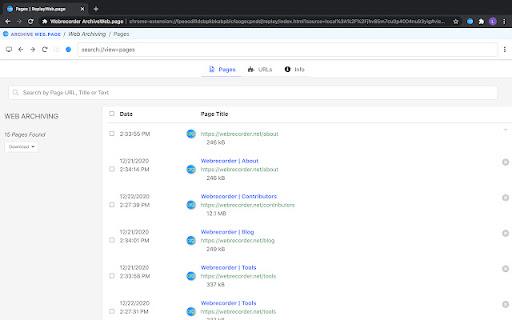

Create high-fidelity web archives directly in your browser When enabled, ArchiveWeb.page will record the network traffic on a given tab and stores the data in the browser for later viewing. Archives created with ArchiveWeb.page can be viewed from right within the app, or using Webrecorder's free ReplayWeb.page viewer. Files can be exported in standard WARC and WACZ formats.

ArchiveBox
Collect URLs and preserve them using a remote ArchiveBox server Preserve copies of websites using your ArchiveBox server while you browse. Don't let big tech keep all your data for themselves, take back ownership of your data! - 📸 Easily send tabs to your ArchiveBox server with 1 click - 🏷️ Add and manage tags to organize your saved bookmarks - ⚙️ Set up match patterns to automatically include or exclude URLs from your archive - 📥 Bulk import URLs to archive from browsing history or bookmarks - 📤 Export data as CSV & JSON, compatible with Excel and many other programs - 🎯 Supports both older ArchiveBox v0.7.4 and newer >v0.8.5 servers You can set up ArchiveBox to automatically push your browsing history to an ArchiveBox instance based on a set of criteria (specific domains or URLs matching regexes). You can also add pages manually to your ArchiveBox through the context menu.

Save Page WE
Save a complete web page (as curently displayed) as a single HTML file that can be opened in any browser. • Automatically selects the original or new save method. • Minor bug fix. Save Page WE provides a simple facility to save a web page (as currently displayed) as a single HTML file that can be opened in any browser. The saved page is a highly accurate representation of the original page. Multiple pages can be saved either by selecting multiple tabs or by loading a list of page URLs. If used with Print Edit WE, Save Page WE now requires Print Edit WE 26.1 or later for full compatibility. After installation of Save Page WE, there will be a new blue 'floppy-disk' button on the main toolbar. To save the web pages in all of the currently selected tabs file, just click on the Save Page WE toolbar button. There are options to set the button action as: There is an option to use the new save method, which can save more pages (see the 'Save Methods' section below). By default the saved HTML file will have a '.html' extension. To save a web page as an HTML file, or to perform operations on a previously saved page, right-click on the page contents to open the context menu, select the 'Save Page WE' sub-menu, and then select one of the menu items: • Save Selected Tabs (Basic, Standard or Custom Items) • Save Listed URLs (Basic, Standard or Custom Items) • Cancel Save • View Saved Page Info (when viewing a saved page) • Remove Resource Loader (when viewing a saved page - pre 15.2) • Extract Image/Audio/Video (when viewing a saved page) To save a web page as an HTML file, press Alt+A. To cancel a single or multiple page save, press Alt+C. • Highlight multiple tabs and then select the 'Save Selected Tabs' menu item. • Load a file containing a list of URLs in the Zoom Page WE Options dialog and then select the 'Save Listed URLs' menu item. When saving multiple pages, tabs are switched to foreground if the load lazy content option is enabled. There are options to select the saved items: • Save Basic Items - saves the essential items. • Save Standard Items - saves the Basic Items and some addtional items. • Save Custom Items - saves the Basic Items and items selected from a list. There is an option to specify the format of the saved file name. This format is used when saving the complete page and when extracting a resource (Image/Audio/Video). The saved file name may contain the following predefined fields: • %TITLE% - (saving page) the document title, or if missing same as %FILE%. • %TITLE% - (extracting resource) the same as %FILE%. • %DATE(x)% - saved date in YYYYxMMxDD format, 'x' is optional separator. • %TIME(x)% - saved time in HHxMMxSS format, 'x' is optional separator. • %DATEP(x)% - published date in YYYYxMMxDD format, 'x' is optional separator. • %TIMEP(x)% - published time in HHxMMxSS format, 'x' is optional separator. • %DATEPF(x)% - same as %DATEP(x)%, or if missing falls back to saved date. • %TIMEPF(x)% - same as %TIMEP(x)%, or if missing falls back to saved time. • %HOST% - host name in URL. • %HOSTW% - same as %HOST%, but without 'www.' prefix. • %PATH% - path name in URL. • %PATHW% - same as %PATH%, but without '.extension' suffix. • %FILE% - file name in the last segment of URL path. • %FILEW% - same as %FILE%, but without '.extension' suffix. • %QUERY(p)% - query string in URL if 'p' omitted, else value of parameter 'p'. • %FRAGMENT% - fragment string in URL. There are options to replace spaces in the saved file name with a user-defined character and to set the maximum length of the saved file name. There are two alternative save methods: old and new. The old save method is the default The old save method remembers the last save location, but it cannot save a some pages (e.g Yahoo) in Chrome 84 or later. The new save method does not remember the last save location, but it can save all pages. In the Downloads section, set the downloads folder location, and enable or disable the 'Ask where to save each file before downloading' option. After saving a page, a download item will appear in the download bar at the bottom of the browser window. Click on the arrow in the download item and enable or disable the 'Always open files of this type' option. There is an option to use automation mode, allowing a page to be saved from the command line. • When Firefox starts, Save Page WE will be automatically initiated using the current Button Action. • When the save operation is complete, Firefox will be automatically closed. To exit automation mode, immediately after Firefox starts up, use the 'Cancel Save' menu command or keyboard shortcut to cancel the save operation, and then disable the option to use automation. Distributed under the GNU General Public License version 2. See LICENCE.txt file and http://www.gnu.org/licenses/

WebScrapBook
Capture web pages to local device or backend server for future retrieval, organization, annotation, and editing. WebScrapBook is a browser extension that captures the web page faithfully with various archive formats and customizable configurations, for future retrieval, organization, annotation, and editing. This project inherits from legacy Firefox add-on ScrapBook X. Features: 1. Capture faithfully: A web page shown in the browser can be captured without losing any subtle detail. Metadata such as source URL and timestamp are also recorded. 2. Customizable capture: WebScrapBook can save selected area in a page, save source page (before processed by scripts), or save page as a bookmark. How to capture images, audio, video, fonts, frames, styles, scripts, etc. are also customizable. A web page can be saved as a folder, a ZIP-based archive file (HTZ or MAFF), or a single HTML file. 3. Page editing: A web page can be highlighted, annotated, or edited before or after a capture. 4. Organizable collections: Captured pages can be organized in the browser sidebar using one or more scrapbooks, and each scrapbooks holds a hierarchical tree structure to organize data items. Notes using HTML or markdown format can also be created and managed. (*) 5. Fulltext searching: Each scrapbook can be further indexed for a rich-feature search (using title, fulltext, comment, source URL, create time, modify time, etc.). (*) 6. Remote access: Captured data can be hosted with a central backend server and be read or edited from other devices. Alternatively, a scrapbook can generate a static site index and be distributed as a static web site. (*) 7. Mobile support: WebScrapBook supports mobile browsers such as Firefox for Android and Kiwi browser. You can capture and edit the web page from a mobile phone or tablet. 8. Legacy ScrapBook support: Scrapbooks created from legacy ScrapBook or ScrapBook X can be converted into WebScrapBook-compliant format for usage. (*) * All or partial functionality of a starred feature above requires a running collaborating backend server, which can be easily set up using PyWebScrapBook. * An HTZ or MAFF archive file can be viewed using the built-in archive page viewer, with PyWebScrapBook or other assistant tools, or by opening the index page after unzipping. See Also: * Install PyWebScrapBook: https://pypi.org/project/webscrapbook/ * For further information and frequently asked questions, visit the documentation wiki: https://github.com/danny0838/webscrapbook/wiki/Intro * For better discussion, please report an issue to the source repository: https://github.com/danny0838/webscrapbook/issues * Donate to support us if you find this tool helpful: https://www.paypal.me/danny0838/5usd

LazyCat Bookmark Cleaner
Clean invalid bookmarks, duplicates and empty folders with one click. Generate bookmark profile. All features run locally to… # Lazy Cat Bookmark Cleaner - Your Bookmark Organization Assistant 🐱 Make bookmark management easy and enjoyable! A cute lazy cat assistant helps you intelligently clean and organize your browser bookmarks. ### 🧹 Smart Bookmark Cleaning - Automatically detect invalid bookmarks, duplicate bookmarks and empty folders - Batch cleaning feature, restore tidiness with one click - Support multiple error type detection and classification - Preview before cleaning, safe and controllable ### 📊 Personalized Bookmark Profile - Generate unique bookmark usage reports - Visualize your collection preferences - Discover your treasured web collections - Understand your browsing habits ## 🌟 Highlights - Adorable cat assistant accompanies the organization process - Clean and elegant interface design - Supports both English and Chinese interfaces - Real-time progress display, transparent operation ## 🎯 Perfect For - Bookmark collectors - Digital organizers - Browser cleaners - Productivity tool enthusiasts Start organizing now and give your bookmarks a fresh new look! ✨
