
dhhpefjklgkmgeafimnjhojgjamoafof


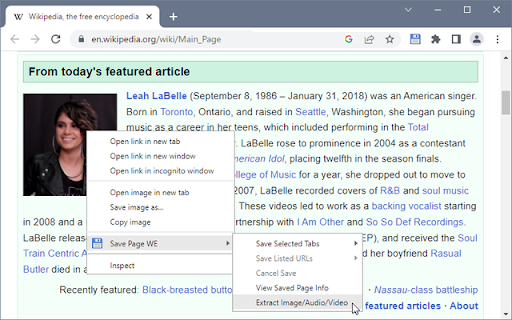
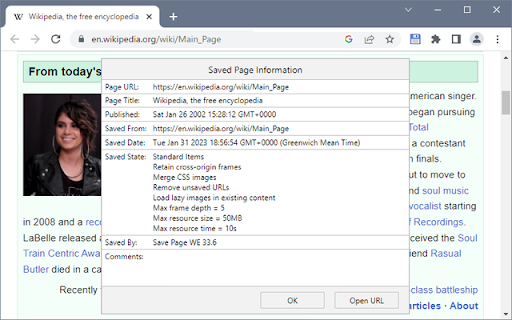
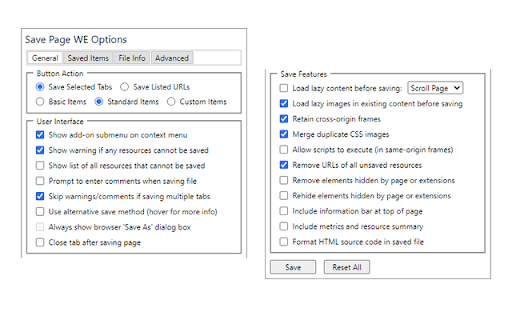
Save a complete web page (as curently displayed) as a single HTML file that can be opened in any browser. • Automatically selects the original or new save method. • Minor bug fix. Save Page WE provides a simple facility to save a web page (as currently displayed) as a single HTML file that can be opened in any browser. The saved page is a highly accurate representation of the original page. Multiple pages can be saved either by selecting multiple tabs or by loading a list of page URLs. If used with Print Edit WE, Save Page WE now requires Print Edit WE 26.1 or later for full compatibility. After installation of Save Page WE, there will be a new blue 'floppy-disk' button on the main toolbar. To save the web pages in all of the currently selected tabs file, just click on the Save Page WE toolbar button. There are options to set the button action as: There is an option to use the new save method, which can save more pages (see the 'Save Methods' section below). By default the saved HTML file will have a '.html' extension. To save a web page as an HTML file, or to perform operations on a previously saved page, right-click on the page contents to open the context menu, select the 'Save Page WE' sub-menu, and then select one of the menu items: • Save Selected Tabs (Basic, Standard or Custom Items) • Save Listed URLs (Basic, Standard or Custom Items) • Cancel Save • View Saved Page Info (when viewing a saved page) • Remove Resource Loader (when viewing a saved page - pre 15.2) • Extract Image/Audio/Video (when viewing a saved page) To save a web page as an HTML file, press Alt+A. To cancel a single or multiple page save, press Alt+C. • Highlight multiple tabs and then select the 'Save Selected Tabs' menu item. • Load a file containing a list of URLs in the Zoom Page WE Options dialog and then select the 'Save Listed URLs' menu item. When saving multiple pages, tabs are switched to foreground if the load lazy content option is enabled. There are options to select the saved items: • Save Basic Items - saves the essential items. • Save Standard Items - saves the Basic Items and some addtional items. • Save Custom Items - saves the Basic Items and items selected from a list. There is an option to specify the format of the saved file name. This format is used when saving the complete page and when extracting a resource (Image/Audio/Video). The saved file name may contain the following predefined fields: • %TITLE% - (saving page) the document title, or if missing same as %FILE%. • %TITLE% - (extracting resource) the same as %FILE%. • %DATE(x)% - saved date in YYYYxMMxDD format, 'x' is optional separator. • %TIME(x)% - saved time in HHxMMxSS format, 'x' is optional separator. • %DATEP(x)% - published date in YYYYxMMxDD format, 'x' is optional separator. • %TIMEP(x)% - published time in HHxMMxSS format, 'x' is optional separator. • %DATEPF(x)% - same as %DATEP(x)%, or if missing falls back to saved date. • %TIMEPF(x)% - same as %TIMEP(x)%, or if missing falls back to saved time. • %HOST% - host name in URL. • %HOSTW% - same as %HOST%, but without 'www.' prefix. • %PATH% - path name in URL. • %PATHW% - same as %PATH%, but without '.extension' suffix. • %FILE% - file name in the last segment of URL path. • %FILEW% - same as %FILE%, but without '.extension' suffix. • %QUERY(p)% - query string in URL if 'p' omitted, else value of parameter 'p'. • %FRAGMENT% - fragment string in URL. There are options to replace spaces in the saved file name with a user-defined character and to set the maximum length of the saved file name. There are two alternative save methods: old and new. The old save method is the default The old save method remembers the last save location, but it cannot save a some pages (e.g Yahoo) in Chrome 84 or later. The new save method does not remember the last save location, but it can save all pages. In the Downloads section, set the downloads folder location, and enable or disable the 'Ask where to save each file before downloading' option. After saving a page, a download item will appear in the download bar at the bottom of the browser window. Click on the arrow in the download item and enable or disable the 'Always open files of this type' option. There is an option to use automation mode, allowing a page to be saved from the command line. • When Firefox starts, Save Page WE will be automatically initiated using the current Button Action. • When the save operation is complete, Firefox will be automatically closed. To exit automation mode, immediately after Firefox starts up, use the 'Cancel Save' menu command or keyboard shortcut to cancel the save operation, and then disable the option to use automation. Distributed under the GNU General Public License version 2. See LICENCE.txt file and http://www.gnu.org/licenses/

Web Page Downloader
Web Page Downloader allows you to download and save entire web pages, including linked resources, for offline viewing. Never lose access to important web content again. Web Page Downloader lets you save complete, pixel-perfect copies of any website for offline viewing—no internet required. Whether a website goes down, changes, or you simply need offline access, this extension ensures you always have a permanent archive at your fingertips. Key Features Complete Website Archiving Save everything that makes a webpage work: - HTML Content - The page structure and text - Images - All photos, graphics, and background images - Stylesheets (CSS) - Preserve the exact visual design - Scripts (JavaScript) - Keep interactive elements functional - Documents - Automatically capture PDFs, DOCs, and other embedded files Granular Download Control Choose exactly what you want to save with our flexible filter system: - Download only images for a photo gallery - Save just the text content without clutter - Grab CSS/JS assets for development reference - Create lightweight archives by excluding heavy resources Enterprise-Grade Performance Built to handle the most demanding archiving tasks: - Streaming Downloads - Process multi-gigabyte websites without memory issues - Incremental Assembly - Handle huge HTML files that crash other tools - Smart Retry Logic - Automatically recover from network interruptions - Queue Management - Download multiple resources efficiently in parallel Privacy & Security You Can Trust - 100% Local Processing - All work happens in your browser, nothing sent to servers - No User Tracking - We don't collect analytics, browsing history, or personal data - No External Dependencies - Your data never leaves your device Truly Global Fully localized in 45 languages including: English, Spanish, French, German, Japanese, Chinese, Arabic, Russian, Portuguese, Italian, Korean, Hindi, and 33+ more. Perfect For... Researchers & Students - Archive academic papers and citations before they disappear - Save research materials for offline study - Create permanent backups of reference materials Travelers & Digital Nomads - Download travel guides for offline access - Save maps, itineraries, and booking confirmations - Read articles on flights without WiFi Web Developers & Designers - Inspect website structures offline - Extract assets and resources for reference - Archive client websites for portfolio or legal purposes Journalists & Content Creators - Preserve evidence and sources permanently - Archive articles before they're edited or removed - Create offline research libraries - Single HTML File Export - Perfect for sharing or emailing complete pages - Text-Only Mode - Extract clean, readable content without formatting - Progress Tracking - Real-time status updates during downloads - Smart Resource Detection - Automatically finds and saves all page dependencies - Customizable Filters - Save your preferences for repeated use 1. Click the extension icon on any webpage you want to save 2. Choose your options - Select what to download (HTML, images, CSS, etc.) 3. Click "Start Download" - Watch the progress in real-time 4. Access your archive - Find the ZIP file or single HTML file in your Downloads folder NB! Some websites go to great lengths to prevent anyone from downloading their content, and therefore for some websites the downloaded html may differ from the original html.

Print Edit WE
Edit web pages prior to printing. Delete, hide and format elements. Edit text. Remove adverts and sidebars. Print Edit WE provides facilities to edit the contents of a web page prior to printing or saving as HTML or MHTML. Elements in the web page can be formatted, hidden or deleted and text can be edited or inserted. Unwanted content, such as adverts and sidebars, can easily be removed. Note, to use the Save As HTML feature, the Save Page WE extension (version 14.0 or later) must be installed and enabled. To start editing the page, click on the Print Edit WE button on the main toolbar, or select Print Edit WE > Start Editing on the context menu. A blue 'EDIT' (editing) badge will appear on the button. The 'Web Style' feature is disabled by default, so that the page displayed looks similar to how the page would look if printed normally. When the 'Web Style' feature is enabled, the page displayed will look similar to how the page looks during normal browsing. The 'Text Pieces' feature is disabled by default, so that only whole blocks of text can be selected. When the 'Text Pieces' feature is enabled, individual pieces of text can be selected and edited and line breaks are displayed. The 'View More' feature is disabled by default, so that only elements that are normally visible are displayed. When the 'View More' feature is enabled, elements that are normally invisible are also displayed and can be selected and edited. An edited web page can be saved as a single HTML file, which can be viewed or re-edited using Firefox or Chrome. An edited web page can also be saved as a MHTML file. Click the 'Preview' button to see how the edited web page will look when printed. Close the preview window to return to editing. The buttons available on the Print Edit WE toolbar are: • Select - select all or graphic or page-break elements, or re-select elements from previous command. • Deselect - deselect all currently selected elements. • Hide - hide currently selected elements. • Delete - delete currently selected elements. • Hide Except - hide all elements except those currently selected. • Delete Except - delete all elements except those currently selected, with varying restrictions. • Format - apply format properties to currently selected elements. • Text - edit a text piece or insert new text before or after element. • Undo - undo the action of previous edit command. • Undo All - undo the actions of all previous edit commands. • Save - save web page as a single HTML or MHTML file. • Text Pieces - allow selection and editing of individual text pieces. • View More - view invisible elements in the page. • Web Style - alternately remove or apply CSS print stylesheets. • Preview - open the Print Preview window. • Close - finish editing. • Tools - access to the Fix Page Breaks features and to the Options dialog. • Help - show the Help panel. The Delete Except button has three menu items: • Restricted - higher level elements retain their size and relative position. • Without Float - higher level elements retain their size and relative position, but cannot float right. • Unrestricted - higher level elements are resized and repositioned freely, but cannot float right. In this context, “higher level elements” means the ancestors (parent, grandparent, etc) of the currently selected elements. The mouse actions are: • Move - move highlight box to highlight element. • Click - select or deselect highlighted element. • Right-Click - inspect format properties for highlighted element. • Drag - select all elements within capture box. • Shift+Drag - select all graphic elements within capture box. • Ctrl+Drag - deselect all elements within capture box. Distributed under the GNU General Public License version 2. See LICENCE.txt file and http://www.gnu.org/licenses/

Webrecorder ArchiveWeb.page
Create high-fidelity web archives directly in your browser When enabled, ArchiveWeb.page will record the network traffic on a given tab and stores the data in the browser for later viewing. Archives created with ArchiveWeb.page can be viewed from right within the app, or using Webrecorder's free ReplayWeb.page viewer. Files can be exported in standard WARC and WACZ formats.

Save Page as MHTML
Save a page's content and combine all of the resources into one file! A straightforward add-on called Save Page as MHTML allows you to save any webpage as a single MHTML file. A new file format called MHTML document was created to consolidate all of a website's contents into a single file. Only the Google Chrome browser currently supports this abbreviation for MIME HTML. An MHTML file is a local file that renders exactly like the original web page when opened in a browser. Due to the relative youth of this technology, there may be glitches or problems when saving online material. The Save Page as MHTML addon has a number of significant features, some of which are listed below. An overview of this addon follows this. A few words are used in this overview to describe the add-purpose on's and characteristics. The FAQ section follows, which is helpful for learning more about how this add-on functions in your browser. If you couldn't find the solution you were looking for, please fill out the contact form on the homepage or the bug report form on this page to let us know. The form for bug reports is located after the FAQ. It is intended to gather user comments and bugs regarding this add-on. Through this form, users can also request changes or new features.
