
pdfpddkehgjilojkjcekjbfkoleclkkb

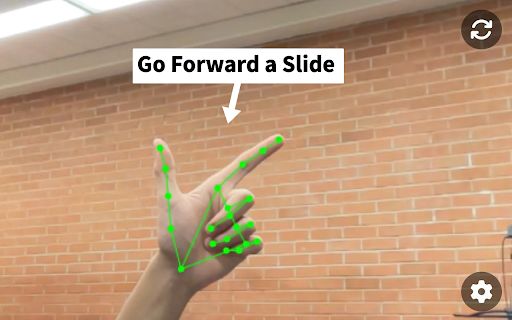
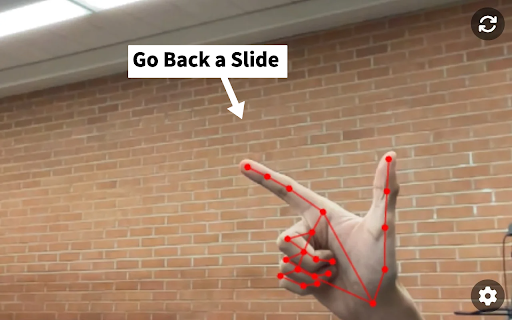
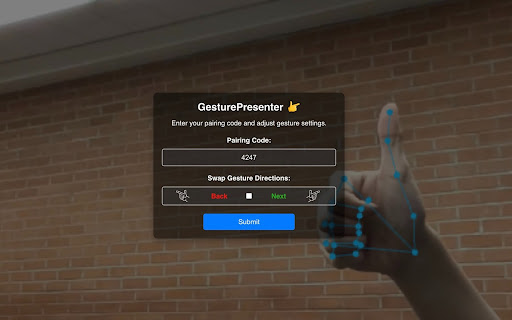
Control Slides with just hand gestures! This technology allows you to navigate through your slides using simple hand gestures, ensuring a seamless and interactive presentation experience. Say goodbye to traditional clickers and embrace the future with gesture control! Gesture Presenter is an innovative Chrome extension that revolutionizes the way you control your presentations. - Gesture Control: Easily navigate through your slides by pointing in the right or left direction with your index and thumb fingers extended. - Multi-Hand Support: The extension is capable of recognizing gestures from multiple hands, allowing for use with multiple presenters. - Flexible Camera Source: The gestures can be detected on any device with a browser and camera access, just open the website, allow camera, and you're ready to go! 🏁 How to Get Started 1. Install the Extension: Find Gesture Presenter on the Chrome Web Store and add it to your browser. 2. Open the website: Open https://gesturepresenter.com/ on your mobile phone (or any device) and grant camera access. 3. Enter Pairing Code: Launch the Gesture Presenter extension on Chrome and input the pairing code displayed on your mobile website. 4. Start Presenting: Open your slides in present mode and you're all set to control them with your hand gestures. 💡 Feedback & Suggestions Your input is valued! Please consider leaving a review on the Chrome Web Store.

Share Google Slides Control
Shared Google Slides Control addresses a common pain point in remote presentations with multiple speakers: the challenge of slide deck control. Traditionally, only one speaker can manage the slide transitions, which can disrupt the flow of the presentation. This project empowers presenters by allowing them to share control of a Google Slides deck with other speakers seamlessly. The solution involves either a Chrome Extension or a Greasemonkey/Tampermonkey Userscript on the presenter's side that connects to a remote server via WebSocket. This setup facilitates the following features: - **QR Code and Link Generation**: The userscript generates a QR code or a link that can be shared with co-presenters. - **Remote Control Interface**: Co-presenters can use the provided link to access a user interface that allows them to control the slide deck in real-time. - **Seamless Integration**: Easily integrate with your existing Google Slides presentations. - **Real-Time Collaboration**: Multiple presenters can control slide transitions without interruptions. - **Secure Connections**: Utilizes WebSocket connections to ensure real-time, secure control sharing. If you simply want to use this project to share your slides, I have deployed an instance of the server on [Clever Cloud](https://clever-cloud.com), and you can use it as is. In order to use it you will need to follow this steps: 1. **Presenter Setup**: The main presenter installs the userscript or the extension and initiates the presentation. 2. **Share Control**: The presenter shares the generated QR code or link with co-presenters. 3. **Co-presenters Control**: Co-presenters access the control interface through the shared link and can control slide transitions in real-time. ### Installing the Userscript 1. **Install Userscripts plugin in your browser**: the most populars are [Tampermonkey](https://tampermonkey.net/) and [Greasemonkey](http://www.greasespot.net/). 2. **Add the Userscript**: directly from [GitHub](./userscript/shared-google-slides-control.user.js), or from the [GreasyFork page](https://greasyfork.org/en/scripts/500807-share-google-slides-controls). 3. **Run the Script**: Open your Google Slides presentation, and the script will automatically display a QR code and link for sharing control. ### Installing the extension The Chrome Extension isn't in the store yet, you need to manually load it in unpacked format from the `chrome-extension` folder, [as described in Chrome Extensions documentation](https://developer.chrome.com/docs/extensions/get-started/tutorial/hello-world#load-unpacked). ## Deploying the server elsewhere You can deploy the server in any host accepting NodeJS. You will need to change the Userscript and the Chrome Extension as they point to the [Clever Cloud](https://clever-cloud.com) instance of the server. We welcome contributions from the community! Feel free to submit pull requests, report issues, or suggest features. This project is licensed under the MIT License. See the LICENSE file for more details.

Need a Hand
With a massive hand comes massive responsibility With a massive hand comes massive responsibility Need a hand is a handy Chrome Extension that allows you to overlay a hand on any web page that you control with your mouse pointer. You need this extension if: 1. you want check how easy your web site is for touch screen devices like the iPad, 2. you want to demonstrate something and want a nice looking pointer, 3. you have a serious hand fetish, 4. you find it amusing to have a giant hand on your screen. This is an updated version of the original Need A Hand extension by www.liquidx.net, whose original version can be seen at https://liquidx.net/made/2012/needahand. This update was created because the original extension hasn't been updated since 2016 and needed to be migrated to Manifest V3 to continue working with modern Chrome browsers. - Updated to Manifest V3 from Manifest V2 - Updated jQuery from version 1.7.1 to 3.7.1 - Added feature to hide the mouse cursor when the hand is visible - Modernized JavaScript syntax and error handling - Updated messaging and resource access APIs to comply with current Chrome extension standards 1. Install the extension 2. Click the extension icon in your toolbar to toggle the hand on/off 3. Move your mouse to control the hand 4. Click the extension icon again to disable the hand Original extension by Alastair Tse (https://www.liquidx.net).

Gesture Based Scroll (Using AI)
Scroll a page with hand gestures via your computer's camera! Gesture-Based Scroll is an extension that lets you scroll a page with hand or facial gestures (without using a mouse or keyboard). Before using this addon you need to train it first. Please read the support page to get more info on how to use the addon. Once the addon is fully trained, please click on the - Start - button and make gestures (Up, Down, and Stop) in front of the camera to scroll the active tab. Also, make sure to place your face/hand exactly in front of the camera (within the grey rectangle). As long as the camera is ON, the addon will look for your gestures and take action accordingly. If you want to stop the inferring process, please click on the - Stop - button once. Note: This addon is using the new AI engine called TensorFlow. Please visit the (https://www.tensorflow.org/js/) page to get more info about this new technology. To report bugs, please fill out the bug report form on the addon's homepage (https://mybrowseraddon.com/gesture-based-scroll.html).

HandySurf
Surf the internet with ease. Just wave a hand! Overview HandySurf: Your ultimate hands-free browser control with advanced gesture recognition and AI-powered navigation 🔥 Control your browser effortlessly with HandySurf’s innovative AI-powered hand gesture technology. Navigate, zoom, and interact with ease, all without touching your mouse or keyboard 🔥 👉 Scroll Control • Effortlessly scroll through webpages with a simple hand gesture. Whether you're navigating long articles or exploring endless feeds, HandySurf makes scrolling intuitive and natural. • Adjust the scrolling speed and direction to fit your browsing style. 👉 Zoom Control • Zoom in and out with a smooth hand gesture, allowing you to focus on details or get an overview of the page. • Customize the zoom's sensitivity and feedback for a personalized experience. 👉 Click Control • Perform clicks with a flick of your hand. Whether it’s selecting a link or pressing a button, HandySurf makes clicking seamless and easy. 👉 Navigation • Navigate backwards or forwards through your browsing history using simple hand movements. • HandySurf ensures that your navigation is smooth, allowing you to quickly move through your browsing history without hassle. 👉 Tab Switching • Switch between browser tabs effortlessly with a hand gesture. HandySurf makes multitasking a breeze by allowing you to jump from one tab to another with ease. • Manage multiple tabs efficiently and enhance your productivity with intuitive controls. 💻 How to Get Started: 🔸 Click the "Add to Chrome" button to install HandySurf and pin it to your toolbar. 🔸 Click on the HandySurf icon in your toolbar and select "Go to Dashboard". 🔸 Complete the training mode to learn the specific gestures for various tasks. 🔸 Once you're familiar with the gestures, click "Start" to begin using HandySurf. Happy surfing! 📌 How do I use hand gestures with HandySurf? Once you install the extension, simply use the predefined hand gestures to control scrolling, zooming, clicking, navigation, and tab switching. 📌 Can I customize the gestures? While the gestures themselves are not customizable, you can adjust settings around them, such as sensitivity and direction, through the settings menu to fit your preferences. 📌 Why does HandySurf need access to my camera? HandySurf uses your camera to interpret your hand gestures. The best part is, all the processing happens right on your device (in fact, you could even use HandySurf without an internet connection, as everything is handled locally on your PC). Your privacy is protected by design. 📌 Is it free to use? Yes, HandySurf offers all its features for free. 📪 Contact Us: Any questions, problems, or suggestions? Please reach out to us through the User Support tab or directly at 💌 handy.surf.com@gmail.com. Experience the future of browsing with HandySurf today and transform the way you interact with your browser.
