
opiienhmlififbkmbobgemdnonklepde
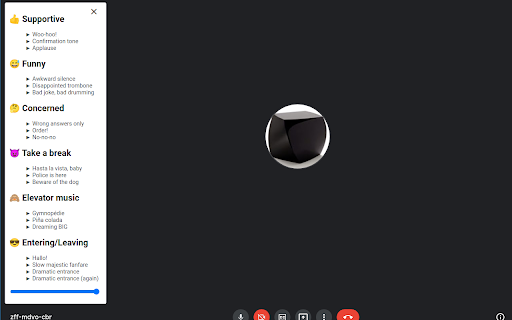
Play sounds in your google meet. Meet'n'Musics enables you to play various funny sounds directly in Google Meet. Just watch for the music button on the left side of the screen and start having fun in your meetings!

BETA Shared Music
Add RPG tools to your session: roll dice, draw tokens, add webcam overlays, listen to the same audio in real time, and much more! With this extension a new tab in Google Meet™'s sidebar will be added to your session. HAVE FUN TOGETHER THROWING DICE, DRAWING TOKENS AND MUCH MORE You will be automatically connected to the other participants and be able to throw dice in real time, chosing from the presets (d4, d6, d8, d10, d12. d20, d100) or choosing any other size of die you prefer - the other participants will see in real time what you have thrown. Game sets available: - Polyhedric Dice - Deck of 52 Cards - Broken Compass™ - Cthulhu Dark™ - Fate™ - Legend of the Five Rings™ - Not the End™ - Vampire: the Masquerade™ LISTEN TO THE SAME MUSIC Share any browser's tab audio (YouTube, Spotify, SoundCloud...) or the screen audio: the audio will be reproduced on the devices of all the participants...simultaneously! WEBCAM OVERLAYS Add a banner with title and subtitle, a table with free text and an avatar to your stream. You can now apply filters (blur, brightness, contrast, grayscale, invert, saturate, sepia)!

RPG Meet - Dice Roller | Music | Webcam Tools
Add RPG tools to your session: roll dice, draw tokens, add webcam overlays, listen to the same audio in real time, and much more! With this extension a new tab in Google Meet™'s sidebar will be added to your session. HAVE FUN TOGETHER THROWING DICE, DRAWING TOKENS AND MUCH MORE You will be automatically connected to the other participants and be able to throw dice in real time, chosing from the presets (d4, d6, d8, d10, d12. d20, d100) or choosing any other size of die you prefer - the other participants will see in real time what you have thrown. Game sets available: - Polyhedric Dice - Deck of 52 Cards - Broken Compass™ - Cthulhu Dark™ - Fate™ - Legend of the Five Rings™ - Not the End™ - Vampire: the Masquerade™ LISTEN TO THE SAME MUSIC Share any browser's tab audio (YouTube, Spotify, SoundCloud...) or the screen audio: the audio will be reproduced on the devices of all the participants...simultaneously! WEBCAM OVERLAYS Add a banner with title and subtitle, a table with free text and an avatar to your stream. You can now apply filters (blur, brightness, contrast, grayscale, invert, saturate, sepia)!

BETA Shared Music
Add shared music to your video calls. This Chrome™ extension improves Google Meet™ adding the capability to listen to the same music in real time with the other call's participants. You can listen together to music directly from YouTube™, from a link to an mp3 file, or directly uploading from your local disk! PREMIUM FEATURE You can share the audio stream from any tab or window, even from other applications (Spotify, Discord, etc.)! Please note that EVERYBODY in the meeting must have the extension installed for it to work! HOW TO USE After installation, a new button will be added in your Google Meet™️ button bar. Clicking on that, the sidebar will open; in the "shared music" section you'll see an input box, where you can paste a YouTube™️ URL (also the video will be shown as per YouTube™️ policy), or a URL to an mp3 file, or upload the audio file from your PC. The music will be played simultaneously for the other participants, who can also regulate the volume or pause the music. Please check the "status" tab to see who's connected (this should happen automatically), only the connected users will be able to hear the music. If someone's missing from the list (and doesn't hear the music), everybody should refresh, this helps in the majority of cases. Bad connections or slow PCs can heavily affect the performance of the addon.

Bad Connection Simulator
The perfect excuse to off of video calls Stuck on a video call you want to get out and need a good excuse? The Bad Connection Simulator Chrome Extension simulates a bad connection with just a click! → Works with any web-based video calling app → Easy to use - just install the extension, no other installations required → 3 levels of impairment - none, moderate, and severe → Evades low bandwidth adaptation used by video calling apps HOW TO USE 🍰 1. Install the extension from the Chrome WebStore 2. Join your video call 3. Click the Bad Connection Simulator icon and select your impairment level 4. Adjust as needed throughout your call Verified with Zoom, Google Meet, Microsoft Teams, Facebook Messenger, Google Duo, Jitsi Meet, Whereby. Make sure to use the web-version of your video calling app. Bad Connection Simulator also needs to run inside a tab. THREE LEVELS OF IMPAIRMENT Adjust your impairment depending on your needs: 1️⃣ NONE - Normal connectivity 2️⃣ MODERATE - will show some visual impairments and audibly degrade your audio quality. Others will notice you are having some connection issues. 3️⃣ SEVERE - unusable connection with obvious visual artifacts and unusable audio. Now it is safe to drop off Star with moderate to signal you may have connection issues then switch to severe when you’re ready to drop. Decrease or stop the impairment at any time. FOR BEST RESULTS You have to join from Chrome or Edge! Bad Connection Simulator only works on Chromium-based Desktop browsers like Chrome or Edge. Also note, many web calling apps prefer to send you to their native desktop application instead of taking the call from the browser. Make sure you do not click through to the Desktop app. Turn off virtual backgrounds Don't use the virtual background feature. Usually this will not be altered, so your video will look impaired but the virtual background won't be. How it works ℹ️️ Bad Connection Simulator extension inserts itself after your webcam and microphone streams. Unlike other impairment simulators, everything is contained in the browser and controlled by the extension. Modern video calling systems are designed to deal with bad connections and will try to adapt to reduce any impairments. Bad Connection Simulator applies realistic impairments directly to the source video stream before it is transmitted. Video conferencing systems see a normal stream, so they do not make any adjustments while your video and audio come through like garbage! Explanation for Nerds 🤓 Bad Connection Simulator makes use of WebRTC Insertable Streams. After a getUserMedia call, the source streams are routed through WebCodecs where the stream is re-encoded with simulated packet loss and latency. Then the stream is passed to the video calling app where it is displayed and can be passed to a RTCPeerConnection.
