
opfbfedpbnhhjicncbiminkgfkdanefo

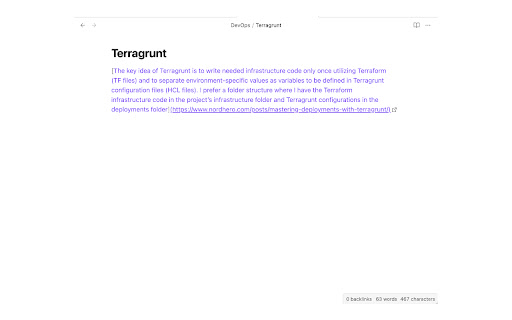
Copy selection and a link in Markdown format Chrome extension to copy selection and a link in Markdown. Click the extension icon or press the keyboard shortcut to copy link in Markdown format. Select the text before copying to change the tab title in the link to the selected text instead. The default keyboard shortcut is Ctrl + Shift + C (Cmd + Shift + C for macOS). This can be changed from the browser's extension settings.

Smart Copy Link
Copy tabs and web page links. Support analysis text link, open links, add to bookmark, and export in various formats This is a hyperlink processing tool that aggregates multiple functions. Its powerful functions will definitely make you love it Extended main functions: Copy Tab link It can copy the links of all the tab pages you have opened. Copy web link When you want to extract all the links in a certain webpage, use it to copy quickly. Copy area link Use the shortcut key and the mouse to drag the selection around the link and release the mouse, complete the copy. Copy the specified link You don’t need to right-click to copy the link address, just hover the link and press Ctrl-C / Cmd-C to complete the copy. .Open link Support open links in new tab and new window. .Save link Support export links in TEXT, HTML, JOSON formats, you can also customize the format according to your own preferences. .Filter link Provide multiple conditions to filter links, you can filter duplicate links, filter by domain name, etc. .Resolve link It will automatically resolve links based on the content you paste.

Copy as Markdown
Copy as Markdown is a browser extension that helps you copy the following things as Markdown to your system clipboard: On the web page: - Selection Text as Markdown - A Link on the Page - An Image on the Page, with or without wrapping link Exporting tabs in the current window, either all or highlighted tabs: - Current Tab as Link - List of Links - Task List (for GitHub-Flavored Markdown) - Including your tab grouping You can add Custom Formats to satisfy your needs! You can also specify keyboard shortcuts to speed up your workflow. - Cannot grab image.alt when copying image - On Microsoft Windows, copied page link doesn't come with the link title When using certain features such as tab exporting, you will be promoted to grant optional permissions, so that Copy as Markdown may read data from your browser. You may revoke permissions anytime on the Options page, from Extensions > Copy as Markdown > Extension Options. Copy as Markdown respects your privacy. It does NOT collect your browsing history, and will only access tabs when you use tab exporting features. - 3.7.0 - [FIX] Improved reliability of writing text to system clipboard - [BREAKING] This version requires minimum Chrome M116 or later. Users under M116 please use 3.5.0 or lower. - [NOITCE] You will see a permission warning about clipboard writing during upgrade progress. This is to grant the extension proper permission to write to the clipboard. To be clear, this extension has been writing to the OS clipboard since the very beginning using workarounds that did not require clipboardWrite permission, but now it requires. For past release notes please see https://github.com/yorkxin/copy-as-markdown/releases

Format Link
Format a link and copy it to the clipboard. ## Why do I need it? To format the link of the active tab instantly to use in Markdown, reST, HTML, Text, Textile or other formats. ## How to use You can use keyboard shortcuts, context menus, or the toolbar button of Format Link extension to copy a link in the specified format. Before doing that, you can optionally select some text which may or may not contain a link. ### keyboard shortcut The keyboard shortcut for "Copy a link in the default format" is shortcut for clicking the toolbar button. The link is copied in the default format and the popup is shown under the toolbar button. Also there are shortcuts for copying in the link in the corresponding format regardless of the default format. You can change shortcuts at chrome://extensions/shortcuts ### context menu Open the context menu and select the "Format Link as XXX" menu item. "XXX" in the menu item label changes as you change the default format by clicking the "Set as default" button in the popup page for the toolbar button. If you check the "Create submenus" in the options page and save the options, submenus for each format are created under the "Format Link" context menu group. ### toolbar button When you press the toolbar button of "Format Link", the link is copied in the default format, the popup page becomes open, and the formatted text is shown in the text area. If you want to copy the link in different format, you can press one of the radio buttons. Also if you want to change the default format, you can press the "Set as default" button. ## Flexible settings You can modify formats in [Tools] -> [Extensions] -> Clik "Options" link in "Format Link" Extension. In format settings, you can use the mini template language. * {{variable}} * variable = title / url / pageUrl / text * The value of variable `title` is the HTML page title. * The value of variable `text` is the selected text if some text is selected, the link text if you open the context menu over a link (see KNOWN LIMITATION below for link text), or the page URL if no text is selected and you open the context menu not over a link. * The value of variable `selectedText` is * the selected text if some text is selected, * empty string if no text is selected. * The value of the variable `url` is the link if you open the context menu over a link, the first link if selection contains a link, or the HTML page URL otherwise. * The value of the variable `pageUrl` is always the page URL. * No spaces are allowed between variable name and braces. * {{variable.s("foo","bar")}} * Which means `variable.replace(new RegExp("foo", 'g'), "bar")` * You can use escape character \ in strings. * You must escape the first argument for string and regexp. For example, `.s("\\[","\\[")` means replacing `\[` with `\\[` * You can chain multiple .s("foo","bar") * {{variable.urlencode()}} * Which means `encodeURIComponent(variable)` * You can use the escape character \ in strings. For example, you need to escape `\` with `\` like `\\`, and also you need to escape `{` with `\` like `\{`. See the LaTeX example below. * Other characters are treated as literal strings. * HTML with selected text ## Permissions required by this extension * To use this extension, the following two permissions are required: * "Read and change all your data on all websites" * This permission is needed for this extension to run the ["content script"](https://developer.chrome.com/docs/extensions/develop/concepts/content-scripts?hl=en) into the content of pages you visit in order to get the page title, the selected text, the page URL, or the link URL. * "Modify data you copy and paste" * This permission is needed to copy a URL and a text to the clipboard. For technical details, see the following pages: * [Declare permissions](https://developer.chrome.com/docs/extensions/develop/concepts/declare-permissions?hl=en) * ["content_scripts.matches"](https://developer.chrome.com/docs/extensions/develop/concepts/match-patterns?hl=en) * This extension uses `""`. * [Permissions](https://developer.chrome.com/docs/extensions/reference/permissions-list?hl=en) * This extension requires the following permissions: * "activeTab" * "clipboardWrite" * "contextMenus" * "storage" * Due to security reason, you cannot copy the URL on some pages like the Chrome Extension Gallary. * Chrome allow each extension to have at most 4 keyboard shortcuts. One shortcut is used for copying a link with the default format, and the rest of three are used for copying a link with the corresponding format 1 to format 3. So format 4 to format 9 does not have keyboard shortcut.

Copy Title and Url as Markdown Style
Copy the title and url of the page as Markdown style This extension enables you to copy title and url of current page as Markdown style with 1 click (or 1 shortcut key). Source: https://github.com/zaki-yama/copy-title-and-url-as-markdown Donation for the author: https://www.buymeacoffee.com/zakiyama
