
oojabgademjndedjpcnagfgiglcpolgd


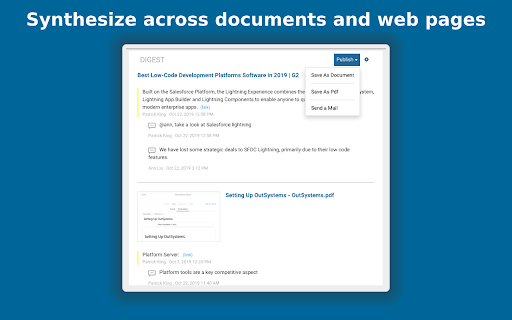
Use Numici to organize, highlight, annotate and synthesize content in web pages and documents collaboratively or individually. Organize content in Numici Taskspaces - collaborative workspaces for content by project or topic. Use Numici extension to highlight, annotate and tag text and images in web pages, including PDF documents rendered by web sites. Use Numici cloud application to annotate documents, email and notes. Collaborate with your team in conversations around highlights and annotations. Follow and join conversations in context from Slack and Microsoft Teams. Synthesize and curate content across web pages and documents as a digest in Numici Taskspace. Create posts that include one or more annotations in the web page along with a deep link to the web page and share on social media (Facebook, LinkedIn, Twitter and WhatsApp) or in enterprise applications like Slack. Share the digest through email, PDF or a link. Digests can be private (only users with access can view it) or public (anyone with the link can access). Use the purpose-built search to find instantly what you are looking for across annotations and content in documents and web pages. Use of Numici extension requires an account with Numici. Once you add the extension to Chrome, you will be taken to the Numici website (https://www.numici.com/) where you can sign up for a free account. Numici extension requires access to third-party cookies to check if the user is already logged in to a Numici account. If you block third-party cookies, you will need to add "[*.]numici.com" to the section "Sites that can always use cookies" in Chrome Settings -> Cookies and other site data. If you want to use "Sign-in with Google" to login to Numici, then you will also need to add "accounts.google.com" to the same section.

Thymeline
Add events to your timeline the easy way Keep track of everything important about your projects all in one place. Meet Thymeline, the free Chrome extension that will magically transform your project chaos into an organized masterpiece. Created for Project Managers. Here is how Thymeline saves you time. No APIs. No integrations. As simple as copy & paste. Easily copy relevant information from any of your existing tools or apps without any hassle. Once you download the chrome extension... Step 1: Visit any website. Step 2: Highlight any text. Step 3: Click on the Thymeline Chrome extension Step 4: Add to existing Thymelines. That’s it! Thymeline can handle as many projects as you’re juggling. Create as many Thymelines as you need! Multiple projects, multiple Thymelines, we can handle it. Keep track of it all in a simple interface. Share with others Share your Thymelines with others on your team with view or edit privileges, keeping everyone on the same page. Want to keep it private? You can do that too.

URL Notes: Best Tool to Take, Manage, and Export Notes While Browsing
Stay focused and organized with URL Notes! Effortlessly take, manage, and export notes directly from any webpage, even offline. URL Notes: The Ultimate Tool to Take, Manage, and Export Notes While Browsing Stay focused and organized with URL Notes, a powerful extension designed for users who want to effortlessly take, manage, and export notes directly from any webpage. Whether you're researching, working on projects, or simply collecting important URLs, URL Notes makes note-taking a breeze. Plus, you can access and manage your notes even when you're offline! ✔ Take Notes Directly from Any Webpage With URL Notes, you can jot down important thoughts, reminders, and insights as you browse. No more jumping between tabs or applications—simply take notes right from your current webpage with a single click. ✔ Manage Notes with Custom Statuses Organize your notes using customizable statuses like To-Do, In Progress, and Done. This feature is perfect for project management and keeping track of where you are in your tasks. ✔ View Existing Notes on Any Webpage Easily review all your saved notes related to the webpage you're currently browsing. Keep track of your research or important details without needing to leave the page. ✔ Offline Note Access No internet? No problem. URL Notes allows you to access, manage, and even create notes offline. When you regain internet access, everything syncs back seamlessly. ✔ Export Notes to Excel Need to organize or share your notes? You can export your filtered notes to an Excel file for quick access and backup. Sort notes by text, website name, or specific statuses like To-Do or Scheduled. ✔ Backup and Restore Keep your notes safe with backup and restore options. You can back up your notes to a secure storage solution like Google Drive, Dropbox, or a local device. If anything happens, restoring your notes is just a click away. ✔ Schedule Notes for Future Reminders Stay on top of your deadlines by scheduling reminders for specific notes. This makes URL Notes an ideal tool for managing personal and work projects alike. ✔ Advanced Search Functionality Find exactly what you're looking for with advanced search filters. Search by note text, webpage name, or status, allowing you to quickly locate any note in seconds. ✔ Organized and Efficient Interface Our intuitive interface is designed to keep your notes organized and easy to access. Filter by status or search by specific keywords for maximum efficiency. 🎯 How URL Notes Improves Your Productivity: 📝 Effortless Note-Taking Quickly jot down notes without disrupting your browsing experience. 📚 Organized Research Perfect for students, researchers, and professionals who need to keep track of multiple sources. 📊 Project Management Made Simple Assign statuses to your notes and keep your workflow on track. 🌍 Work Offline Access and manage your notes anywhere, anytime, even when you're not connected to the internet. 📤 Seamless Exporting Export your notes in Excel format to share with others or to keep a backup. 🔒 Secure Backups Keep your notes safe with local and cloud backup options, ensuring your data is always protected. 🎓 Students & Researchers Track your research sources, take notes, and stay organized while studying or writing papers. 🛠 Project Managers Organize tasks and track progress with note statuses. Export notes to Excel for easy sharing with your team. 💼 Freelancers & Professionals Save important URLs, notes, and ideas in one place. Perfect for client work, reports, and brainstorming. 💡 Content Creators Collect and manage ideas for blog posts, videos, and articles while browsing for inspiration. 🌐 Offline Access Unlike many note-taking extensions, URL Notes allows you to continue working offline, ensuring you never lose track of your thoughts, even without an internet connection. 🗂 Customizable Workflow Organize your notes with status labels, making it easier to manage ongoing projects or research tasks. 📂 Export and Share Need to share your notes with colleagues or friends? Easily export everything to Excel for quick collaboration. 🔐 Data Privacy First All your notes are stored securely in your browser. None of your data is uploaded to any external servers, ensuring complete privacy and control over your information. 1. Can I use URL Notes offline? Yes! You can access, manage, and even create notes while offline. Once you're back online, your notes will sync automatically. 2. Is my data safe? Absolutely. Your notes are stored locally in your browser, and no data is sent to any external servers. You also have the option to back up your notes to a cloud service like Google Drive or Dropbox. 3. Can I export my notes? Yes! You can export your notes to an Excel file for easy management, sharing, or backup. 4. Can I manage multiple projects with URL Notes? Definitely. With customizable statuses like To-Do, In Progress, and Done, you can easily manage multiple tasks or projects in one place. 5. What makes URL Notes different from other note-taking extensions? URL Notes offers offline functionality, customizable statuses for better project management, and the ability to export notes to Excel—all while keeping your data private and secure. 📥 Get Started with URL Notes Today! Whether you're researching for a school project, organizing your work tasks, or simply keeping track of your favorite websites, URL Notes is the perfect tool to help you stay focused and organized. Download URL Notes now and transform the way you take notes while browsing. 🛡 Privacy Policy: We take privacy seriously. All notes are stored locally on your device and never shared with external servers. For added security, you can export your notes and store them in a location of your choosing.

Omni - tabs, history and bookmarks by Tefter
Boost your productivity by quickly navigating through your open tabs, history and Tefter.io bookmarks. Omni will analyze and index your browsing history, tabs and Tefter.io bookmarks for an optimal web navigation personalized experience. All your data stays local and is never uploaded to any internet servers. You don't have to take our word for it, the source code is unobfuscated and available to be inspected. We are committed to the privacy of our users. Omni and Tefter don't show any ads, they don't track you and don't display annoying notifications. Omni is free, but perfectly paired with Tefter.io, the social bookmarking toolkit for teams. You can connect Omni to your Tefter account to sync your bookmarks to the cloud and access them from all your devices. Surface Omni by hitting alt+k. Now you can search your history, tabs and Tefter.io bookmarks. The search scope is configurable. All your links are automatically organized into groups based on some parameters of link like the domain name. For example corp1.slack.com and corp2.slack.com would belong to the same group named Slack. Only the top ten most frequently accessed groups appear. You can switch between groups by pressing TAB. Collaborate with others and build a common knowledge base of your most useful bookmarks and aliases. Access the organization's bookmarks from any page or even through our Slack integration. This feature requires a Tefter.io account. You can create shortcuts to links you commonly use. We call such shortcuts aliases. To use aliases you need a Tefter account. To create an alias, read here. To search and navigate to aliases, either hit alt + a or type /go in the Omni search bar. You may also navigate to an alias, let's say docs by typing go/docs in your browser's address bar. This feature requires a Tefter.io account. Bookmarks: Omni will make your existing bookmarks searchable. To add a bookmark through Omni, hit alt+b or press on the press the extension icon followed by the "add bookmark" option. Hotkeys: In settings you can see and configure keyboard shortcuts for most common actions. Shortcuts: alt + b Bookmark current page alt + k Show Omni search alt + a Show aliases arrow down Select the next link in results ctrl + j Select the next link in results arrow up Select the previous link in results ctrl + k Select the previous link in results tab Select the next group shift + tab Select the previous group ctrl + l Select the next organization ctrl + h Select the previous organization alt + number Select the organization by number, where number in [1, 5] alt + 0 Deselect any organization Commands: /s Lookup via external search /c Create an alias /go List aliases and navigate to the selected one /t List open tabs and navigate to selected one

Research Notes
Bookmark, tag or add notes to pages, highlight and save quotes or images, save selected Google searches, filter out search results. KEEP NOTES AND ORGANIZE PAGES Bookmark, tag or add notes to pages. SAVE & HIGHLIGHT QUOTES Save quotes or other text snippets from pages (or PDFs), highlight quotes on the page. SAVE IMAGES Save images with pages - either pictures directly from the page or copy-pasted screenshots via a tool like Snipping Tool or Paint. TAGS WITH VALUE Advanced tagging: you can add values to the tags. For example, to record a page’s author, add a tag like “Author: ”. Or, when searching for products and comparing good websites with alternative offerings, add tags to pages such as “Product: ” or “Price: ”. You can group and sort by tags and values separately on the all notes -page. RESEARCH UNDER SEPARATE TOPICS All your pages and searches will be saved under topics that you define. This helps keep your different research topics - be it work, school or hobbies - separated from each other. SAVE YOUR GOOGLE OR GOOGLE SCHOLAR SEARCHES When studying a topic in-depth, save searches to remember what search terms you’ve used, which ones got great results and how far into the results you have looked. By default, search saving is turned off, it can be activated for each Google search tab separately. HELPFUL SEARCHING OPTIONS Cross out and hide search results that are not useful. Instantly add notes and tags to results straight in your Google search. OVERVIEW OF SAVED RESEARCH A special all notes -page gives a comprehensive overview of your topics, pages and searches. See your researched pages either in list or table format. Filter pages by text, tags, notes or bookmarks. PRIVATE The information that you create while working with the extension - addresses, searches, notes, tags, etc - is stored exclusively in your own browser and is not shared with anyone. We only collect anonymous analytics information about this products usage to get an overview of what features are used. DO YOU HAVE QUESTIONS OR RECOMMENDATIONS? We are open to feedback about this product, about existing features or new ideas - just send as an e-mail (feedback@onlineresearchnotes.com) or drop by in our Discord server (https://discord.gg/pE9BMg2m). And please do inform us also about any possible bugs that may be lurking. FREE This extension is free to use.
