
oncbjlgldmiagjophlhobkogeladjijl
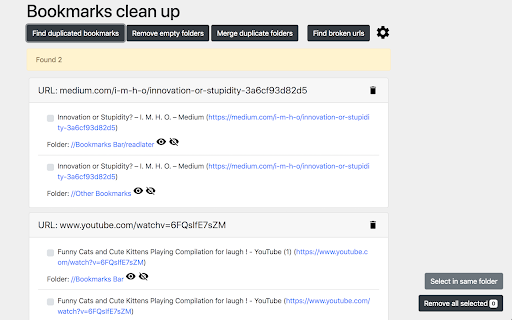
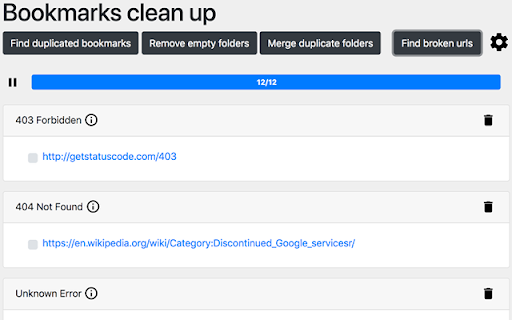

Quickly clean up your bookmarks: remove duplicates, dead links, and empty folders, merge similar bookmark folders. This extension allows to find and delete duplicate bookmarks, empty folders, merge folders with the same name (within the same path), find no longer working and expired bookmarks and remove them easily. Permissions explained: 1. Read and change your bookmarks(required on install) - required for core functions to work 2. Read and change all your data on the websites you visit(optional, not asked until you use Broken URLs checker) – to check if bookmarked page loads and doesn't return any error. Support further development: If you find this extension useful, consider supporting me through Patreon: https://www.patreon.com/itwillnotbeasy (A donation of any amount is welcome!). If you want to make an one-time donation there is two options: 1. Donate using cryptocurrency (you can find all required information inside extension settings->donate link) 2. You can cancel your membership on Patreon after being succesfully billed (money are debited once a month, visit https://support.patreon.com/hc/en-us/articles/204606215-Can-I-make-a-one-time-payment for more details) Warning: there is no way to restore removed bookmarks, so make sure backup your bookmarks before using this extension. If your screen becomes RED, saying that site is deceptive while scanning for broken links you can have 2 options: 1. Remove this site from your bookmarks: (error screen shows which site causes error, just open bookmarks manager and search for this site) 2. Disable this "feature" in chrome (go to Settings -> Advanced -> Under "Privacy and security," turn off "Protect you and your device from dangerous sites"), Changelog (most recent versions first) 0.2 - The extension has been migrated to Manifest version 3. As Manifest V2 being deprecated by Google Chrome team. - Minor UI/UX improvements and tweaks 0.1 Better privacy: - Only "Read and change your bookmarks" permission is asked on install. - “Access your data for all websites” permission is only requested, when running broken URLs checker, and removed after extension tab is closed. Features asked by users: - Finally, duplicate checker no longer ignores the URL part after "#". - Only HTTP and HTTPS protocols are being checked. - This means no more "Authentication Required" popups for FTP resources when checking for broken links. - It also fixes bookmarks separators in Firefox and Opera(which was using data:// protocol) being incorrectly flagged as duplicates. Bug fixes: - Fixed options page not being displayed when called from the in-browser extension preferences page. 0.0.8 - Got rid of unsafe-eval in content_security_policy. - Also added 64x64px icon for HiDPI displays in manifest.json 0.0.7 Improved Keyboard Accessibility - now you can navigate using keyboard only 0.0.6 Loading indicator is now shown when searching for duplicates The long text will in results is now wrapped to be more readable 0.0.5 Bugfix release 0.0.4 Fixes bug in Broken URLs checker, settings page now can be also opened from chrome extension dashboard Broken URLs page now also has a sticky header, so you will always know what error group you are currently looking at 0.0.3 UI now won't become too wide on large screens. Fixed a bug that caused to show only a few duplicates when more than 1000 duplicates were found. 0.0.2.0 Added option in settings which allows excluding certain folders from being scanned by extension. 0.0.1.1 URLs containing hashbang (#!, used by some SPA websites) now considered as different URLs, this doesn't affect traditional URLs with anchors (example.com/#heading1). 0.0.1 Added page with information on how to donate(gear icon->donate), when looking for broken URLs there is now a button to select/deselect all entries in a group; firefox version released 0.0.0.4 UI is optimized for smaller screens, fixed issue when some empty folders weren't deleted, other small bugfixes 0.0.0.3 Bugfix release 0.0.0.2 View details about network error when checking broken links

Abookmark - advanced bookmark manager
Advanced bookmark manager and tab organizer to enhance the native bookmarks and tabs - Cooperate with native bookmark system. - Labels/Tags. - Spread view & top bar. - Advanced search. - Recent bookmarks. - Link replacing. - Tab / session managements. - Tabs as bookmarks. - Side panel & vertical tab bar with tab groups. - Workspace. - Data view. Copy bookmark or tab information to the clipboard. - Data text editor. (edit bookmarks in your favorite text editor) - Extract links from web page. - Keyboard shortcuts. - Link hint. (vi-like keyboard) - Bookmark keywords - Add new bookmark at the top. - Export any bookmark folder. - Import selected bookmarks from a file. - Monthly backup. - Auto sync. Abookmark is a professional bookmark viewer and manager. It has a manager page similar to the native bookmark manager and a navigation page similar to the native bookmark bar. And it is also a tab and session manager at the same time. What does a typical tab manager look like? They save tabs in one place, and then close tabs. These saved tabs can be divided into groups, which are called workspaces. You can reopen these tabs later, or open the entire group. They also provides simple data management functions, such as deleting, renaming, and moving between groups. What is the essence of this saved data? It's just a list of web addresses. In fact they are bookmarks. The so-called workspace is in fact a bookmark folder, and the so-called tab manager is a simplified bookmark manager. So, why can't you just use the bookmark manager to manage tabs? This can have a number of benefits: 1. More flexible data structure. Bookmarked folders can be nested, you may call it sub-workspace if you want. 2. More comprehensive data management functions. 3. More secure data storage. 4. Automatic data synchronization. Browsers usually come with a synchronization feature for bookmark data, which can even be used on mobile phones. 5. Cooperation between tabs and bookmarks. Of course, some of the details of tab management are unique, which requires the bookmark manager to add corresponding support. In fact, some users already use the native bookmark management system to manage tabs manually, and there are also tab management plugins that are dedicated to saving tabs as bookmarks. Abookmark goes one step further by abstracting bookmarks and tabs into nodes. Bookmarks are sleeping tabs, while tabs are active bookmarks. Tabs can also be manipulated through the tab nodes, and tab groups are mapped to folders. Using tab nodes on the side panel is similar to the vertical tab bar of Edge, but with the ability to communicate with bookmarks. Abookmark offers a high degree of freedom, which is a double-edged sword. In addition, Abookmark also offers some advanced features. New users should familiarize themselves with the basic logic before gradually exploring more powerful features. All your bookmarks are stored in your browser system. Abookmark does not transfer them to anywhere else.

Duplicate Bookmarks Finder
Find and delete duplicate bookmarks. This extension allows to find and delete duplicate bookmarks.

Bookmarks Commander
A dual-pane Norton Commander liked bookmarks manager that supports sorting, dark theme, search, and duplicate detection This is a two-panel bookmarks manager for your browser. It works similar to the famous Total Commander. You can move items between the panels or view two different directories simultaneously. Instruction: Click on the toolbar button once to open the commander in a new browser tab. By default the left panel has focus. Use arrow up and arrow down keys to navigate. Use Enter to move to a directory. To move the other panel simply press The left or right arrow key. Shortcuts: [open links]: Press Enter key to open on the same tab. Press Ctrl + Enter or Command + Enter to open in a background tab or use double-click to open on the same tab. Press Ctrl/Command while double-clicking to open in a background tab. [select multiple bookmarks]: Ctrl/Command with left-click to select more items. [copy links to the clipboard]: Ctrl + C or Command + C to copy selected links to the clipboard. [copy titles to the clipboard]: Ctrl + X or Command + X to copy selected titles to the clipboard. [directly navigate to a bookmark]: Press the first character of the title multiple times to navigate between items starting with this particular character [move one step up]: Use backspace to navigate to the parent directory [move between left and right panels]: use Tab key to toggle between panels. Use Ctrl + 1 or Command + 1 to move to the left tab. Use Ctrl + 2 or Command + 2 to move to the right tab. You can alternatively use arrow-left and right to move between panels. [move selected bookmarks and folders to the other panel]: Use Ctrl/Command + right arrow key to move selected items to the right panel when the left panel is focused. Use Ctrl/Command + left arrow key to move selected items to the left panel when the right panel is focused. [sort items]: Ctrl/Command + J for A-Z and Ctrl/Command + Shift + J for Z-A [find duplicated bookmarks]: Ctrl/Command + Shift + F; use the "duplicates" keyword on the search bar to find all duplicated bookmarks in the current directory and subdirectories. [move bookmarks between different browsers]: Ctrl/Command + Y to export selected bookmarks to the clipboard, then use Ctrl/Command + P to import them to the new machine. This way you can transfer bookmarks between two browsers. [configurations]: Use Ctrl/Command + S to access configuration panel. You can change the font size and font family of the interface or change the color scheme (theme) of the interface (dark, light, or based on your OS color scheme) or toolbar icon's color. It is also possible to use the new "VIM" mode to support VIM-compatible navigation (still in progress). Notes: 1. When an operation is not allowed, the button is disabled. 2. You can see all the shortcuts by placing your mouse over the buttons. 3. You can drag and drop bookmarks between panes 4. You can use right-click context menu to open links in new windows

Bookmanize - Advanced bookmark manager
Advanced bookmark manager provides tagging, instant sorting, and filtering among all bookmarks on a full list view. Bookmark manager with a clean user interface where all bookmarks can be easily accessed in one full list view with tagging, instant sorting, and filtering. Organize your bookmarks with custom tags and faster navigates between them. We are an independent team of developers who love what they do:) If you want to improve or expand anything - email us bookmanize@gmail.com Support us with a cup of coffee - https://www.buymeacoffee.com/bookmanize ★ All bookmarks on one screen ★ Fast access to all main functions ★ Instant searching, filtering, sorting, adding, deleting bookmarks ★ Drag n drop bookmarks and folders All the features that the default bookmarks have (add, delete, sort, drag and drop bookmarks) in a more user-friendly interface with high performance for a large number of bookmarks Note: Your data (history and bookmarks) is not saved or stored anywhere else but on your computer. Hotkeys: - ctrl+shift+f or command+shift+f — focus the search field
