
mmfbmpbplefbggnhpiojnhcadkhglnlf


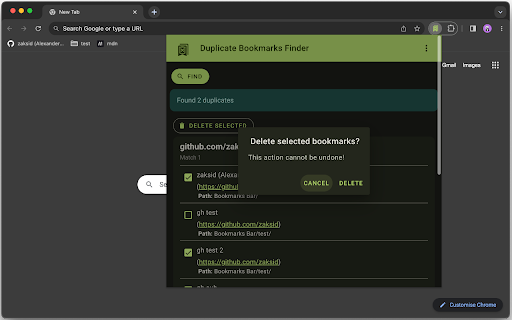
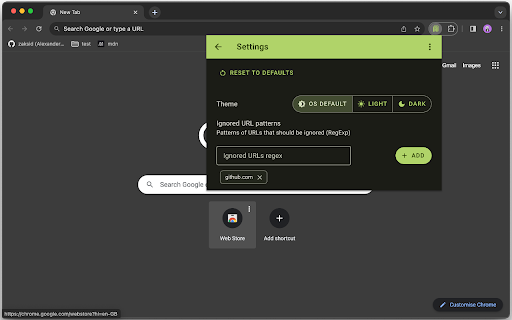

Find and delete duplicate bookmarks. This extension allows to find and delete duplicate bookmarks.

Quick Duplicate Bookmarks Finder
Quick Duplicate Bookmarks Finder is a browser extension designed to help you efficiently search and eliminate duplicate bookmarks Quick Duplicate Bookmarks Finder is a browser extension designed to help you efficiently search and eliminate duplicate bookmarks. Overview: Quick Duplicate Bookmarks Finder is an essential browser extension that is designed to help you efficiently eliminate duplicate bookmarks. It offers powerful tools to search, and eliminate duplicate bookmarks, ensuring your bookmark library remains clutter-free and easy to navigate. Features: Duplicate Bookmark Detection: Automatically scan your bookmarks to find and list the duplicates bookmarks. It allows to select duplicate bookmarks and remove to keep bookmarks library clean and organized. Comprehensive Search Functionality: Quickly find specific bookmarks using a powerful search tool that scans through your duplicate bookmark collection and allows to edit them. Easy To Search Interface: User-friendly interface to easily search through the duplicate bookmarks. Select Folders: Now you can select folders to either exclude bookmarks from that folder from counting as duplicate or you can select folders to search for duplicate inside those folders only. How to Use: Install the Extension: Click on "Add to Browser" to install the Bookmark Finder and Duplicate Manager. Open the Extension: Click on the extension icon in your browser toolbar to open the bookmark finder interface. Scan for Duplicates: Use the duplicate finder tool to scan your bookmarks and remove any duplicates. Search Bookmarks: Use the search bar to quickly find out if any specific link is a duplicate bookmark or not. Permissions: This extension requires access to your bookmarks to provide its features. We prioritize your privacy and do not collect or share any personal data. Update v2.6.0 - Improved text color for readability. - Added search folders feature in dropdown. Update v2.7.0 - Fixed unnecessary refresh on bookmark detail changes. Note: With this update, after making changes to the URL, you'll need to manually refresh bookmarks to update the latest duplicate bookmarks. Update v2.8.0 - Added Light mode - Added regex pattern search - Added 'Empty Folder Search' - Added 'Untitled Bookmarks and folders search' - Added 'Find duplicate bookmarks in same folders' - Added 'Find bookmarks with same title' - Mouse Drag Scroll - UI Optimization - Performance Optimization - Virtualized rendering of large bookmark collections.

Bookmark Manager per Domain and Page
A Bookmark Manager to list all bookmarks for the domain or page of the current URL as hyperlinks. This Bookmark Manager is special, it displays only bookmarks belonging to the current domain. ie. https://gist.github.com or https://docs.github.com/en will be displayed if you have it as a bookmark and navigate to https://www.github.com Open any URLs from Domains that you have saved within *.domain.com* We will show you only the ones from that domain. The extension does not work across domains from the same brand, such as pinterest.de or pinterest.at, etc. we might add this functionality in a near future update if there is demand. So if you are looking for that best next app to open pages in a new tab, while simply organizing your url in this awesome quick software, with our bookmark manager you will not need more bookmarking apps on your sidebar, forget all the other addons. Save webpages that you find popular, then navigate there with speed, have a look at your bookmarklet and use our free extension to view your custom starred urls, search through them with ease. Updates / Change log: 22.06.2024 / V 1.0.7 - Responsive pop-up added, Extension Icons added, fixed folder view, deleting and editing the URL 25.05.2024 / V 1.0.6 - Updated Manifest to v3 19.07.2021 / V 1.0.5 - Removed "Storage" permission, not needed. 22.12.2020 / V 1.0.4 - Added FOLDER view buttons 14.12.2020 / V 1.0.3 - We added DELETE and EDIT buttons

Bookmarks Checker - Duplicate and Dead Links
Check your bookmarks for duplicates or dead links. ✨ New Features Highlights: • 📥 Smart Import - Import bookmarks from JSON files with duplicate detection • 📤 Flexible Export - Export as JSON or HTML format for cross-browser compatibility • 🗑️ Recycle Bin Protection - Deleted bookmarks go to recycle bin for easy recovery • ⚡ Bulk Operations - Efficiently delete duplicate and broken bookmarks in batches • 🎨 Modern UI - Elegant interface built with shadcn/ui components • 🌍 Multi-language Support - English and Chinese interface options • ⚙️ Personalized Settings - Customize checking rules and import behavior Core Features: • Detect duplicate bookmarks (URL-level or domain-level checking) • Check broken/dead links (with concurrency control and timeout settings) • Filter by folders for targeted scanning • Real-time progress display and undo operations • Batch delete with recycle bin support • Import/export bookmarks in multiple formats • Advanced settings for performance optimization Perfect for users with large bookmark collections who want to keep their browser organized and links working!

Bookmarks Commander
A dual-pane Norton Commander liked bookmarks manager that supports sorting, dark theme, search, and duplicate detection This is a two-panel bookmarks manager for your browser. It works similar to the famous Total Commander. You can move items between the panels or view two different directories simultaneously. Instruction: Click on the toolbar button once to open the commander in a new browser tab. By default the left panel has focus. Use arrow up and arrow down keys to navigate. Use Enter to move to a directory. To move the other panel simply press The left or right arrow key. Shortcuts: [open links]: Press Enter key to open on the same tab. Press Ctrl + Enter or Command + Enter to open in a background tab or use double-click to open on the same tab. Press Ctrl/Command while double-clicking to open in a background tab. [select multiple bookmarks]: Ctrl/Command with left-click to select more items. [copy links to the clipboard]: Ctrl + C or Command + C to copy selected links to the clipboard. [copy titles to the clipboard]: Ctrl + X or Command + X to copy selected titles to the clipboard. [directly navigate to a bookmark]: Press the first character of the title multiple times to navigate between items starting with this particular character [move one step up]: Use backspace to navigate to the parent directory [move between left and right panels]: use Tab key to toggle between panels. Use Ctrl + 1 or Command + 1 to move to the left tab. Use Ctrl + 2 or Command + 2 to move to the right tab. You can alternatively use arrow-left and right to move between panels. [move selected bookmarks and folders to the other panel]: Use Ctrl/Command + right arrow key to move selected items to the right panel when the left panel is focused. Use Ctrl/Command + left arrow key to move selected items to the left panel when the right panel is focused. [sort items]: Ctrl/Command + J for A-Z and Ctrl/Command + Shift + J for Z-A [find duplicated bookmarks]: Ctrl/Command + Shift + F; use the "duplicates" keyword on the search bar to find all duplicated bookmarks in the current directory and subdirectories. [move bookmarks between different browsers]: Ctrl/Command + Y to export selected bookmarks to the clipboard, then use Ctrl/Command + P to import them to the new machine. This way you can transfer bookmarks between two browsers. [configurations]: Use Ctrl/Command + S to access configuration panel. You can change the font size and font family of the interface or change the color scheme (theme) of the interface (dark, light, or based on your OS color scheme) or toolbar icon's color. It is also possible to use the new "VIM" mode to support VIM-compatible navigation (still in progress). Notes: 1. When an operation is not allowed, the button is disabled. 2. You can see all the shortcuts by placing your mouse over the buttons. 3. You can drag and drop bookmarks between panes 4. You can use right-click context menu to open links in new windows
