
omhajbebapbleblliebjpmddcmalofgp
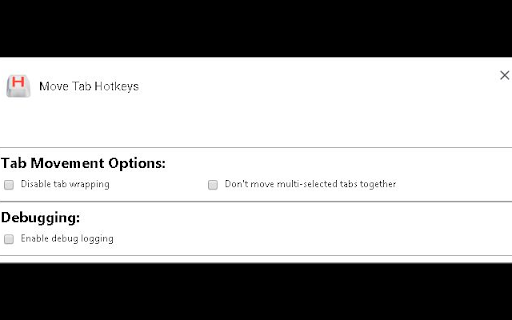
Adds shortcut keys to move the current tab or a group of selected tabs around the tab bar using the keyboard. This is a variant of the Move Tab Hotkeys extension (https://chrome.google.com/webstore/detail/move-tab-hotkeys/paafmjjgeiociknojggclhkbkaffjgoe). This adds additional commands for moving the tab to the first or last position on the Tab bar to work around Chrome's limitation of 4 keyboard commands per extension. The following hotkeys are provided: * Alt+Shift+NumPad-0 (with NumLock on): Move tab to the start of the tab bar * Alt+Shift+NumPad-0 (with NumLock off): Move tab to the start of the tab bar * Alt+Shift+NumPad-9 (with NumLock on): Move tab to the end of the tab bar * Alt+Shift+NumPad-9 (with NumLock off): Move tab to the end of the tab bar These keys can be changed in Chrome's extensions keyboard shortcuts page. Multi-Selected Tabs: If you select multiple tabs at once, you can move them as a group. This can be turned off on the Options page if you prefer to only move the current tab even when others are selected. Notes on Pinned Tabs: * If you have any pinned tabs, pinned tabs and non-pinned tabs are treated like separate tab bars. Non-pinned tabs move to start/end of the non-pinned tabs section. * If multiple tab selection is enabled and you select a group containing both pinned and non-pinned tabs, no movement will be possible. 2.0.0: * Fix logic to correctly disable tab wrapping for the first tab in the bar. 1.2.0: * Fix ability to use the the number pad for 0/9 in shortcuts for Firefox. * Add a variant of this extension to Chrome to work around Chrome's restriction to 4 keyboard commands.

Move Tab Hotkeys
Adds shortcut keys to move the current tab or a group of selected tabs around the tab bar using the keyboard. The following hotkeys are provided: * [Alt+Shift+Left]: Move tab one to the left, wrapping to the right end if the tab is currently in the first position * [Alt+Shift+Right]: Move tab one to the right, wrapping to the left end if the tab is currently in the last position * [Alt+Shift+0]: Move tab to the start of the tab bar * [Alt+Shift+9]: Move tab to the end of the tab bar These keys can be changed in Chrome's extensions keyboard shortcuts page. Multi-Selected Tabs: If you select multiple tabs at once, you can move them as a group. This can be turned off on the Options page if you prefer to only move the current tab even when others are selected. Notes on Pinned Tabs: * If you have any pinned tabs, pinned tabs and non-pinned tabs are treated like separate tab bars. Non-pinned tabs move to start/end of the non-pinned tabs section. * If multiple tab selection is enabled and you select a group containing both pinned and non-pinned tabs, no movement will be possible. The default keys for this extension use the number 0 and 9 keys from the number row at the top of most keyboards. If you wish to use the 0 and 9 keys from the number pad, there are two options: 1. If you wish to use _only_ the number keys from the keypad, you can change the keyboard shortcuts in Chrome. 1.1. Go to the menu -> More Tools -> Extensions 1.2. Select the menu from the top left of the Extensions screen and choose "Keyboard Shortcuts" 1.3. Enter whatever key you would like for each action. Note that the keys are different depending on whether NumLock is turned on or off on the keyboard. 2. If you with to use both the number keys in the number row _and_ the number pad, or you wish to use the number pad with NumLock turned both on and off, you can use the additional extension: 2.1. Move Tab Hotkeys (Chrome Number Pad Keys) - this provides default key mappings for the number pad to use Alt+Shift+0/9 to move the current tab to the first/last position. 2.0.0: * Fix logic to correctly disable tab wrapping for the first tab in the bar in Chrome. 1.2.0: * Fix ability to use the the number pad for 0/9 in shortcuts for Firefox. * Add a variant of this extension to Chrome to work around Chrome's restriction to 4 keyboard commands.

Moly Tab Menu
Moly Tab Menu enables you to look up opening tabs and jump into one of them effortlessly. You can navigate between tabs using keyboard shortcuts and/or mouse scroll. It is quick to jump into a recently opened tab because tabs are arranged in the activated order by default. Other sort orders are also available for better navigation according to use cases. You can also type some characters to filter tabs by its name. It not only offers the opening tabs view but also recently closed tabs view and page history view. These views enable you to find and open whatever tabs/pages efficiently. All keyboard shortcuts are customizable in the options page.

TabFern tab manager and backup tool
Save and restore your tabs and windows, and navigate tabs in a vertical view. -------------------------------------------------------------------------- NOTE TF has been updated to Manifest V3 --- please report any issues at https://github.com/cxw42/TabFern/issues . As always, back up early and often! Thanks! -------------------------------------------------------------------------- TabFern organizes your browsing life. It shows all your open windows and tabs in one place, for immediate access. With one click, you can close a window, and then bring it back any time with one more click. With two clicks, you can backup all those URLs to a text file, or restore a backup. No need to login to copy browsing sessions between computers! With TabFern, switching between projects is a breeze, and you can leave a task behind without worrying about losing the pages. TabFern is perfect for researchers, the perpetually curious, and anyone who winds up with way too many tabs open at once! TabFern is under active development, so please do not hesitate to report bugs or provide feedback via GitHub. TabFern is offered AS-IS, and with NO WARRANTY — see the license on the Web site for full details. However, the primary author uses TabFern almost 365 days a year, so bug reports should receive a quick response :) . If you would like to contribute to TabFern's development, feel free — we welcome pull requests and would be happy to help you get started. Permissions: The "Read your browsing history" permission permits TabFern to access the URLs and titles of pages you visit, so that it can help you manage your tabs. TabFern stores that data only on your computer, and does not send it anywhere. TabFern is inspired by the Tabs Outliner extension by Vladyslav Volovyk. However, TabFern is a completely separate extension, and is not affiliated with Tabs Outliner or with Vladyslav in any way.

Move Tab to Next Window
One-click to move a tab to the next window Especially useful for these amazing multi-monitor setups when it's too annoying to drag tabs around between windows. ## Quick feature list - the source tab position is saved in all windows, so if it's moved back into a window, it moves into its original position - if the tab is in a tab group, when moving it the identical group will be created or used in another window. When moving back to original window the tab will return into its original group - multiple tabs move - select multiple tabs (use shift or cmd/ctrl) and move all of them into the next window in the same order - if there is only 1 window, a new window will be opened on move - keyboard shortcut support Open sourced on Github for transparency.
