
ololmadlpnbbagpkjhdomclggmfomhdg
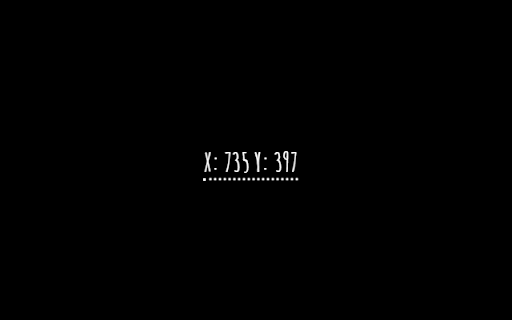
Display mouse coordinates on the web page. A Mouse Coordinates Chrome extension tracks and displays your mouse pointer position on your screen, useful for precise X and Y element positioning.

Digital Ruler
The ultimate online ruler app for precise on-screen measurements: Digital Ruler - measure pixel-perfect dimensions effortlessly! Whether you are a web developer, designer, or simply someone who needs to accurately pixel measuring for elements on your screen, the Digital Ruler extension for Google Chrome is an indispensable tool. This powerful online ruler lets you measure anything on your screen with perfect accuracy. Key Features of Digital Ruler: 📏 Accurate Pixel Measurement: Get precise measurements of width, height, and coordinates. 👍 User-Friendly Interface: Easy to activate and use with a single click. 💻 Versatile Application: Ideal for web development, graphic design, and usability testing. How to Measure in Pixels with a Digital Ruler? Activating the browser ruler extension is straightforward: 👆 Click the extension button on the toolbar to activate it. 🖱 Move the mouse cursor over any element that you want to measure. 📐 Hold down the right mouse button and stretch the rectangle to get the dimensions of the selected area. 📟 Our pixel measurement tool Chrome extension window will be update with the width, height, and coordinates of the rectangle in real-time, making it simple to get precise measurements. How to download and Install our screen ruler app? 1️⃣ Install: Download the Digital Ruler extension from the Chrome Web Store. 2️⃣ Pin for Quick Access: Click the puzzle icon on Chrome, locate the extension, and pin it. 3️⃣ Launch: Click the pinned icon to start using the extension. Similarly, to disable the add-on, click the button on the toolbar again. 🌟 With the Digital Ruler extension, you'll never have to guess measurements again. Get precise, get professional, and make your digital projects shine. Practical Uses on screen ruler: 📐 Checking Layout Accuracy: Make sure your web layout matches your design. 🖼️ Selecting Optimal Image Sizes: Find the perfect dimensions for your images. 🔠 Font Size Selection: Choose the right font size for readability and aesthetic appeal. ✅ Usability Compliance: Monitor your designs to ensure they meet usability standards. . Our pixel measurement tool is designed to be intuitive and efficient. Here’s why you should this screen ruler download it: ➤ Ease of Use: Activate with a single click. ➤ Real-Time Updates: Get instant feedback as you measure. ➤ Precision: Measure pixels on screen accurately. 📏 This fantastic virtual ruler helps you measure anything on your screen with pinpoint accuracy. ❓: How to measure an image in pixels? 💡: Simply activate the extension, hover the mouse cursor over the page and create rectangle is drawn with which you can measure the selected area ❓: Can I find pixel coordinates on image? 💡: Yes, the browser ruler extension displays the coordinates of any selected area. ❓: Is this tool suitable for measuring web elements? 💡: Absolutely, it’s perfect for web developers and designers. The pixel ruler for Chrome browser ensures precise measurements, making it a valuable tool for any digital task. 🔁 With features like real-time updates, easy activation, and precise, this pixel measurer is your go-to tool for all on-screen measuring needs. 🖼 Whether you need to measure an element size in pixels or get pixel coordinates from image, the Digital Ruler has you covered. 🚀 Enhance your productivity and accuracy with the our extension. Measure, verify, and perfect your digital creations with ease with a this ruler on screen

CapMonster Cloud — automated captcha solver
Online service for automated captcha solving CapMonster Cloud is the ultimate AI-powered, fast, and reliable CAPTCHA solver. CapMonster Cloud Extension automatically solves reCAPTCHA, Cloudflare, GeeTest and other types of captchas in Chrome's background mode. How Does It Work? - CapMonster Cloud's Chrome extension uses advanced AI algorithms to solve any CAPTCHA in the background, providing the highest quality CAPTCHA-solving experiences available. - This extension can also assist users needing additional accessibility support, automatically recognizing and solving CAPTCHA challenges. - The extension is currently available for Chrome and Firefox. How to Use CapMonster Cloud Chrome Extension 1. Install the extension from the Chrome Web Store. 2. Sign up and top up your balance. 3. Enter your API key in the extension settings. How to Use CapMonster Cloud in Selenium 1. Download and install the Node.js file. 2. Install the required packages using npm. 3. Change the extension parameters following the instructions in the documentation. The extension solves: ✅ reCAPTCHA v2 ✅ reCAPTCHA v3 ✅ reCAPTCHA Enterprise ✅ GeeTest ✅ Cloudflare ✅ Text Captcha Support: For assistance, contact support at: support@zennolab.com

Image Coordinate Viewer
Open an image in a new window with an invisible grid and cursor coordinates. Open an image in a new window with an invisible grid and cursor coordinates.

SelectorsHub
Locators Plugin to Auto Generate and Verify Playwright Locators, XPath & CSS Selectors. SelectorsHub - Auto-generate Playwright Locators, XPath & CSS Selectors SelectorsHub is a powerful developer tool that automatically generates and verifies Playwright locators, XPath, and CSS selectors for web automation testing. Key Features: 1. Auto-generation: Instantly generates multiple selector types including native Playwright locators, XPath, CSS selectors, IDs, names, and more. 2. Advanced element support: Works seamlessly with iframes, Shadow DOM, SVG elements, dynamic elements, dropdowns, and complex UI components. 3. Smart suggestions: Auto-suggests attributes, text values, and occurrences to help you build selectors faster—no more copying and pasting from the DOM. 4. Error detection: Provides clear error messages indicating what's wrong with your XPath or CSS selectors. 5. Element highlighting: Automatically highlights matching elements and scrolls them into view for easy verification. 6. XPath Healing: Verify all the xpath in one shot. 7. Locators Page: Generate Locator Page in one go. How to Use: 1. Open Chrome DevTools (F12 or right-click > Inspect) 2. Navigate to the SelectorsHub tab in the DevTools sidebar, or click the SelectorsHub icon in your browser toolbar 3. Inspect any element to automatically generate all selector types 4. For Playwright locators, click the "Playwright Selectors" button, then inspect the element 5. Type or edit selectors in the input box—smart suggestions will help you complete them quickly 6. Press Enter to verify and highlight all matching elements on the page Perfect for: a) QA Engineers and Test Automation professionals, b) Web developers working with Playwright, Selenium, Cypress, or other testing frameworks c) Anyone who needs reliable, maintainable element selectors
