
okhokdliaadpclhhjdjdakibeajdcade
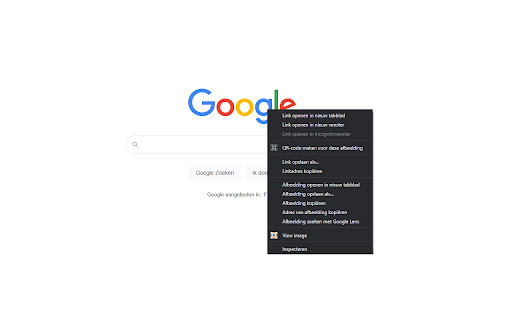
Adds an option to 'View image' to the right click context menu on an image Adds an option to 'View image' to the right click context menu on an image. This will replace the current web page with just the image in its original size.

Right Click Any Image Converter
Instantly Convert any images to any different formats (PNG, JPG, HEIC, WEBP...) with just a right-click menu. Convert images effortlessly with Right Click Image Converter, the ultimate tool for transforming images in various formats right from your browser. Whether it’s converting from HEIC, AVIF, WEBP, JFIF, or other popular formats, this extension integrates seamlessly into your workflow. Just right-click any image on any website, choose the format, and let the extension handle the conversion instantly! *Wide Format Support: Convert images to and from popular formats such as PNG, JPEG, WEBP, HEIC, AVIF, BMP, JFIF, and more. *Fast and Easy: With just one right-click, convert any image directly from the context menu—no additional software required. *Batch Processing: Convert multiple images simultaneously, saving time and effort. Customizable Settings: Choose your preferred output formats and download locations via the options menu for a tailored experience. *Seamless Browsing Integration: Works on any website, allowing you to convert images as you browse with no disruption. *Performance Optimized: Lightweight and fast, delivering quick conversions without slowing down your browsing. Whether you’re a professional dealing with various image formats or just need quick image conversions while browsing, Right Click Image Converter simplifies the process. Say goodbye to complicated software and experience fast, versatile conversions, including support for newer formats like HEIC and AVIF. *contextMenus: Allows the extension to add the "Convert to" options to the right- click context menu, enabling image conversion. *activeTab: Grants the extension permission to interact with the currently active tab to fetch and convert the selected image. *: Required to access and convert images from any website you visit.

One-click image downloader - Grabit
Download images in one click. A powerful downloader with original-size saving, bulk downloads, and auto-scroll capture. Save images from the web—faster and easier. Grabit is a Chrome extension that makes downloading images quick and effortless. - Download images instantly with a single click on the on-image button, or simply drag and drop the image to save it. - When a full-resolution version is available, Grabit automatically prioritizes and saves it. Pro Features (Free version has limitations) - Select a specific area on the screen to bulk download only the images you want. - Automatically scroll the page to find and download off-screen images. - Works on many websites. For example, you can use it on image pages such as X, Instagram, and Pixiv. - Note: Due to website structure or restrictions, it may not work properly on some pages. - To manage usage limits for some features and prevent abuse of Pro features, Grabit uses only minimal information such as anonymous IDs and usage counts. Browsing URLs, image URLs, and page contents are not sent. - Usage statistics and error reports are sent only if you opt in.

Download Image from Context Menu
Adds a context (Right click) menu item to images which allows you to directly download them without a prompt. This extension simply adds a context menu item which allows you to (Directly) download an image. The simple idea for this extension was born from saving multiple images at once, and rapidly pressing enter after each save to go through the "Save as" prompt.

Photo Zoom
You don’t need click to see HD image, just put the mouse on it, you can zoom the image on any website Photo Zoom is a browser extension that helps you quickly view the "full-size picture" corresponding to the thumbnails on the page. Just hover your mouse over the thumbnail to display the corresponding high-resolution image. Currently supported websites include Facebook, Instagram, Pinterest and many other websites, and the smart photo-view script will be continuously updated. ● Rich shortcut key operations: Switch view mode: A (auto) / M (mini) / I (moderate) / P (panoramic) Switch to the last used view mode: V View high-resolution images in a new tab: Tab Save high resolution pictures: S Copy high resolution picture address: C Close the picture preview window: Esc Rotate the picture counterclockwise: Shift + Ctrl + ← Rotate the picture clockwise: Shift + Ctrl + → Up / Right / Down / Left Scroll the picture ↑ / → / ↓ / ←: Scroll the picture up/down according to the visual height of the picture: PgUp / PgDown Scroll to the top / bottom of the picture: Home / End ● Personalized setting options: Open or close a website separately: Use the shortcut key “ALT+S” to close or open the current website. Control photo display mode: You can use Ctrl/Alt/Shift keys to coordinate the display of pictures when the mouse is moved over. Display original photo size: Set whether to display the high-definition image size in the photo preview window. Show photo title: Set whether to display the picture ruler title in the photo preview window. Special effect display: set the animation that appears in the photo preview window. All settings will be automatically saved, remember the last settings, no need to reset each time. ● Regarding photo loading speed: Photo Zoom will try to get the largest size of the original photo corresponding to the thumbnail. Therefore, when your network environment is poor or the size of the original photo is too large, the photo loading may be slow. ● About the smart script for view photo: This extension currently integrates smart scripts for view photo of multiple websites and will continuously update. If you encounter a website that cannot display large photo, you can contact us to provide smart support by leaving a message.
