
ojobnnfifncmgnjnbdlmkmhecaccjapp

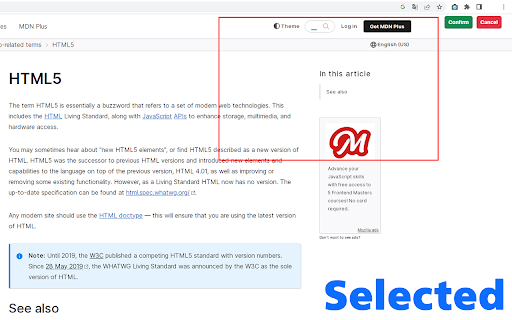


The page snipping tool for screenshot/capture webpage in full or part. An easy-to-use, completely free web screenshot extension. Function: Support full page screenshots; Supports screenshots of the current viewable area; Support selected area screenshot; Supports screenshots of interfaces other than the current web page, such as computer desktops, documents, other application interfaces, other tab interfaces, etc.; Feature: Your screenshots can be saved in three formats: PNG, JPG, and PDF; You can mark up your screenshots (draw lines in the screenshot, add arrows, etc.); You can select local images and mark them. You can copy the screenshot to the clipboard and paste it when blogging;

Full Page Screenshot
Full page screen capture is a simple extension that lets you capture the entire screen in one click. Get an entire page screenshot. Note: FOR THE BEST RESULT, SCROLL THROUGH THE ENTIRE PAGE BEFORE TAKING A SCREENSHOT. The Full Page Screenshot extension for Chrome is a powerful tool that allows users to capture the entire screen with a single click. With this extension, users can easily take entire page screenshots of websites, articles, documents, or any other content they come across while browsing the internet. The extension offers two convenient methods for capturing full-page screenshots. The first method captures the entire visible content of the webpage, including what's currently visible on the screen. The second method captures the entire page, scrolling down automatically to capture the hidden content that extends beyond the visible area. This ensures that users can capture every bit of information on the page without any limitations. In addition to the full page screen capture functionality, the extension provides several useful features. Users can annotate the screen by adding various figures, shapes, lines, or other elements to highlight or emphasize specific areas of interest. This makes it easy to communicate information visually or draw attention to important details within the screenshot. Once a webpage is captured and annotated, users have multiple options to save and share it. They can download the image directly to their PC, making it easily accessible for future reference. Also, users can copy the screenshot to the clipboard and paste it into a message or any other application. This feature allows for seamless sharing with colleagues, friends, or anyone else. The extension is designed to cater to users who require comprehensive screen capture capabilities. Its intuitive interface, quick one-click functionality, and convenient annotation and sharing features make it a valuable tool for both personal and professional use. Why Full Page Screenshot? 1. Comprehensive Content Capture: Full page screen capture allows users to capture an entire webpage as it appears on their screen, including all visible content such as images, text, and interactive elements. This is especially useful for saving articles, blog posts, or other online content for offline reading or reference. 2. Design and Development Evaluation Web designers and developers often use entire page screenshots to assess the overall layout and appearance of a webpage. By capturing the entire page, they can review how different elements interact, check for visual inconsistencies, and ensure the webpage renders correctly across different devices and screen sizes. 3. Documentation and Reporting Full page screenshot is valuable for documentation and reporting purposes. They enable users to create visual records of webpages, which can be shared with others for reference or analysis. This is particularly useful in fields like user experience (UX) design, where capturing the entire page context helps communicate design decisions or identify areas for improvement. 4. Comparison and Analysis By creating full page screenshots of different versions of a webpage or different webpages altogether, users can easily compare and analyze changes in design, content, or layout. This is beneficial for A/B testing, tracking design iterations, or evaluating the effectiveness of different webpage variations. 5. Sharing and Collaboration Entire page screenshots are often shared with clients, team members, or stakeholders to gather feedback or discuss specific aspects of a webpage. They provide a visual representation of the webpage's appearance, facilitating effective communication and collaboration among team members, regardless of their physical location. Overall, Full Page Screenshot offers a convenient and versatile way to capture, evaluate, and communicate webpage content and design, making them a popular choice among users.

Screenshot Tool - Screen Capture & Editor
Innovative screenshot tool lets users screen capture and edit screenshot. Full page screen capture. Take stunning screenshots of entire websites and capture page elements. Offline. No registration. Screenshot tool - captures entire websites and user areas. Ready-made screenshots can be quickly edited (crop, paint over, add arrows, captions or text). Screen Capture tool for making a full page or partial capture with further editing, download, or text adding. Make a full webpage screen capture or just any part of it with an opportunity to edit, save and download screen capture to your PC. The app is launched from a browser that totally saves your time. Simply click the extension icon to choose from options whole page capture or a selected part. You will not see any additional windows with websites here. Why waste time if you just want a screenshot? Want to share your screen for cases like reporting technical issues, making product demos or how-to tutorials? Here are reasons to choose Screenshot and Screen Capture: ✔️ Screenshot of the full page, not just the visible area or selected area; ✔️ Screenshot on One-Click; ✔️ Storage and processing without a server; ✔️ Save PNG files or Copy it to the clipboard with One-Click; ✔️ No login or registration required; ✔️ There are no restrictions on the size or size of the file; ✔️ Edit and discard changes your screenshot; ✔️ Add graphic and text elements such as pointer, arrow, square and other shapes; Click on the extension icon (in the upper right corner of the browser) then choose one of the options capture and watch the Screenshot Tool capture each part of the page and then transfer the finished screenshot to a new tab, where you can edit the image and upload it as a file to your PC. Notes Remember to reload the page after you install extension before trying to take a screenshot of it (Chrome should initialize the extension for each page). The extension Screenshot tool is completely free and easy to manage for users. If our extension is useful to you, please give us 5 stars!

Full page screenshot in One Click
A screenshot of the full page in one click. Just click one button and the screenshot will be saved on your computer. You didn't know how to take a screenshot of the full page of the site? Now it can be done in one click using the Full page screenshot in One Click. Just press one button and a screenshot of the entire page is saved as a png image to your computer. How to use: 1. Find the extension icon on the toolbar. Make it always visible with the "Pin" button. 2. Open any page 3. Click the button on the toolbar 4. Choose where to save the file

Simple Screen Capture: Full Page Screenshot
Simple Screen Capture is a handy Chrome Extension that allows you to effortlessly capture full page screenshots with just a click. Easily capture & save screenshot of a whole web page or a part of it with a single click Have you ever been in a situation where you needed to capture a screenshot of a webpage but ended up with a partial image or missing important information? 😫 It can be frustrating and time-consuming to try and get the perfect shot, especially if you're not familiar with keyboard shortcuts or other methods for capturing screenshots. Fortunately, there is a solution that makes the process quick and easy - Simple Screen Capture! 🙌 This handy extension allows you to capture and save screenshots of entire web pages or specific sections with just one click. One of the biggest advantages of using Simple Screen Capture is that it saves you time and effort. Instead of manually taking multiple screenshots and trying to piece them together, this extension captures the entire page in one go. This means that you can get all the information you need in one shot, without having to worry about missing anything important. ⏰ Another great feature of Simple Screen Capture is its user-friendly interface. With just a few clicks, you can easily crop and edit your screenshots before saving or sharing them. This allows you to customize your images and make them look exactly how you want them to. 🎨 But that's not all - Simple Screen Capture also allows you to add annotations and highlights to your screenshots. This is especially useful if you need to point out specific information or highlight important details for others to see. 📝 Furthermore, Simple Screen Capture is compatible with all major browsers, including Chrome. 🌐 Whether you're a student, researcher, or just someone who loves to share content with friends, Simple Screen Capture is a must-have tool for anyone who wants to streamline their screenshot process and save time. So why wait? Try out Simple Screen Capture today and see how easy it is to capture and save your favorite online content! 🚀
