
obknigmaekkacdkckfeegcfiefdaeked
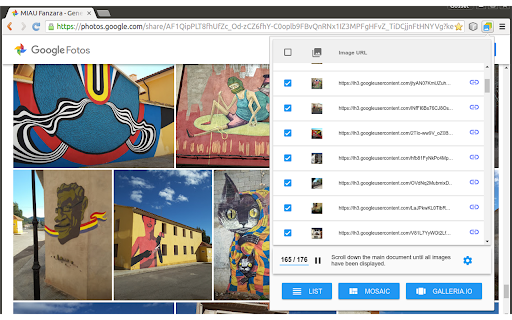
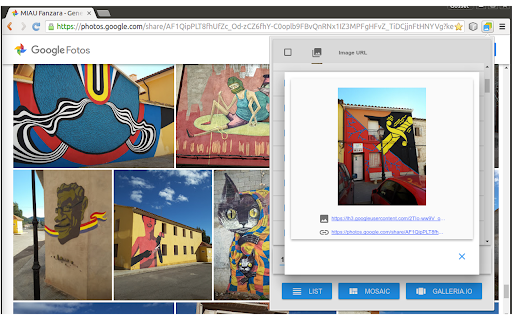

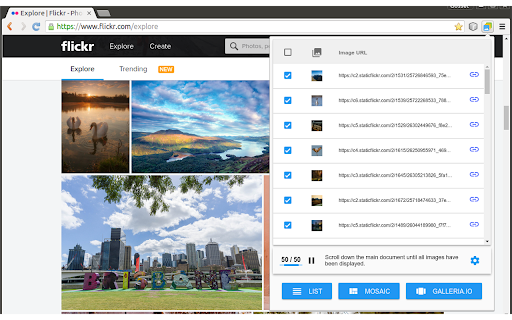
Builds a list with the images present on the current page and exports it as text, mosaic or carousel. This extension detects the images on the current page and shows them in a list that can be exported in three different formats: - A simple list of absolute URLs pointing at the images. - An HTML snippet with "img" tags forming a mosaic. Images can also export their original links. In all cases, the data is copied into the clipboard and can be inserted into any text editor by pressing [Ctrl+V]. Mosaic and carousel snippets can be inserted into documents, blog posts, virtual learning environments and any other application based on HTML content. Before pasting the code into a rich-text editor, be sure to set it in "plain text" mode (usually represented by a button with the symbols "" or "html"). This is a free software project. You can contribute to improving this browser extension by reporting issues, translating it to a different language or sending pull requests to https://github.com/projectestac/album. Thanks in advance! Special thanks to the excellent work done by galleria.io (http://galleria.io), the open source engine beneath the image carousel. In addition to the basic free theme used by Album, they provide also with other nice and featured themes at cheap prices. Note that Album does not copy images nor any type of files: it just deals with URLs pointing at remote resources. Issues with the images (slow loading, file not found...) are often related to problems with the origin of the images. IMPORTANT NOTE FOR GOOGLE PHOTOS USERS: Due to changes in the way Google Photos works, the extension is not able to open some images when activated directly within the application. To solve this you must follow the following steps: 1) Create a Google Photos album, name it, and add photos to it. 2) Create a link to share the album using the "Share" button on the top right. 3) Copy this public link and open it in a new tab or an incognito Chrome window. 4) In this new tab or window, use the extension as normal.

TabStacks: tab and history search
View and search through open tabs and browser history. TabStacks is a vertical tab menu that helps you find the content you were looking for. Filter the tabs you have open and TabStacks will list the open tabs that match. If TabStacks can't find an open tab, it searches through your history to see if you had a tab open previously! TabStacks is designed to be keyboard and screen reader accessible. Press [CTRL]+[SHIFT]+[K] to open the menu, start typing to filter your tabs, and use the [DOWN] arrow key to navigate to the tab you want, and [ENTER] to open that tab. You can always use your mouse as well. You can search through your history during a tab search by pressing [CTRL+SHIFT+S]. You can close a tab by highlighting it in the list using the arrow keys or right-click and pressing [DELETE] or by clicking the close button on the tab. TabStacks is a high performance and secure extension for Chrome. TabStacks doesn't download external files, doesn't store any information about your activity. *** UPDATES *** Version 2.0.2 * Fixed bug where the popup doesn't close on tab change * Added a settings item to allow the option to hold the popup open Version 2.0.1 * The default keyboard shortcut for toggling the search is now CTRL+SHIFT+S due to the browser using nearly all possible combinations of CTRL+ a single key. * The keyboard shortcut key is now configurable, you can modify it in the settings page. Click the gear icon at upper right of the popup to access settings. * Minor cosmetic updates to the settings page. Version 2.0 * Tabs shown in the popup are synchronized with the state of the tabs in the browser: * Title updates are reflected in real-time. * New or deleted tabs are reflected in the tab list. * Close tabs using a button on the tab. Close buttons show on hover or focus. * Tabs display an audio icon if playing audio. * For audible tabs, clicking the icon will mute and unmute the tab. * Settings page has been added, click the gear icon top-right to access settings. Version 1.0.8 * Added lazy loading for site icons to speed up rendering * Reduced requested browser permissions Version 1.0.7 * Linux support for launching TabStacks from keyboard with [CTRL+SHIFT+K]. * PopupMenu now has a max-height instead of fixed height. * Fixed bug on Windows where the scroll bar was rendered even if the tabs would not scroll. Version 1.0.6 * Improved search algorithm for both tabs and history. * Searches much longer history time period. * Tabs in the current window always appear at top when popup is opened (User suggestion). * URLs for tabs appear on focus or mouseover (User suggestion). * Engineering improvements under the hood to use Web Components for rendering.

Extentie - extension manager
A simple and elegant Chrome extension manager allows you manage your extensions in a popup window. Extentie is a simple and beautiful tool that allows you to toggle and manage Chrome extensions in a popup. Latest update: - Now you can create your own groups to manage your extensions - Revamped from ground up, added more features

Awesome Button Bar
Button bar, combining downloads, bookmarks, extensions, history, view source, print, and more from a single button. Awesome! Extensions, history, downloads, bookmarks, view source, options, new window, and print are all here. Recently added buttons are duplicate tab, second home, and refresh all tabs. Showing each button on the bar is optional so you don’t have to have them all if you don’t want them all. Also, each button can be configured to open either in the current window or in a new window. Note: print to a new window now works too!

MyMenu
Your personal menu ! Former name: Customize Menu. A collection of chrome pages with additional functions v1.3.0 customize font size fix edit item and delete item button v1.1.1 new feature: Cloud sync It is disabled for old user. (Because you may have different setting in different computer) To enable it, just go to Backup tab and check "Synchronous Setting". new feature: a lot of panels related functions Unless you use dev or canary channels, you should go to "chrome://flags/#enable-panels" and Enable Panels to make them work. v1.0.0 Chrome Style option page Remove Task Manager Remove script and custom item support(because of new chrome extension rule)
