
npidohmmbejkcfpcheggofmfdbnlhngg
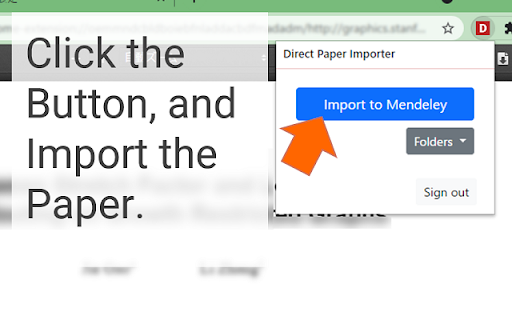
Import a PDF paper file from PDF viewer to your Mendeley Library directly. When you are opening a PDF paper by the PDF viewer, you can import the paper to Mendeley Library directly. Notes: ・If you use this extension, you have to register your Mendeley's account. ・It only works when you open a PDF file by PDF.js viewer or chrome's default pdf viewer. Other viewers are not confirmed.

PDF Viewer
Uses HTML5 to display PDF files directly in the browser. PDF.js is a Portable Document Format (PDF) viewer that is built with HTML5. PDF.js is community-driven and supported by Mozilla. Our goal is to create a general-purpose, web standards-based platform for parsing and rendering PDFs. This extension offers PDF.js as the default PDF viewer in Chrome. This is the official Chrome extension of the PDF.js project. Be careful of unrelated copycats. If you want to use this viewer to view local files, visit chrome://extensions/?id=oemmndcbldboiebfnladdacbdfmadadm and put a check before "Allow access to file URLs".

Citation Saver
Extension that highlights what you had previously highlighted on a page. Citation Saver allows you to link directly back to content you highlight on a page–that way you can cite text on a page and return to it later. If you follow a Citation Saver link in another browser (or if you decide to uninstall Citation Saver), your link will still be valid and will take you to the same page; your browser just won’t automatically highlight the citation. This is not a link shortening service. We’re not logging any of your page visits; the experience takes place entirely in your browser.

Science Research Assistant
Search for scientific information as quickly as possible while researching and writing scientific papers. Save notes for reference. Science Research Assistant is a powerful Chrome extension designed to assist scientists, students, journalists, and anyone seeking reliable scientific research. Whether you're writing a thesis or gathering facts, this tool ensures you find and utilize research efficiently and effortlessly. With a simple selection of any keyword or phrase on a webpage, you can instantly search relevant scientific journals. The extension also offers advanced meta-search options and other valuable tools to enhance your research process. You can easily save text from webpages or PDFs for future reference, and seamlessly export your saved records to PDF for better organization. The built-in algorithm analyzes text from any webpage, identifying the most frequently used keywords and key information, all while highlighting important details. You can even customize the algorithm with your own rules, enabling you to swiftly pinpoint the most crucial insights from lengthy papers or web content. If you're still in the early stages of exploring a research topic or formulating a hypothesis, the Science Research Assistant helps you navigate the overwhelming volume of available information. With its News and Trends feature, you can quickly gauge the popularity and future relevance of a topic, while receiving related suggestions to inspire fresh ideas. This extension is your essential tool for fast, accurate, and insightful research, helping you stay ahead in your field. Science Research Assistant will help you to: · Search and analyze the complex structure of web information · Search scientific journal articles · Search books · Search patents · Search records history · Save notes to record's history · Backup your notes · Compile reports and export to PDF · Use helpful meta-search patterns to dig deeper into the web · Track news and trends Usage: - Save selection text to notes – select text on a web page, click the right mouse button, and choose “Add .. to notes” from your context menu. - Keyword analysis – click the right mouse button and then choose “Keyword frequency analysis (beta)” from the context menu. - Keyword distribution – click on the highlighted keyword to see all its appearances in the text. - Keywords analysis settings overlay – choose the number of words in a keyword phrase (one to five) and the minimum required frequency within the text (from two to 10) you would like to get analysis for. Click the refresh button or remove the results button to remove the analysis. - Selection search – select any word in text on a web page, click the right mouse button, and choose “Science search for ..” from your context menu. This activates a search of various journals and web tools (see Settings). - Settings/Manual search – click on the extension icon in the top right corner of your web browser. - Filter saved records by keyword - Click "A+" button to resize the text - Click "📤 to PDF" button to export selected records and notes to PDF. - Click 🗑️to remove selected records and notes. We always welcome suggestions on what science sources and useful tools to include in future releases of the Science Research Assistant, so do not hesitate to contact us by using the provided form in the settings section. Thanks for all feedback!

Entire screen scihub document viewer
Read the document using your entire screen without sidebar
